Use it when many bills need new service dates, for example a run of monthly bills that should cover different months. Your prepayments and cost accrual journals pick up the new dates. For customer invoices, use the Invoice Bulk Editor instead.
1. Open the Bill Bulk Editor
- Go to Journals. Month-End Close opens.
- Open one of the cost steps: New Supplier Bills, Prepayments Journal (Select or Post Journal), or Cost Accruals Journal (Add, Select or Post Journal).
- Click the three dots at the top right and select Bill Bulk Editor.
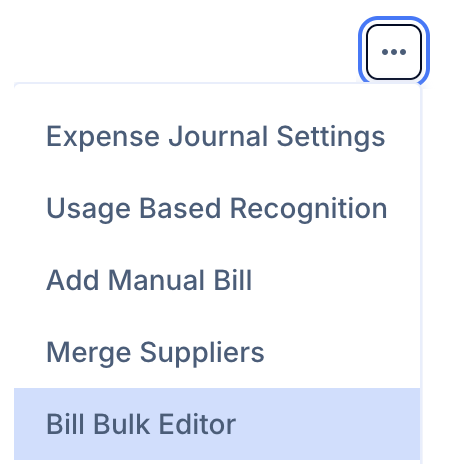
Note: The option shows only for users who can edit, and not for guest users. Click Exit at the top right to go back to the page you came from.
2. Find the bill lines
The page lists bill and bill credit note lines together, for the months in the date range at the top right. Use Filter by accounts to show only some accounts.
In the search box, type a supplier, a bill number or any part of the line description. Search ignores capital letters, so typing office cleaning finds every line that mentions it.
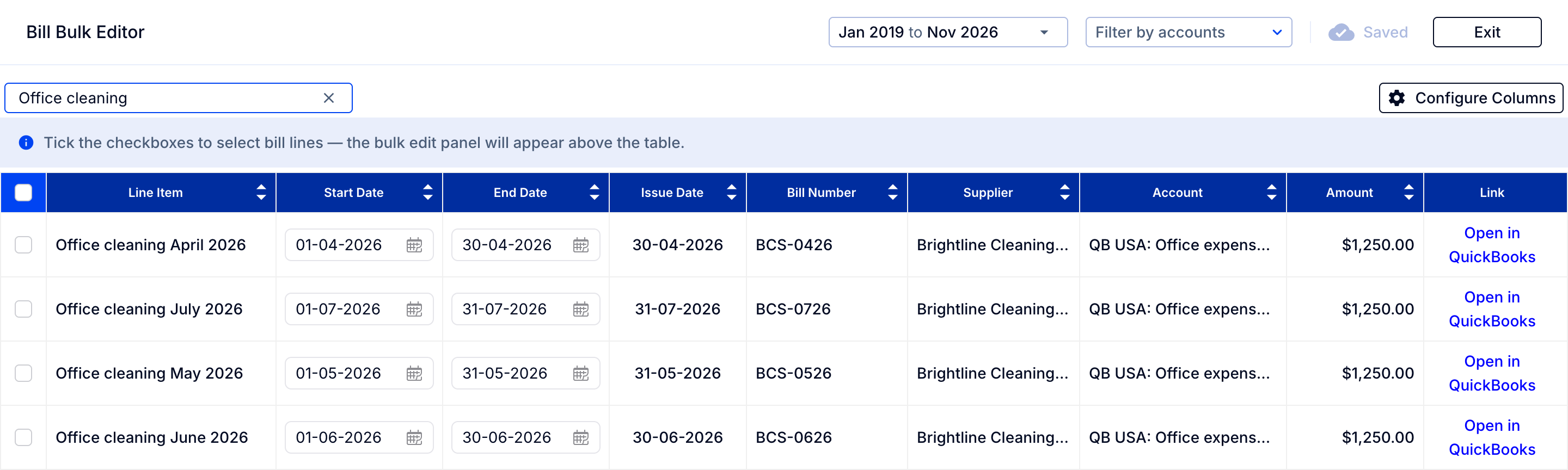
Click a column heading to sort by it. Link opens the bill in your accounting system.
3. Change the dates on one line
Click the Start Date or End Date on a line and pick the new date. It saves straight away: the top of the page shows Saving, then Saved. The account can't be changed here.
4. Change the dates on many lines
- Tick the box at the start of each line you want to change, or the box in the header to select every line shown. The bulk edit panel appears above the table.
- Set the new Start date and End date. Or set a start date and a Term, from Monthly (1 month) to 3 years, and the end date is worked out for you.
- To keep a line's own date, tick Do not change start date or Do not change end date. With a term, the other date then shows Calculated per row: each line gets its own date, counted from the date it already has.
- Click Apply to selected rows. Cancel or Clear selection closes the panel without changing anything.
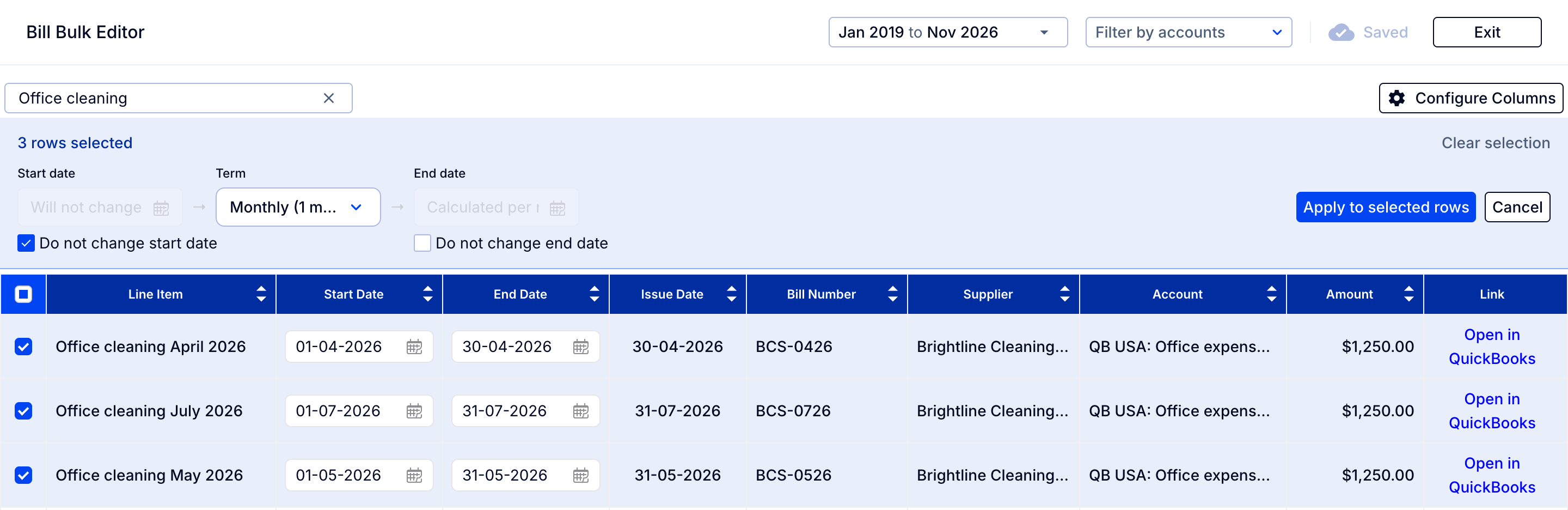
A term covers whole months: a 12-month term from 01-03-2026 ends on 28-02-2027.
Note: Some lines are left as they are, and a message says how many:
- usage-based lines, which have no start or end dates;
- lines where the new start date would fall after the end date.
Lines excluded from the journal keep their bill date and show the message "This line item has been excluded from the journal and recognised in a different month than its issue period." If part of a large change can't be saved, the page says how many lines weren't saved; the rest stay saved.