Set a minimum monetary or percentage threshold that a change in revenue must exceed to count as an upsell or downgrade, so small month-to-month changes are ignored.
1. Set the thresholds
- Go to Customers (top navigation menu), click the three dots (More options, top right) and select Labels & Definitions.
- Choose the most appropriate thresholds for each. You can either set a monetary (such as $500) or percentage (such as 7%) based threshold that must be exceeded to be considered an upsell or downgrade. Entering 5%, for example, will require an increase or decrease of more than 5% from month to month to be considered an upsell or downgrade.
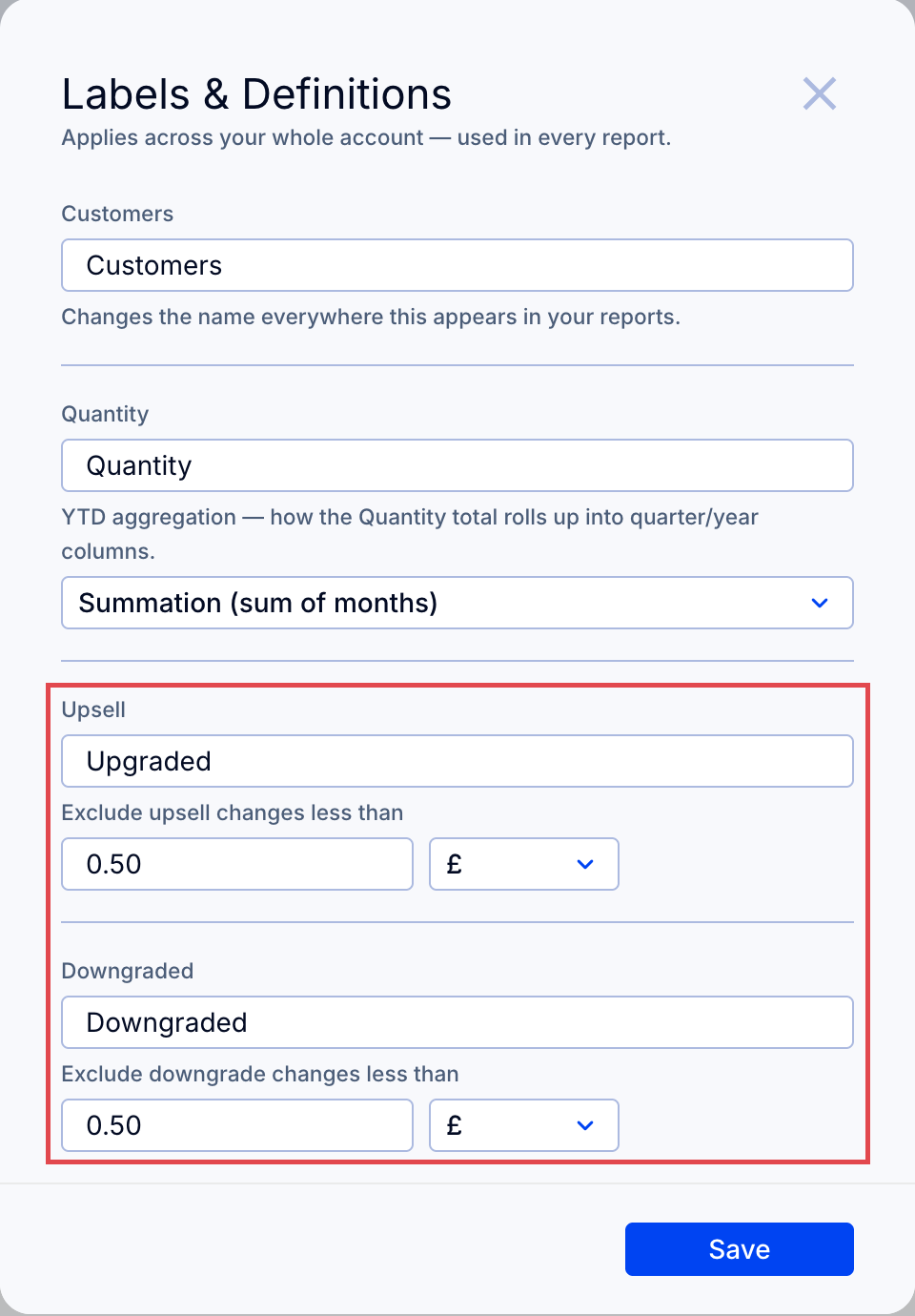
Important: Changing thresholds impacts all reports, graphs and metrics viewed from within that organization. For meaningful upsell and downgrade reporting, set the same thresholds in each subsidiary and in the consolidated organization.
How upsells and downgrades are defined
By default, ScaleXP treats any increase in revenue of more than 0.50 (in your home currency) from the prior month to the current month as an upsell. The inverse is true for downgrades. This applies to all reports, including revenue recognition.
Note: Revenue streams which start mid-month will be viewed as upsells in the first full month of the revenue recognition report. To eliminate this impact, view upgrades/downgrades from an MRR report. See Revenue setup 1: Configure and validate revenue recognition.
If it's common for your business to fluctuate from month to month due to foreign exchange or inflationary increases, and if you do not want these minor fluctuations to be considered upsells or downgrades, you can set a minimum threshold for changes.
These thresholds apply to all reports viewed from that organization, including Revenue Recognition as well as MRR reports, and related charts, graphs, metrics, etc.
So in a consolidated organization, it will impact all reports viewed from the consolidated entity (MRR, Revenue Recognition, related charts and metrics, etc.) You will, however, need to set thresholds separately for any reports viewed from within a subsidiary, as those reports have their own settings, controlled from the Customers page in that entity.