You choose the Xero tracking codes or QuickBooks classes to include on ScaleXP's proposed revenue journals in Revenue Journal Settings.
1. Choose your tracking codes or classes
- Open a revenue journal from Month-End Close on the Journals tab.
- Click the three dots at the top right and select Revenue Journal Settings.
- Under Classes, Locations (QuickBooks) or Tracking Codes (Xero), select the ones to include.
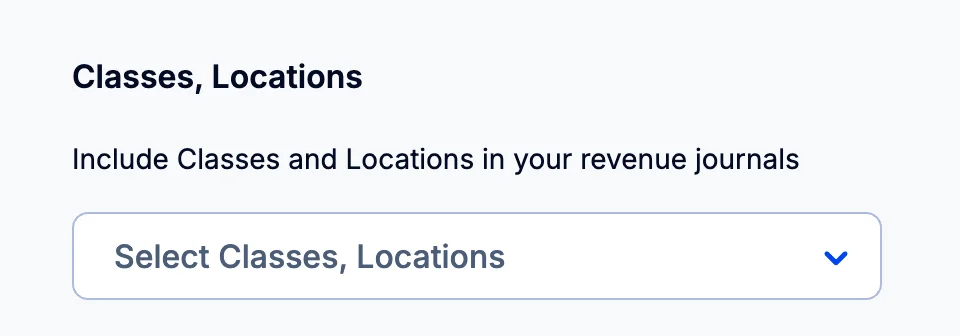
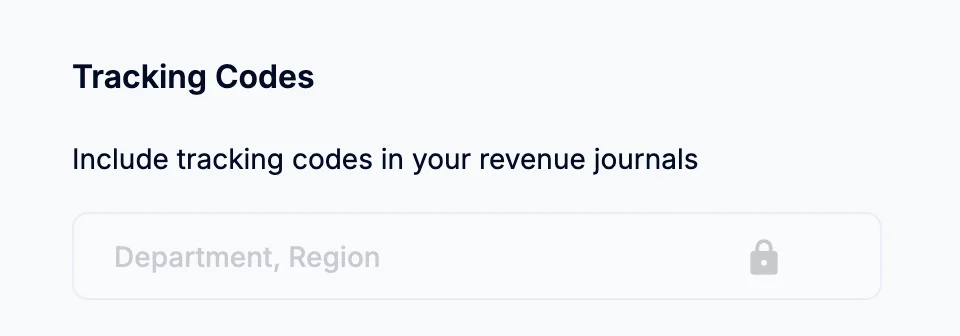
- Click Save.
Note: Once set, only a ScaleXP admin can change these selections. Please contact [email protected] if you require a change.
See Revenue setup 3: Choose your journal settings.
How it works
Once you have selected your tracking codes or classes, ScaleXP will automatically propose journals including those designations, based on the information used in your invoiced revenue in the accounting system.
Note: Changes to the tracking codes or classes on individual invoices must be made in your accounting system.
Once synced with ScaleXP, changes to invoices will automatically update in ScaleXP along with the suggested deferred and accrued revenue journals.
Tip: Want one journal line per customer as well? Switch on Journals by customer in the same settings panel. See How to set up revenue journals by customer.