You can choose which Customers page each individual metric on a report or dashboard pulls its data from.
1. Choose the Customers page for a metric
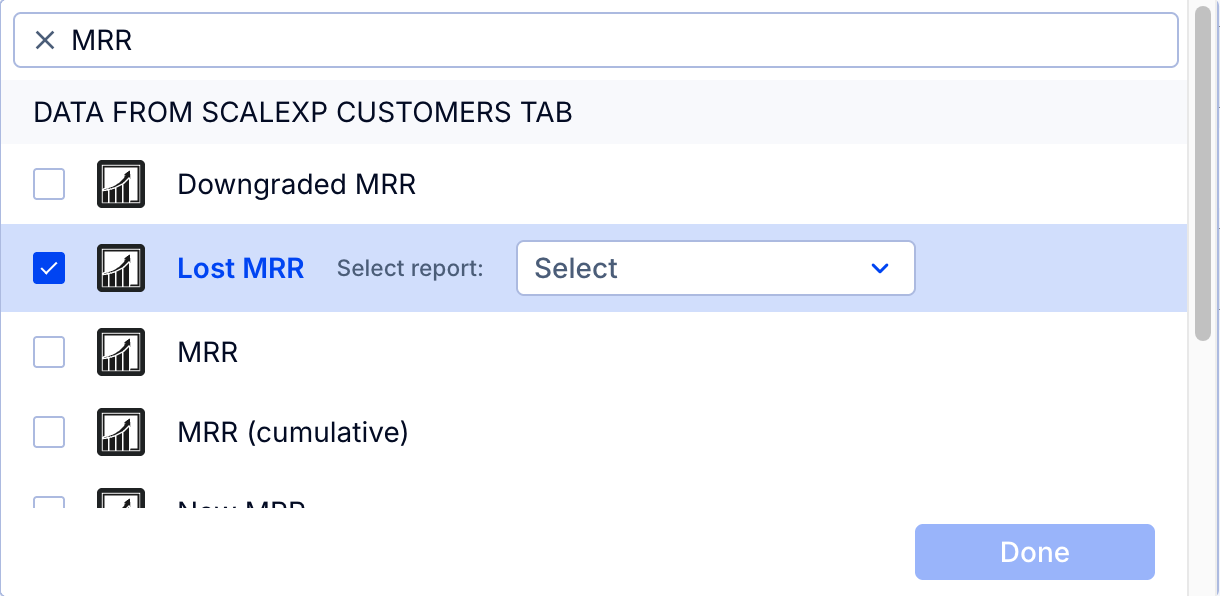
- Create or modify a report or chart metric and select one of the Customers page metrics listed below.
- In the second dropdown, choose which Customers page to retrieve that metric from. If left unchanged, it will always pull from the Global Default page.
Tip: You can tell which page is the Global Default on the Customers Page by finding the one with the globe icon next to the name.
Available metrics
These metrics are available from the Customers pages:
- MRR, and New, Lost, Upgraded, Downgraded and Reactivated MRR (named Revenue, ARR or IFRS instead of MRR for reports of those types)
- Active Customers
- New Customers
- Lost or Churned Customers
- Upgraded Customers
- Downgraded Customers
- Reactivated Customers
- Quantity, and New, Lost, Upgraded, Downgraded and Reactivated Quantity
Note: If your organization has renamed the terms Customers, Upgraded, Downgraded or Quantity, the metrics use your names.
How it works
Previously, you could only show data in reports and dashboards from the Global Default Customers Page report. If you wanted to point your reports to MRR, you wouldn't see your revenue from Revenue Recognition, and vice versa. Now you could, for example, show how many new customers you gained as determined by the MRR page and how much total deferred revenue you should recognize from the Revenue Recognition report.