You can review every invoice issued in a month, find a missing invoice and download the list to Excel on the New Customer Invoices page.
1. Open the New Customer Invoices page
- Go to the Journals tab.
- On Month-End Close, click Open on New Customer Invoices in [month].
2. Find a missing invoice
- Under Invoices issued in, select the month in which the missing invoice was issued.
- Search by invoice number or customer name to find the invoice.
3. Download the list to Excel
- Use the download button at the top right of the page to download the full list of invoices and line item detail. The line items include a column for each active tracking category shown on the page (up to two; in QuickBooks, Class and Location).
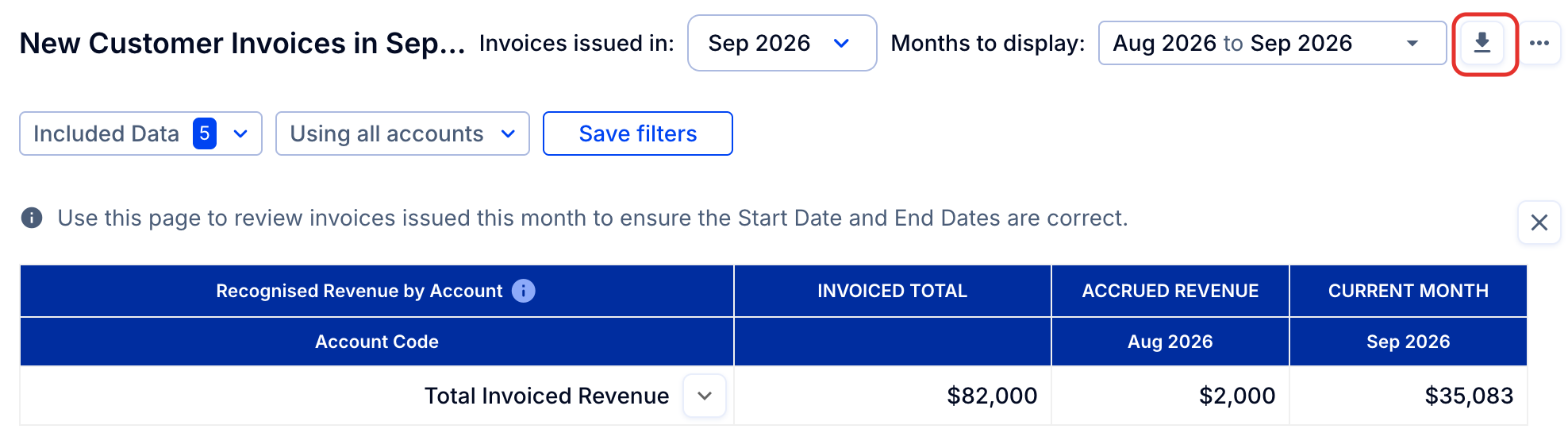
About the New Customer Invoices page
On this page, you will see a list of all invoice line items for invoices issued in the month, along with service dates (Start Date, End Date), line amount totals, and revenue allocations by month.
Revenue allocation is split into three categories:
- accrued (for goods and services delivered before the invoice issue date)
- current (delivered in the issue month)
- deferred (for goods and services delivered after the issue month and therefore requiring deferral from revenue recognition)
At the top is a summary by account.
You can select different revenue recognition date ranges and filter for one or more accounts. You can also filter by invoice source (for example: generated by the accounting system, manually generated in ScaleXP, or generated in ScaleXP via Stripe).
Note: Use this page to review and edit invoiced revenue Start and End dates by month issued and get a quick view of deferrals and backdated revenue. See other options for reviewing and changing the date in The system has not recognized dates correctly. Why? How can I change them?