ScaleXP Invoicing matches each deal to a contact in your accounting platform using the deal's company name (B2B) or contact email (B2C), and maps the rest of the contact data from standard HubSpot properties, which the support team can customize.
Creating invoices with ScaleXP Invoicing
If you’re creating invoices using the ScaleXP Invoicing button on a deal, the system will first search your accounting platform for the contact. If no match is found, you can easily create the contact right from the same window, or search if you know the contact exists under a different name. All the data from your HubSpot record will be pre-filled automatically. You don’t need to re-enter it.
If you’re creating invoices from a workflow, you can decide how this contact search happens and whether a new contact should be created if one doesn’t already exist.
If you update data in HubSpot later, this won’t automatically sync to your accounting platform, but you can edit the details directly from the ScaleXP Invoicing window.
Choose between B2B and B2C
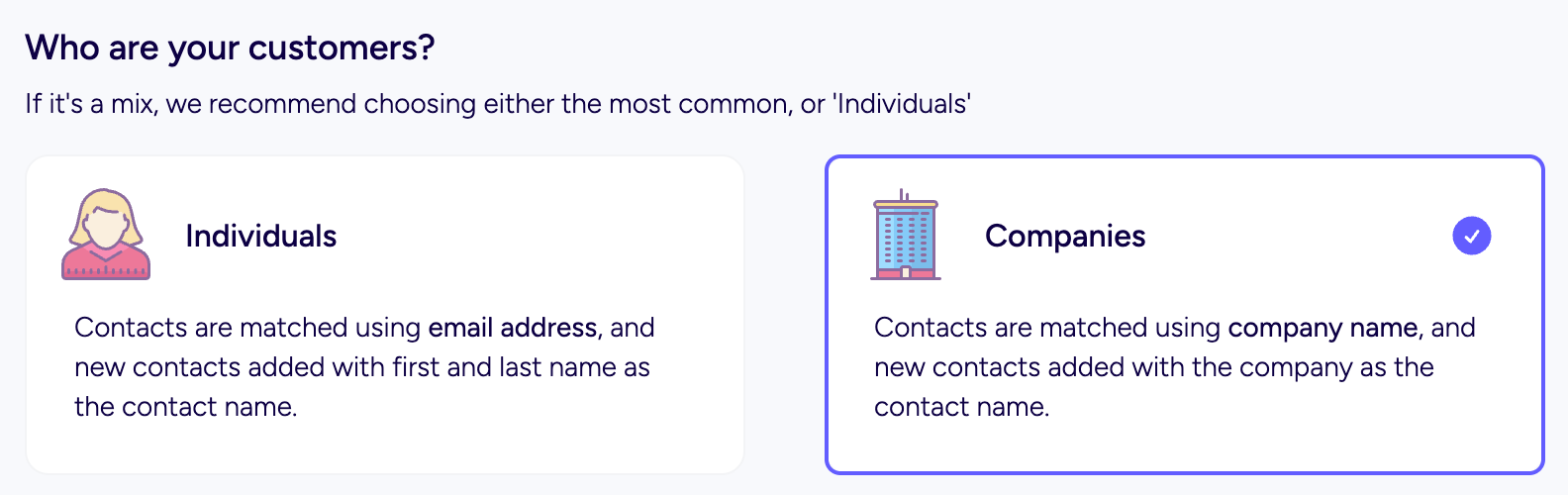
When you set up ScaleXP Invoicing, you’ll find a Preferences section that asks whether you’re billing Individuals (B2C) or Companies (B2B).
Who are your customers?
- If you’re billing Individuals (B2C): ScaleXP Invoicing will use the email address on the contact associated with the deal to search your accounting platform.
- If you’re billing Companies (B2B): ScaleXP Invoicing will use the Company Name of the company associated with the deal.
Mapping data between HubSpot and ScaleXP Invoicing
By default, ScaleXP Invoicing maps data using the following standard HubSpot properties. Not all fields are mapped because HubSpot doesn’t include defaults for every property. However, we can fully customize this mapping for you using Deal, Contact, or Company properties, as well as association labels.
For example, if you want to use a Deal property such as “Billing Email” or a Company property such as “Company Name for Billing,” we can configure that: see Set up custom mapping below.
| Accounting Platform Contact | HubSpot Property (B2B) | HubSpot Property (B2C) | Notes |
|---|---|---|---|
| Contact Name | Company → Company Name | Contact → First Name + Last Name | Used for Search in B2B |
| First Name | Contact → First Name | Contact → First Name | |
| Last Name | Contact → Last Name | Contact → Last Name | |
| Email Address | Contact → Email Address | Contact → Email Address | Used for Search in B2C |
| Phone | Contact → Phone | Contact → Phone | |
| Tax Number | Custom mapping only | Custom mapping only | |
| Account Number | Custom mapping only | Custom mapping only | Xero only. Used for search. |
| Company registration number | Custom mapping only | Xero only. Typically used for B2B contacts. | |
| Billing Address Line 1 | Company → Street Address | Contact → Street Address | |
| Billing Address Line 2 | Company → Street Address 2 | ||
| Billing Address City | Company → City | Contact → City | |
| Billing Address Region | Company → State/Region | Contact → State/Region | |
| Billing Address Postal Code | Company → Postal Code | Contact → Postal Code | |
| Billing Address Country | Company → Country/Region | Contact → Country/Region | |
| Shipping Address Line 1 | Custom mapping only | Custom mapping only | |
| Shipping Address Line 2 | Custom mapping only | Custom mapping only | |
| Shipping Address City | Custom mapping only | Custom mapping only | |
| Shipping Address Region | Custom mapping only | Custom mapping only | |
| Shipping Address Postal Code | Custom mapping only | Custom mapping only | |
| Shipping Address Country | Custom mapping only | Custom mapping only |
Contact or company associations
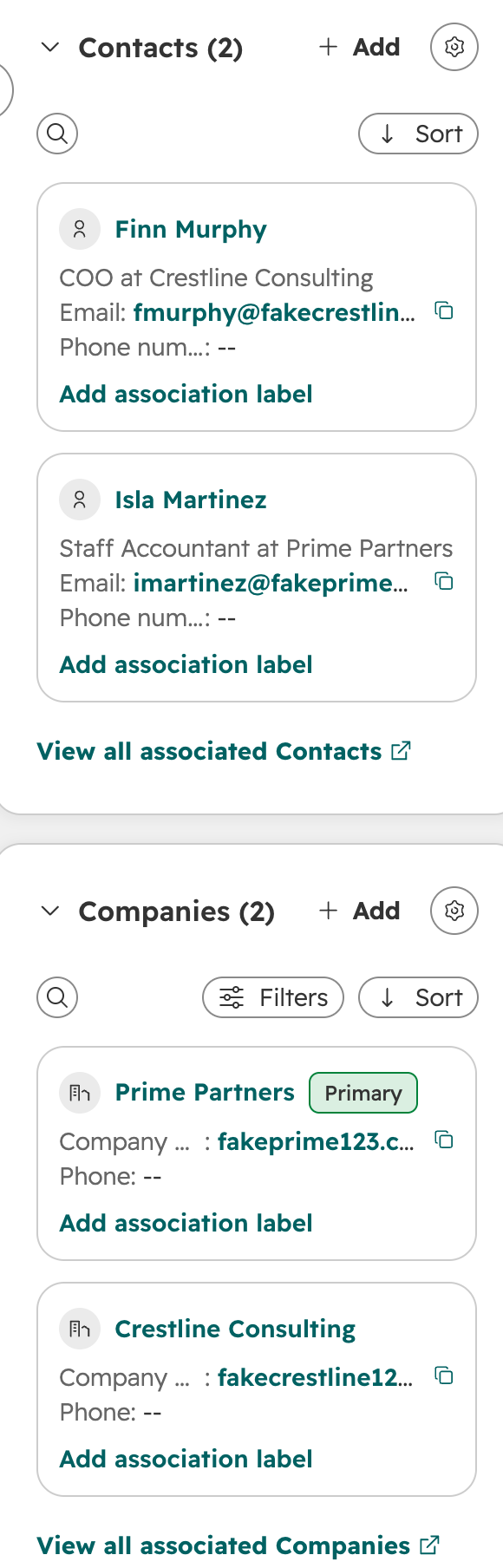
Sometimes you may have multiple contacts or companies linked to a deal. To choose which one ScaleXP Invoicing should use, you can take advantage of HubSpot association labels.
For example, if a deal has two contacts (Bob and Jane) and two companies (Partner Ltd and Bayside Club), and Bob is labeled Finance and Partner Ltd is labeled Billing, ScaleXP Invoicing pulls the contact and billing details from Bob and Partner Ltd.
If no contact or company has the specified label, ScaleXP Invoicing will default to using the Primary contact and/or Primary company on the deal.
Set up association labels
- Create your own association labels in HubSpot.
- Contact the ScaleXP support team with:
- The label name(s) you’d like to use
- An example deal ID or link we can review to confirm setup
Set up custom mapping
To configure custom mapping, reach out to the ScaleXP support team with the following details:
- The HubSpot property names you want to map to
- Whether each property is a Deal, Contact, or Company property
- A Deal ID or link with example data filled out
Once we have these details, we’ll set everything up for you.