Turn on Shorten subscription periods by 1 day in the Stripe configuration so each subscription line ends a day earlier and its revenue stays in the right months.
1. Turn on the setting
- Go to Load Data (top bar) > Connections (left sidebar) and click Configure on the Stripe card.
- Under Import options, turn on Shorten subscription periods by 1 day.
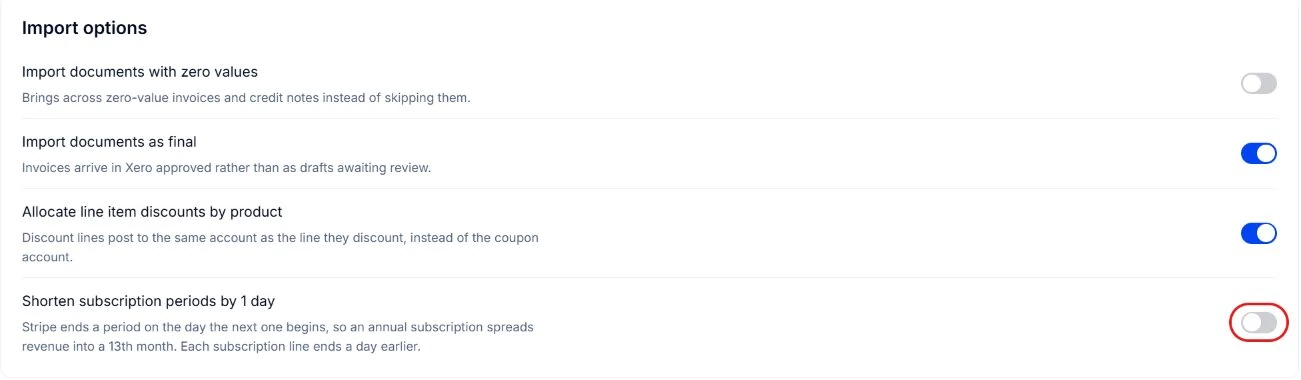
Each subscription line now ends a day earlier than the end date shown on the Stripe invoice: March 1 to April 1 becomes March 1 to March 31, and an annual subscription is recognized over exactly 12 months.
Important: The setting applies to invoices imported from that point on; it is not applied retrospectively to invoices already imported.
To review the dates on Stripe invoices already imported, open Journals > New Customer Invoices in [month], use Included Data to filter the invoice sources to the Stripe ones and check the recognition dates on a subscription invoice. See How to review Stripe invoices and find a missing invoice.
Why Stripe periods spill into the next month
Stripe ends a subscription period on the same day the next one begins. A monthly subscription invoiced in March therefore has a service period of March 1 to April 1, and an annual subscription runs from, say, January 1 to January 1 of the following year.
ScaleXP recognizes revenue across the service period on each invoice line, so by default that March invoice would be recognized from March 1 to April 1, with a small amount of revenue landing in April, and an annual subscription would spread revenue into a 13th month.