If you have uploaded a budget but it is not showing up as expected in your report or chart, check the possible issues below, starting with whether your report or chart is set to the correct budget.
My report shows the wrong budget
Your report may not be set to the correct budget.
Fix:
- Go to Reports (top bar).
- Click Edit (top right), then Edit columns.
- Check the dropdown menu for the budget column you are using.
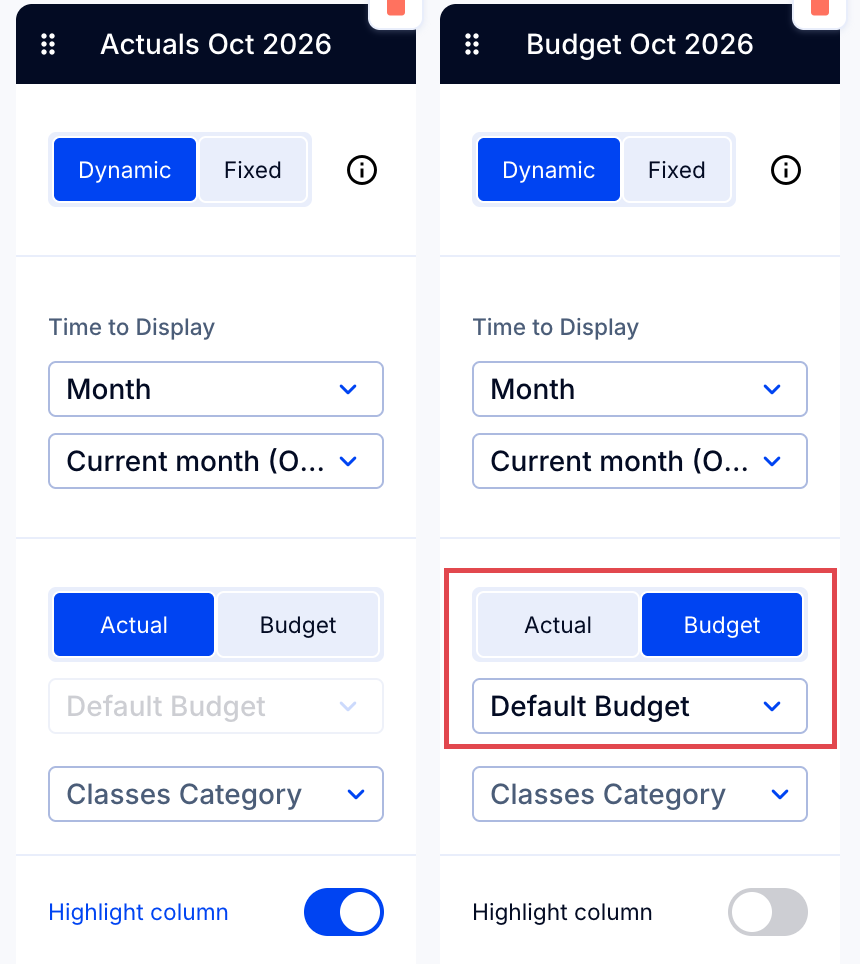
If it is set to Default Budget, check that the default budget is the one you intended (see below).
My chart shows the wrong budget
Your chart may not be set to the correct budget.
Fix:
- Go to the chart and click the three dots (top right of the chart).
- Click Configure Chart > Chart Series (top left).
- Scroll down to the series whose Data to display is set to Budget and check its Budget dropdown shows the one you want.
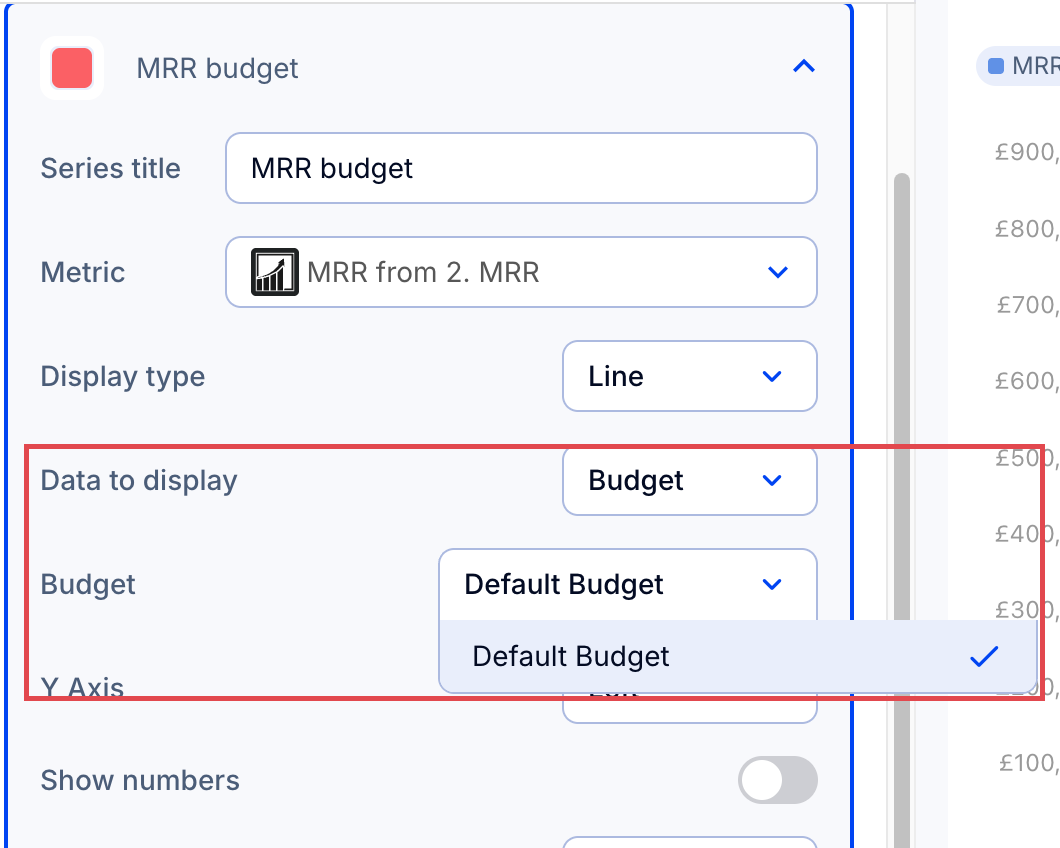
If it is set to Default Budget, check the default budget as described below.
My consolidated budget is missing some subsidiaries
You are in a consolidated company and not all the subsidiaries may have been included.
Fix:
- Go to Load Data (top bar) > Budgets & Forecasts (left sidebar).
- Look at the budget you are using. (See above to check which budget you are using in a report or chart.)
- Under Consolidated Budgets (from subsidiaries), find that budget and check the dropdown next to each entity. Select the budget for any subsidiary that is missing one; the change saves straight away.
- If a subsidiary has no budget to select, add one at subsidiary level first. See How to add a budget to a consolidated company.
My report or chart uses the wrong default budget
The default budget may not be the one you intended.
Fix:
- Go to Load Data (top bar) > Budgets & Forecasts (left sidebar). The default budget is the one highlighted in green. It will say Default Budget at the far right.
- To change the default budget, click Assign Default (far right) of the budget you wish to use.
My budget figures are wrong or don't cover the months I'm reporting on
Fix:
- Go to Load Data (top bar) > Budgets & Forecasts (left sidebar).
- Click View and Edit next to the budget.
- Change any cell or use Extend date range to add months, then click Save changes.
See How to view and edit a budget in ScaleXP.
Still stuck?
See How to add a budget or forecast.
Note: See Common budget upload issues.