Each month, enter the usage for your usage based accounts so ScaleXP recognizes the right revenue. How you do this depends on the data source you chose in Usage-based revenue: Set up.
1. Open the Usage Revenue page
Go to the Journals tab. On Month-End Close, click Open on Usage Revenue under Revenue.
2. Enter usage manually
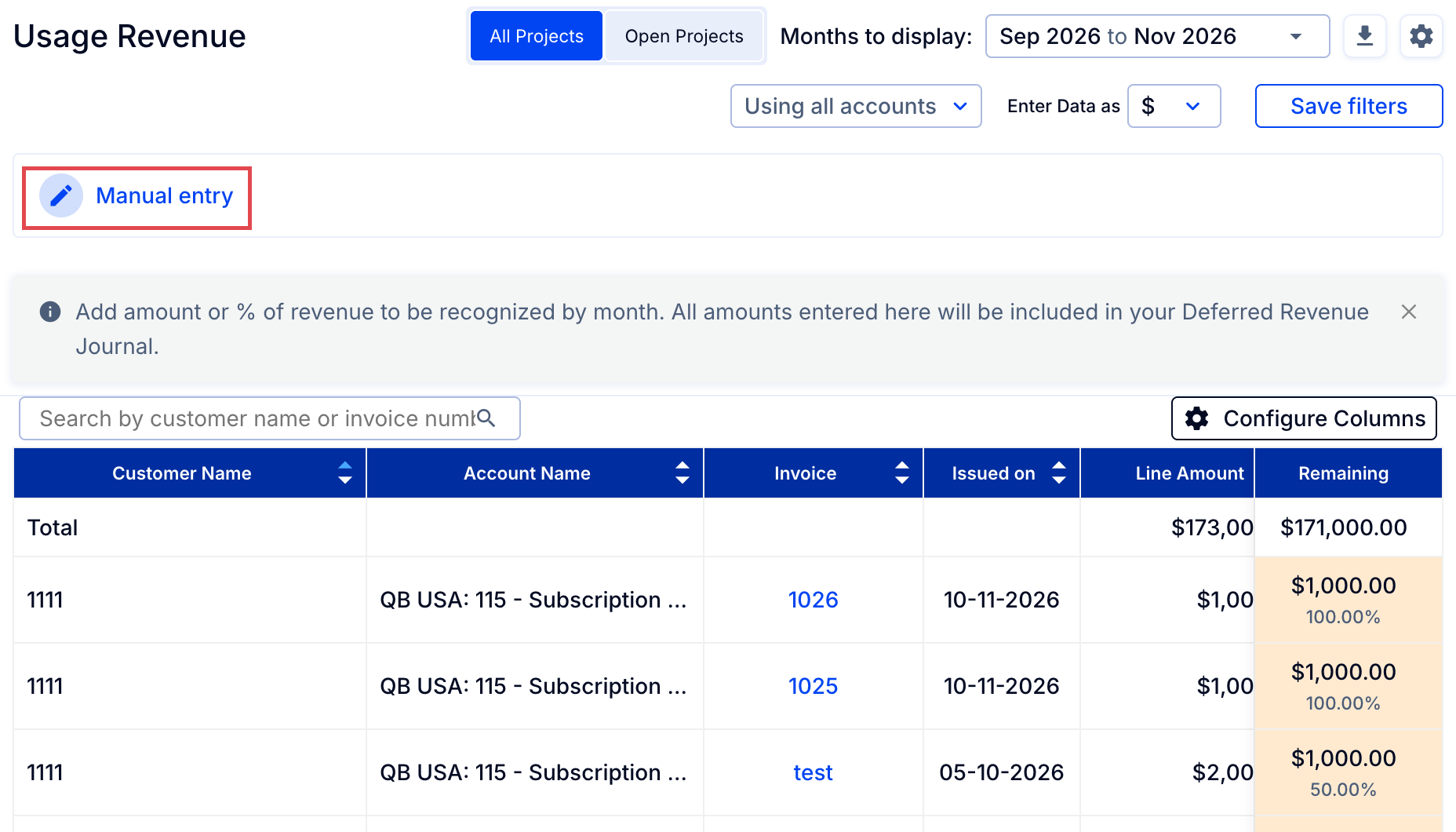
The page lists every invoice line in your usage based accounts.
- Use the filters at the top to choose:
- All Projects (default) or Open Projects, which shows only lines with revenue still to allocate.
- One or more accounts in the account filter, which reads Using all accounts when none are selected.
- The months to display.
- Enter Data as $ for amounts or % for a percentage of the line.
- The search box to find a customer or invoice number, and Configure Columns to choose the columns shown.
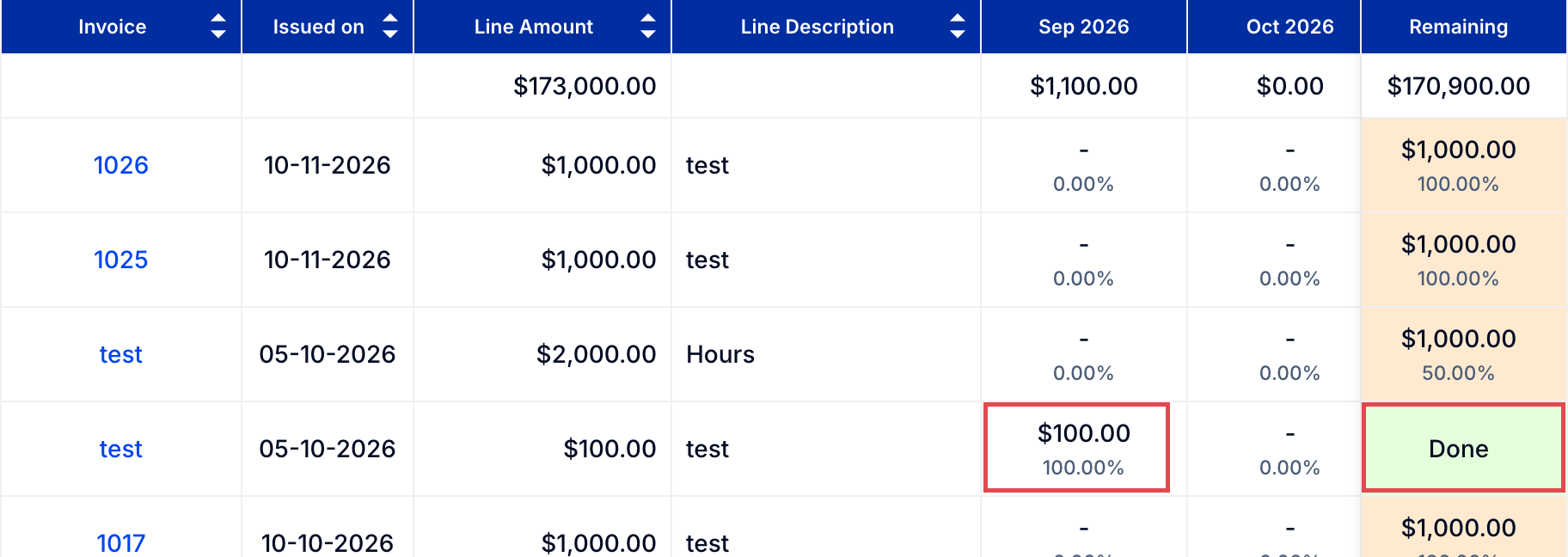
- Type the amount or percentage in the boxes under each month. The last column shows the revenue still to allocate.
Usage updates in ScaleXP as soon as you enter it, and when a line is fully allocated, Remaining turns from orange to green and shows Done.
A line is Done only when every cent is allocated, in the invoice's currency. If even one cent is left, the line stays open until you allocate it. A leftover worth less than a cent in your home currency shows as, for example, < $0.01.
3. Update a connected Google Sheet or Excel file
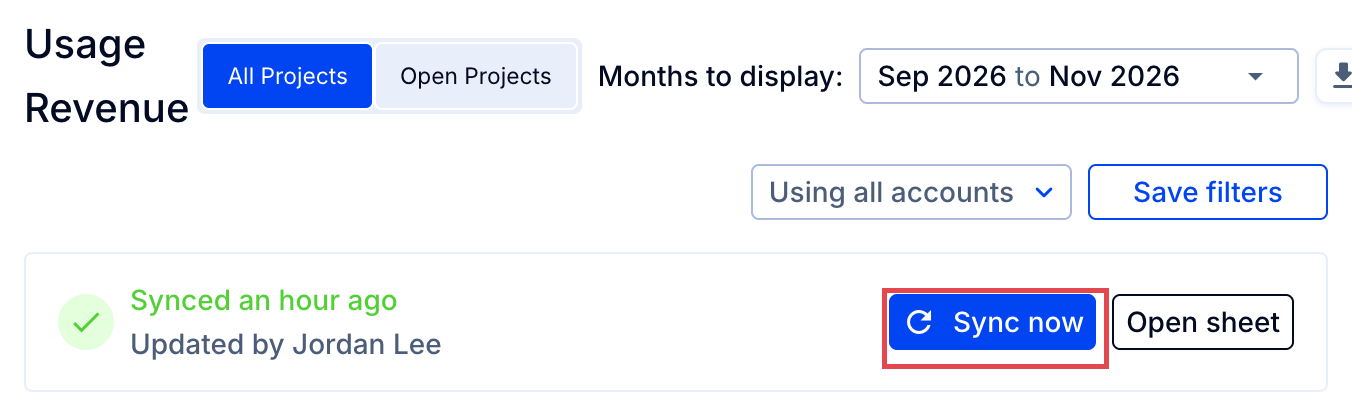
- Click Open Sheet at the top right of the Usage Revenue page.
- Update the usage in your connected sheet.
- ScaleXP syncs daily. To update straight away, click Sync Now at the top right.
With a spreadsheet connected, you can't enter usage on the ScaleXP page. Always update the sheet.