If ScaleXP Invoicing shows a Connection Error for Xero, reconnect Xero from Connections > Accounting in the ScaleXP Invoicing dashboard.
ScaleXP Invoicing shows a Connection Error for Xero
Sometimes Xero gets disconnected from ScaleXP Invoicing. This can be either an issue in your user permissions or connections, or an issue from the Xero side. If the issue is a lost connection on your side (for example, because your user permissions have changed or someone has disconnected the app from Xero), reconnect Xero.
Fix:
- Log in to the ScaleXP Invoicing dashboard: app.scalexp-invoicing.com/
- In the left sidebar, under Connections, select Accounting.
- Click Reconnect for your Xero account.
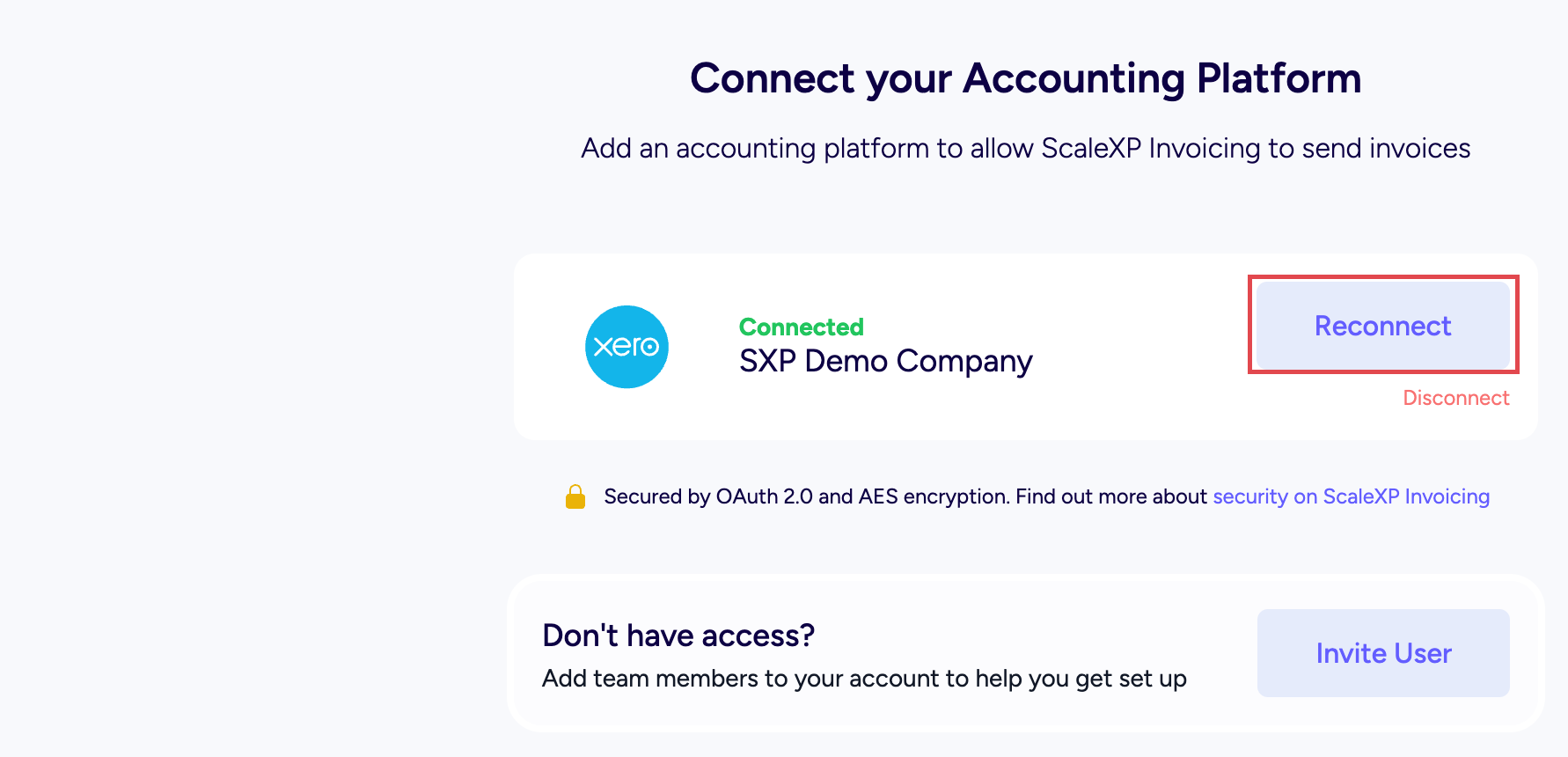
- You may be asked to sign in to Xero again. Just do so and follow the prompts.
- Reload the deal page in HubSpot. The error message should disappear.
Note: If the Xero API is down or having issues for everyone, you can get an updated status on the Xero website.