Come back to these steps whenever you add a new revenue or deferred revenue account.
1. Open the deferred revenue journal
- Go to the Journals tab. Month-End Close opens automatically.
- Under Revenue, click Open on Deferred Revenue Journal.
2. Map your deferred revenue accounts
We recommend coding invoices to your revenue accounts, then mapping each revenue account you use to its deferred revenue account, even if you have only one. This way ScaleXP always reads from mapped accounts. Avoid mixing invoices coded to revenue with invoices coded to deferred revenue. See How should I code my invoices?
- Click the three dots at the top right and select Mapping, or click Map Accounts in the settings.
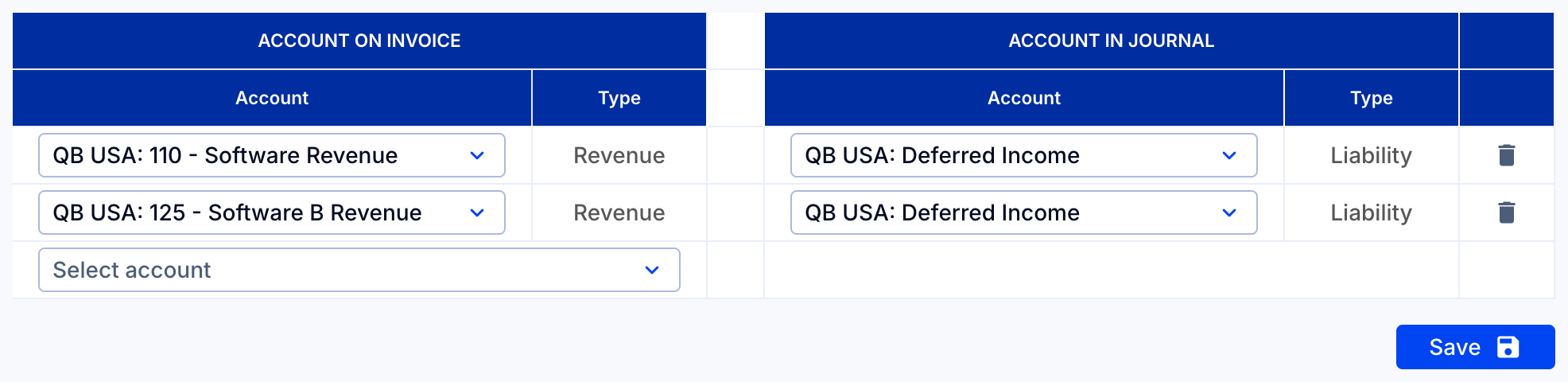
- In Deferred Revenue Setup, add a row for each account used on your invoices. Under ACCOUNT ON INVOICE, select the account the invoice line is coded to. Under ACCOUNT IN JOURNAL, select the account the journal posts the other side to: a deferred revenue account maps to its revenue account, and a revenue account maps to its deferred revenue account.
- Click Save.
3. Filter the accounts in the journal
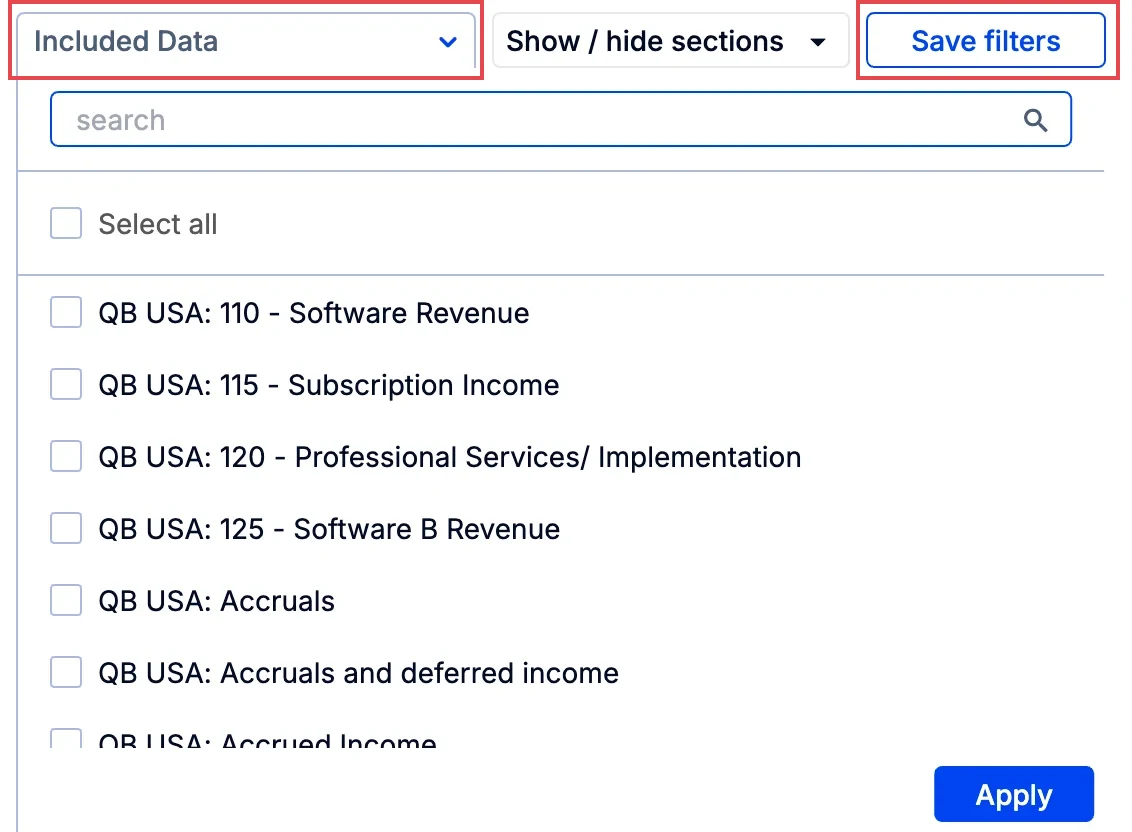
- Open the account filter, which reads Using all accounts until you select accounts.
- Select only the accounts you want in the deferred revenue journal. However you code your invoices, include both the revenue accounts and the deferred revenue (income in advance) balance sheet accounts, not just revenue. See How should I code my invoices?
- Click Apply, then Save filters so the selection is kept for future months.