Each month, update the usage figures (consumption costs) for your usage based cost accounts, either from a connected Google Sheet or Excel file or by entering them manually.
Before you start
- Flag the account as usage based first. See Usage-based costs: Set up. From there you can choose manual entry or automatic sync with Excel or Google Sheets.
1. Open the Update Usage Based Costs page
- Go to Journals > Month-End Close.
- Under Costs, click Open on Usage costs.
Don't see it? Scroll to Tasks not used at the bottom of the page and click Restore next to Usage costs.

2. Allocate costs
From here, you can view all line items from bills in the account(s) selected as usage based.
Google Sheets or Excel
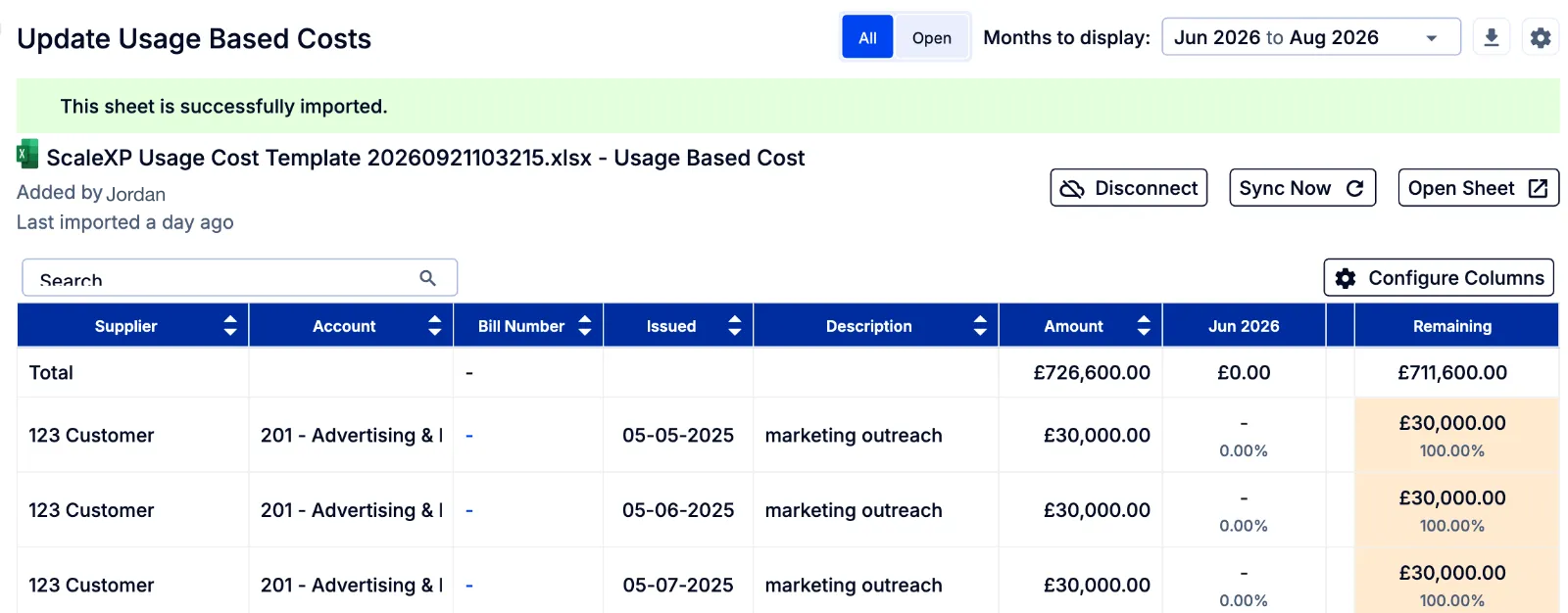
- If you are using Google Sheets or Excel, update the connected sheet using Open Sheet.
- Click Sync Now to pull the changes in straight away.
Manual entry
If you are using manual entry, update on the page.
- Choose whether to enter usage by monetary amount or by percent of total in the Enter Data as dropdown.
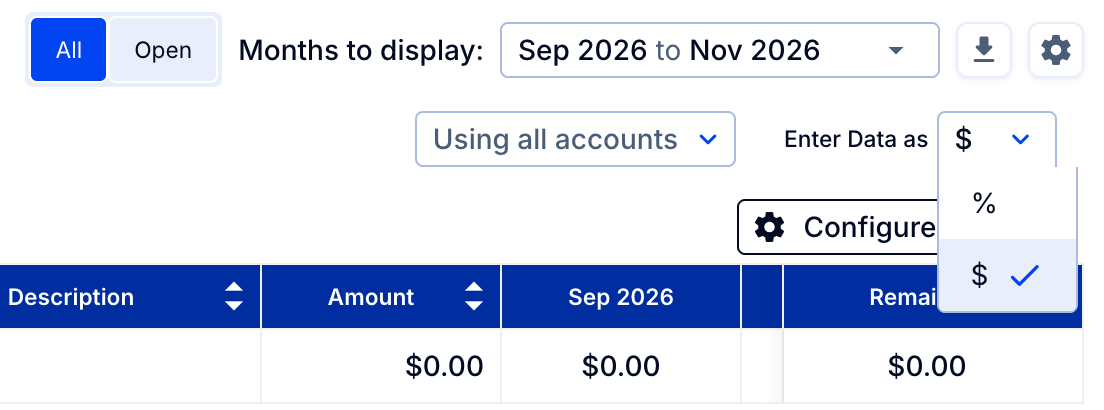
- Optionally, filter by All Projects (default) or Open Projects to see only unallocated costs.

- Optionally, also filter by:
- Months to display (months into which you can view and enter allocated cost)
- Select account to show specific usage based accounts; all usage based accounts at once is the default view.
- Use the table to enter the amounts by month: type the amount or percent in the white boxes under the months of allocated cost. The final column shows the amount of unallocated cost in the billed amount.
The usage is updated in ScaleXP as soon as it is entered. When the cost is 100% allocated, the Remaining column turns from orange to green and says Done. Fully allocated bills will no longer appear in the “Open” view.
The allocated amounts flow straight into your expense recognition journals - see Overview: Automate expense journals.