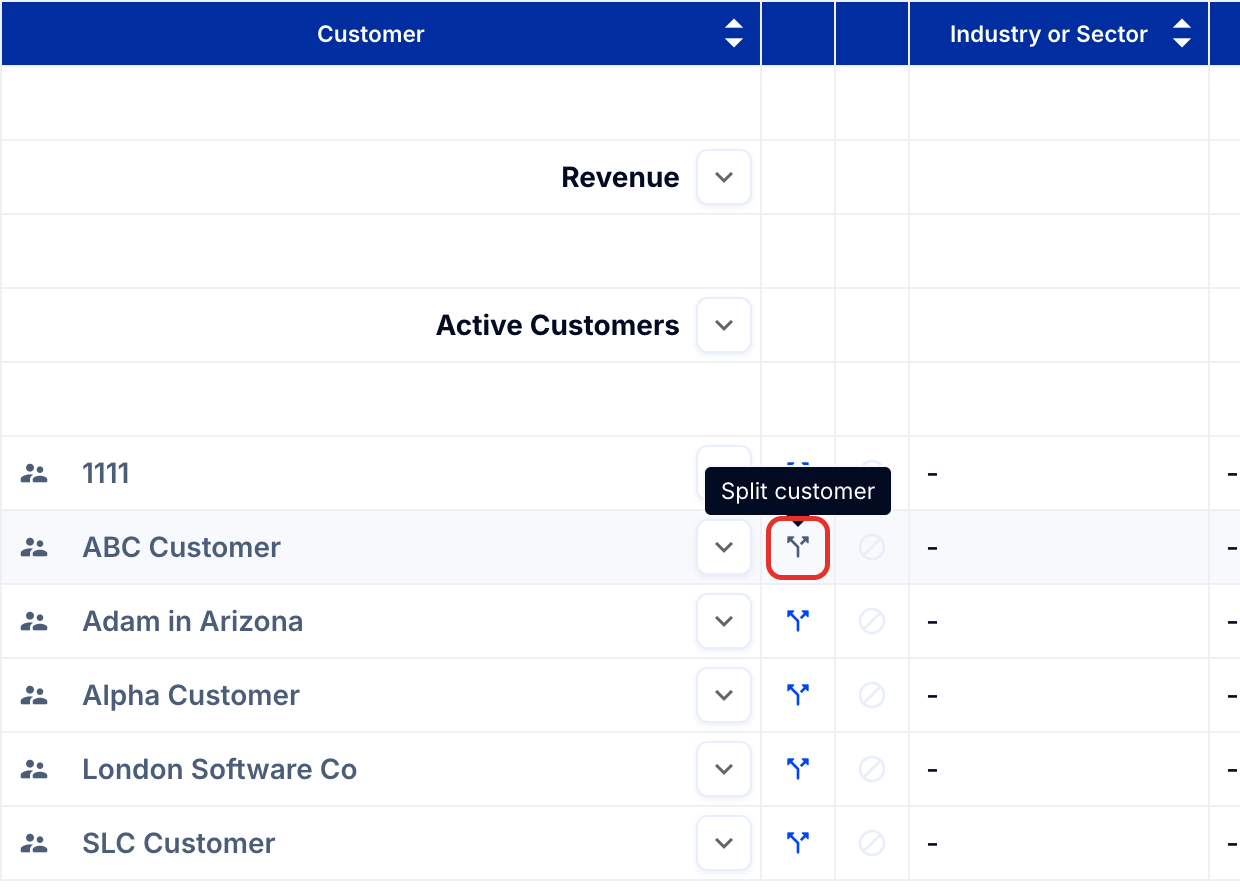
To split a customer, click the blue split arrow next to their name on the Customers tab, then create a new customer for each end customer you want to track.
1. Split a customer
- Go to the Customers tab.
- Click the blue split arrow next to the name of the customer you wish to split.
- Create a name for the new/end customer who will hold this invoice.
- Follow the screen prompts to move the invoice(s) to the new name.
How it works
Once a customer is split, each customer name is counted separately in the summary data, both the number of customers and revenue. This is designed to give you full control of tracking end customers or an umbrella reseller.
Tip: You can also use this button to rename an existing customer; just move all customer invoices to the newly created name.