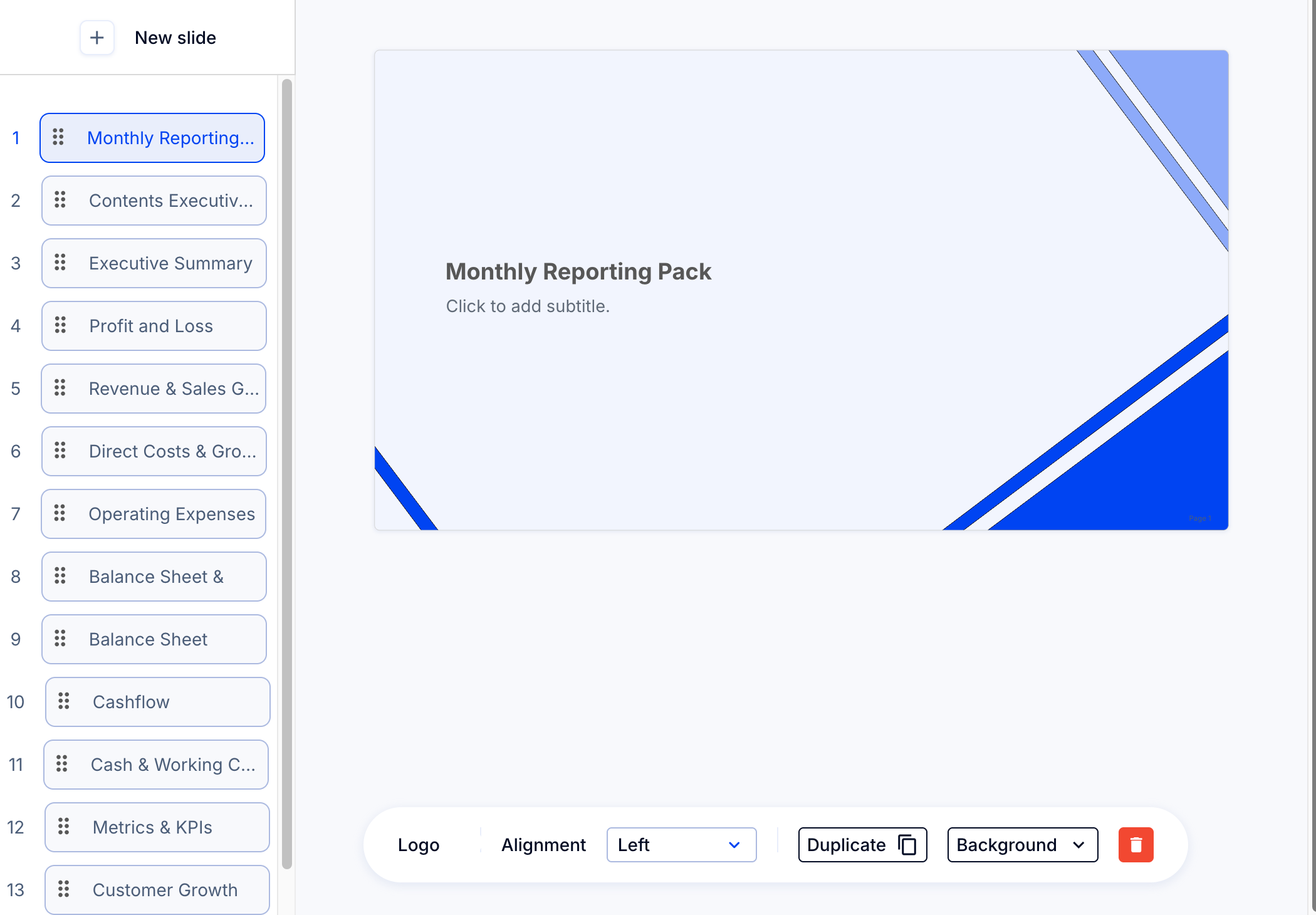
To add a page, open the presentation and click + New slide at the top of the left sidebar.
1. Add a new slide
- Click the presentation you wish to edit.
- Click the + New slide button at the top of the left sidebar, above the list of slides.
This opens a list of slide layouts, such as One Column, Two Columns and Two Thirds, to choose from.
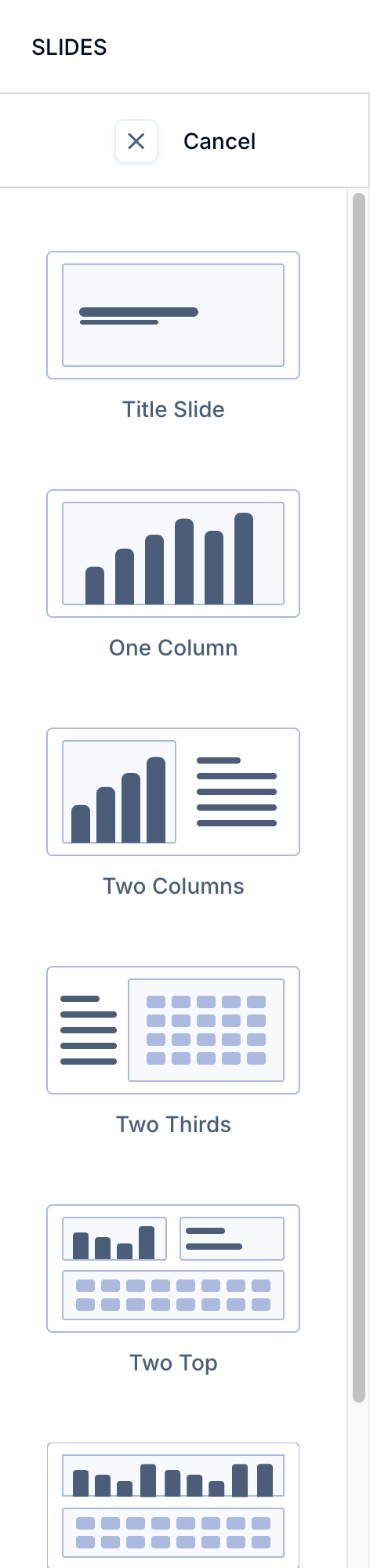
- Select the slide format, then choose the content type for each section:
- Text allows you to type in free text
- Graph allows you to select any chart or graph in an existing Dashboard
- Report allows you to select any report in the Reports section
- KPI allows you to add KPI cards (see How to add a KPI card to a presentation)
- Image allows you to upload any image in .png or .jpg format.

Note: Graph and Report are not available choices in all spaces as they might not fit there.
Tip: For relevant page layouts, the Flip Layout toggle allows you to change between having the larger section on the left or on the right.
