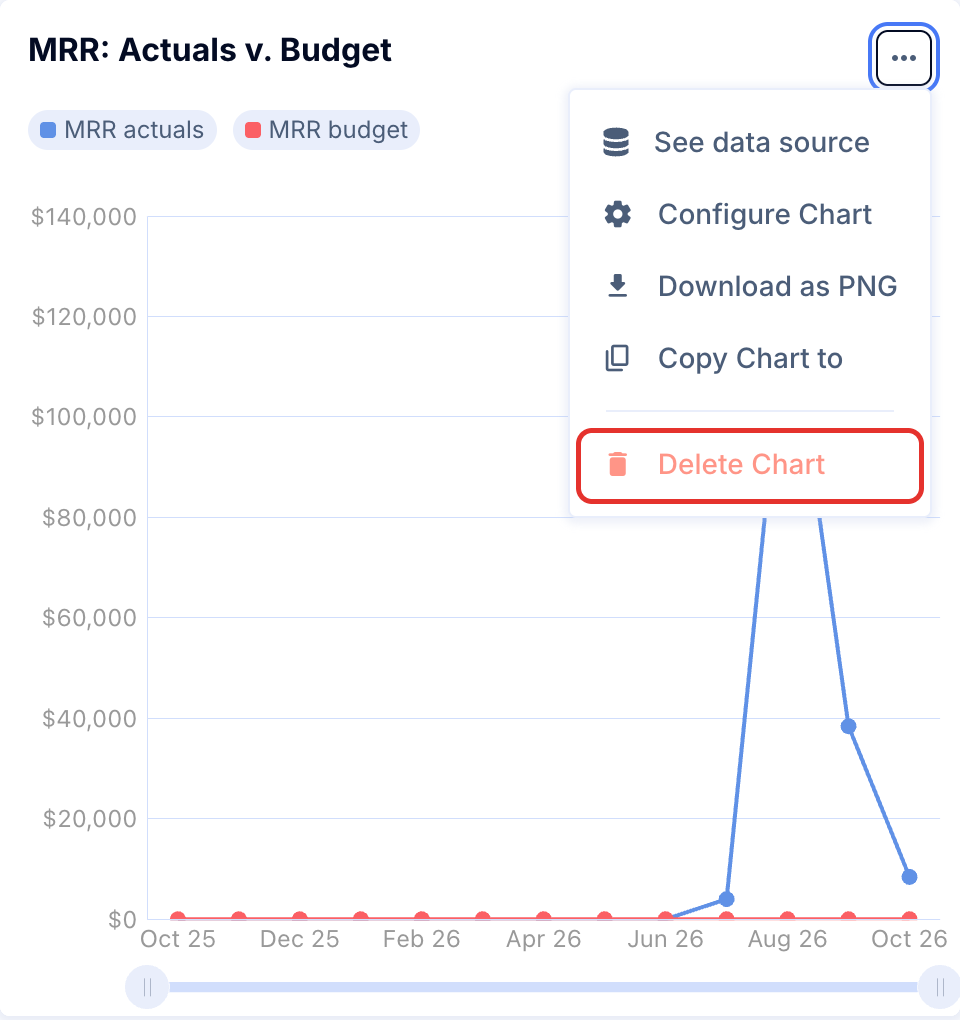
You can move, resize or delete any chart on a dashboard; moving and resizing start from Edit at the top right of the dashboard, then Edit Dashboard.
1. Move a chart
- Click Edit at the top right of the dashboard, then Edit Dashboard.
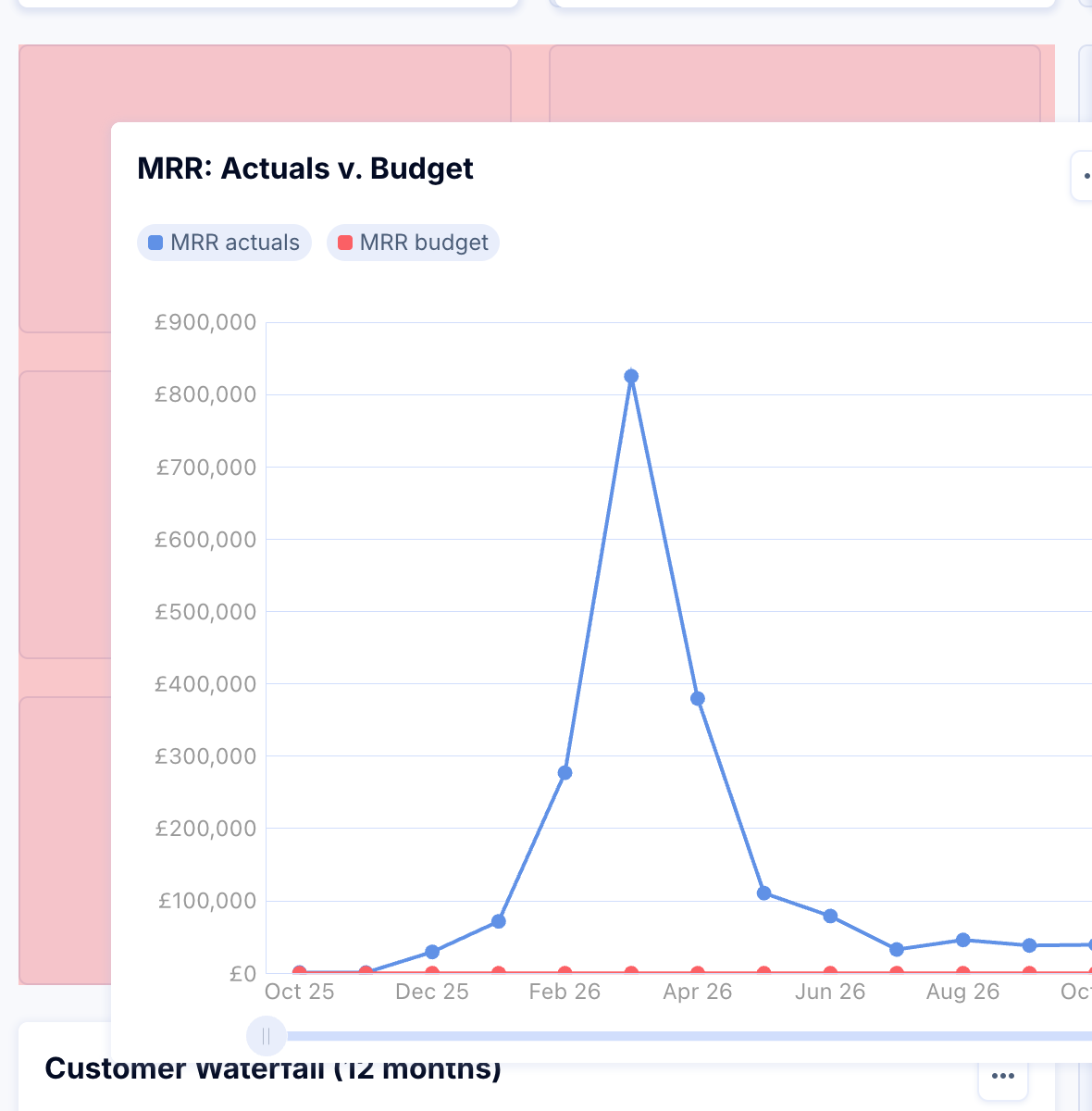
- Click and hold anywhere on the graph; red shading shows where it can go.
- Drag the graph to the new location and release.
2. Resize a chart
- Click Edit at the top right of the dashboard, then Edit Dashboard.
- Hover over the lower right corner of the graph until you see a double-ended arrow, then drag to the desired size and release.
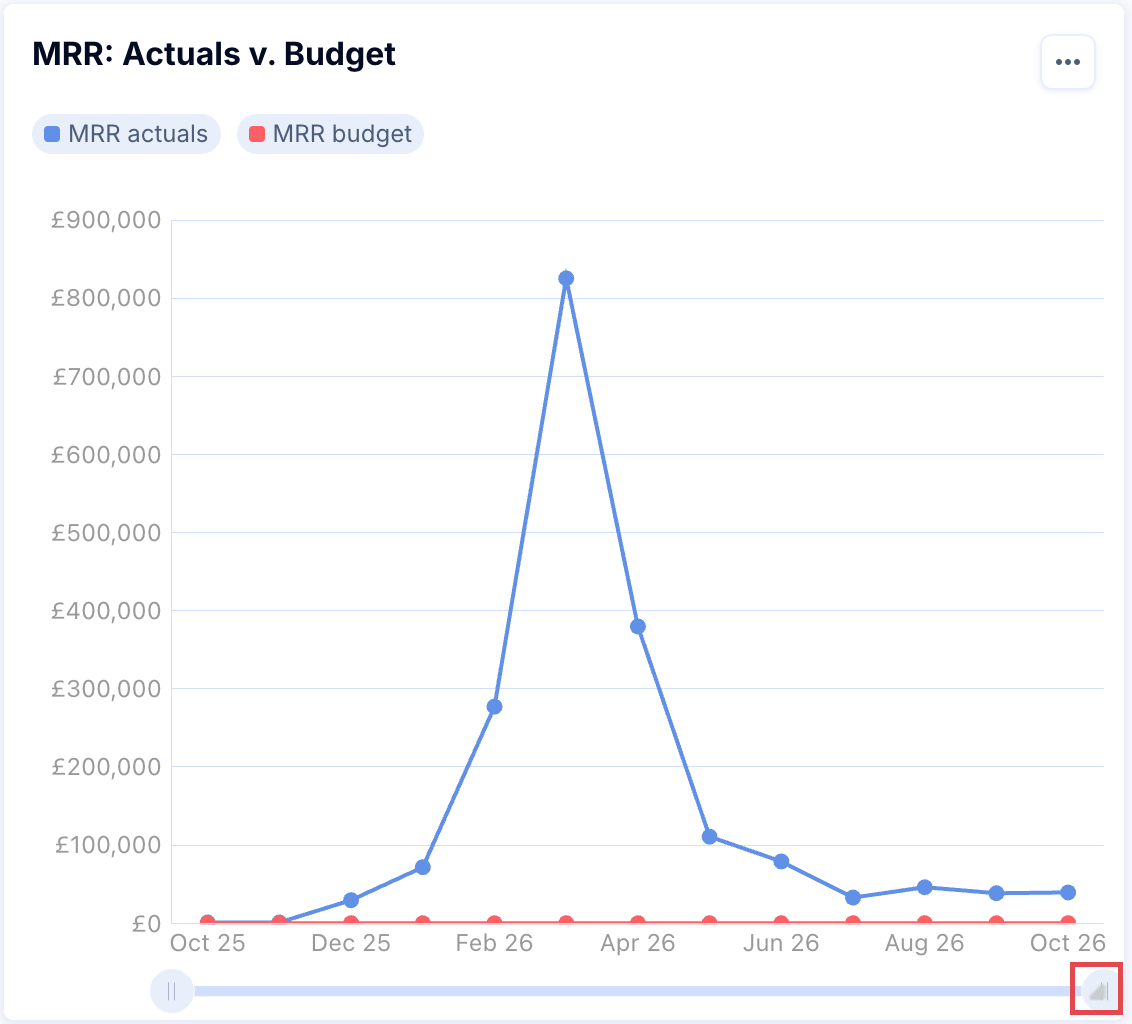
- Click Exit when you're done.
Note: There is a minimum graph size, so you can sometimes only make a graph larger, not smaller.
3. Delete a chart
- Click on the three dots at the top right of the chart.
- Select Delete Chart.