Exclude a customer or invoice, or move an invoice to another customer, on the Customers tab.
1. Exclude a customer, or an invoice that is the only one for the customer
All exclusions are done at customer level.
- Find the customer on any Customer tab report.
- Click the light gray Exclude circle next to the customer name.
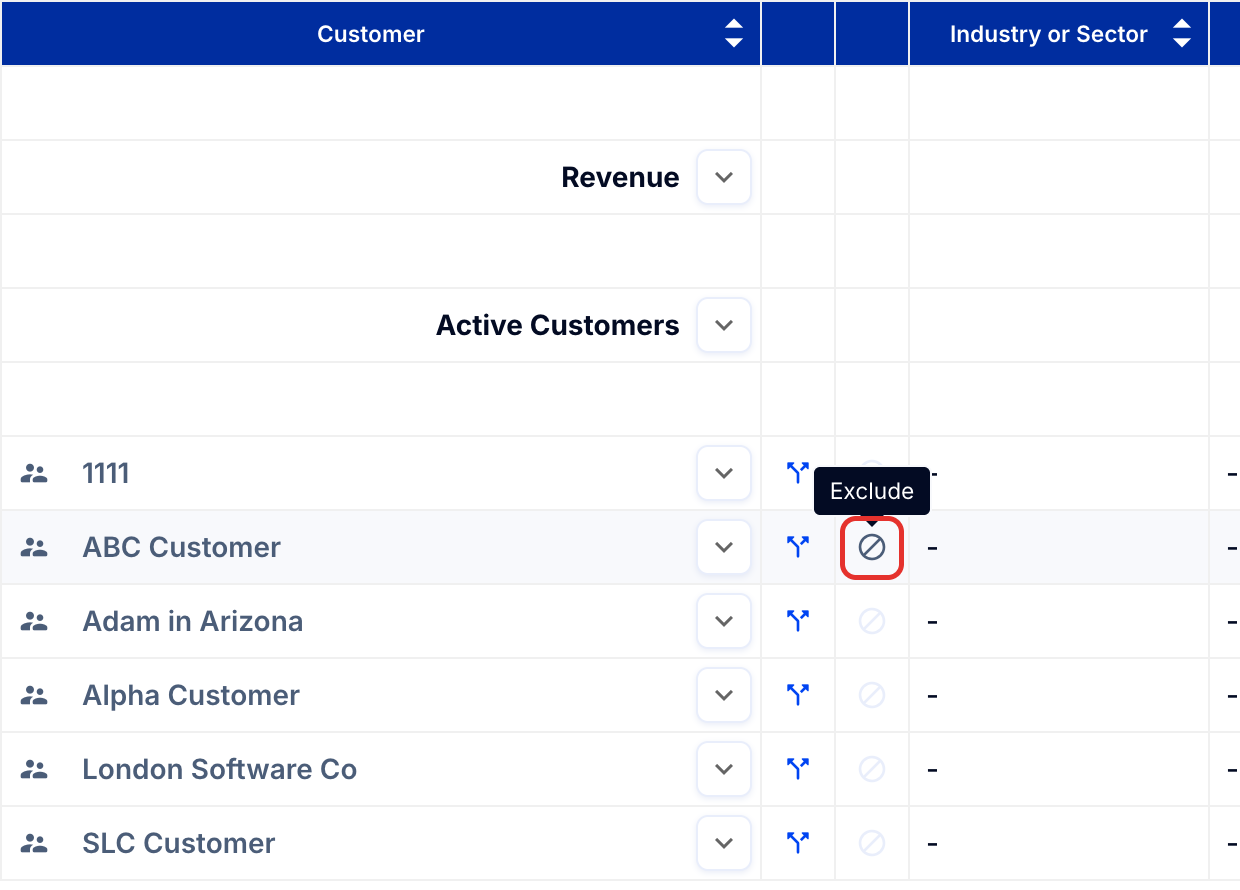
The circle turns red and the customer appears visually excluded. The customer and all its invoices are excluded from the revenue and customer counts at the top of the page, on this and all other reports coming from the Customers tab.
2. Exclude a single invoice if there is more than one for that customer
To track the invoice separately, move it to its own customer and exclude that customer:
- Click the blue Split customer arrow next to the customer's name.
- Create a name for the customer who will hold this invoice, then follow the screen prompts.
- Click the light gray Exclude circle next to the new customer name.
Tip: If you want to exclude an invoice from revenue but monitor it, we recommend creating a new category to track these invoices. This is best done by creating a new customer with a clear name, such as "Bad Debt", "Accrued Revenue" or "Invoices to Monitor", so you can search for it and review the invoices periodically. Once the new customer or tracking category is created, follow the screen prompts to move the invoice.
3. Move an invoice
To move an invoice to a new customer, split the customer:
- Click the blue Split customer arrow next to the customer name.
- Follow the screen prompts to create the new customer and move invoices to it. To move an invoice to an existing customer instead, click Move invoice (the arrows on the invoice's row) and select the customer.
How it works
Exclusions apply automatically across all reports in your system, including the consolidated view in consolidated companies.
Reassigning or splitting a customer is commonly used in umbrella or frame agreements, when each end customer is tracked separately. Once a customer is split, each one is counted separately in the summary data, both the number of customers and revenue. This gives you full control of tracking end customers or an umbrella reseller.
Note: These actions impact your ScaleXP reporting only, not your accounting system. You can also exclude a customer on the Deferred Revenue Journal.
Important: In a consolidated company, you must move and exclude customers at the subsidiary where invoiced.