To add a subsidiary without an accounting connection, set it up as a new entity in ScaleXP and load its trial balance from a Google Sheet.
1. Set up the new entity in ScaleXP
- Click the entity dropdown at the top right of any page and choose Add new entity at the bottom of the list. For screenshots of every option, see How to add a new entity in ScaleXP.
- Fill in the form for the type of entity:
- To add the entity to a group you already have, choose Subsidiary in an existing group, enter the Subsidiary name, Currency and Subsidiary short ID, and select the group under Group it's joining. ScaleXP links the entity to the group for you.
- For a stand-alone entity, choose Single company and enter the Company name, Currency and Sector.
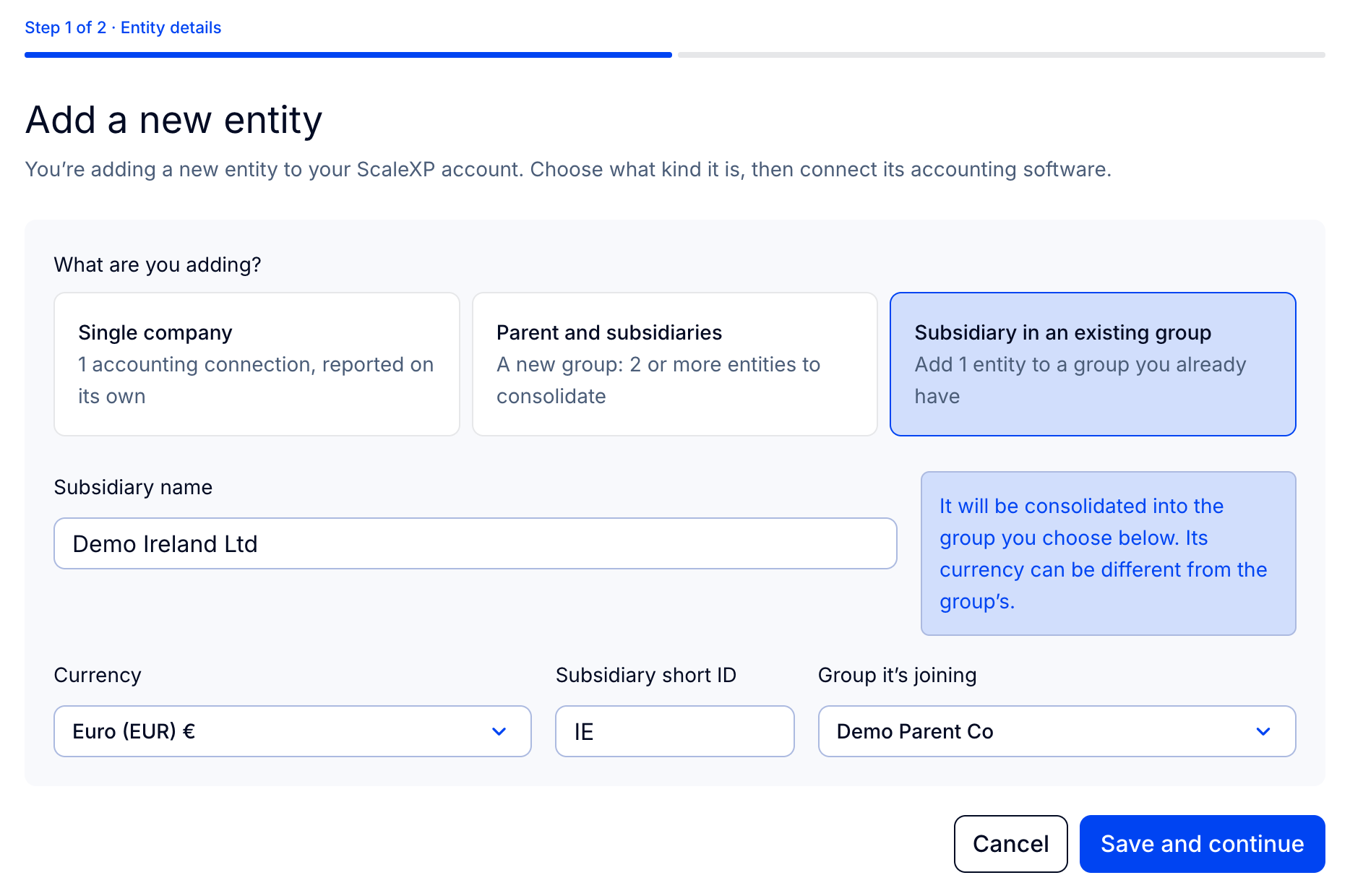
- Click Save and continue.
2. Choose the trial balance connection
- On the Connect your data step, click Connect next to the entity.
- Select Trial balance sheet.
- Click Connect next to Google Sheets or Microsoft Excel Online. The steps below use Google Sheets.
3. Open the Google Sheets trial balance steps
- The Google Sheets steps open in the Connect your trial balance window. To come back to them later, switch to the new entity (its name shows in the dropdown at the top right) and go to Load Data > G. Sheets - Trial Balance.
4. Copy the Google Sheet template
- Under Step 1: Select Date, select the start year for your data import.
- Under Step 2: Create Template & Return to This Tab, click Copy Template. Google Sheets opens a copy of the ScaleXP trial balance template in a new tab.
5. Enter your data
- In your copy of the template, enter the trial balance for each month.
- Return to the ScaleXP tab.
6. Connect the Google Sheet in ScaleXP
- Under Step 3: Select Template, click Select Template and choose the Google Sheet you just created to connect it to ScaleXP.
Note: Share your Google Sheet with anyone who might need to edit it. Sharing permissions for the Google Sheet operate independently from sharing permissions for ScaleXP and, by default, only the creator of the Google Sheet will be able to edit it.
7. View your data
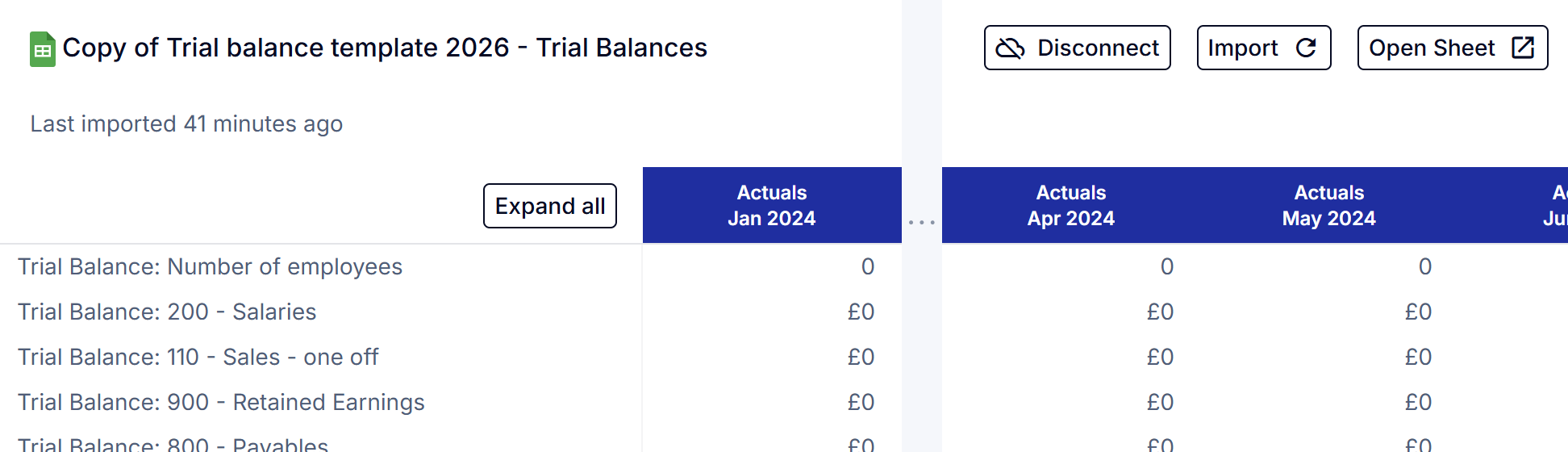
- View your data. From here you can:
- sync ("Import")
- open the Google Sheet to make changes and add data
- disconnect to add a different Google Sheet
8. Configure your data
- If this is part of a consolidated company:
- If you chose Subsidiary in an existing group in Step 1, the entity is already part of your consolidated organization and its data flows into group reporting as soon as the trial balance is connected. To configure it, follow the steps in How to configure your P&L and Balance Sheet in ScaleXP (consolidated company).
- If this entity will be used for consolidation adjustments rather than as a normal operational subsidiary, follow the steps in How to add consolidation adjustments to set up the adjustment accounts and finalize the P&L / Balance Sheet mapping.
- If this is a stand-alone entity, see How to configure your P&L and Balance Sheet in ScaleXP (single company).
How it works
Data added via the Trial Balances connection will be available for use in consolidated reporting including all relevant metrics, reports, dashboards, and presentations.
Note: This approach can also be used to set up a dedicated “consolidation adjustments” entity. See How to add consolidation adjustments.
Next: set up your reporting
See these articles to help you get started:
- Getting started with reports: How to create and edit a report
- Getting started with Dashboards
- Getting started with Presentations: How to create a pack for a meeting; How to create and edit a presentation
- What is the ScaleXP Metric Library?
- How to add live metrics through Google Sheets
- How to add consolidation adjustments
- How to add a new entity in ScaleXP