The Pipedrive invoice mapping tells ScaleXP Invoicing which Pipedrive field holds each invoice detail, such as the customer, dates and prices. When you click Auto-Fill on a deal, ScaleXP uses these fields to fill in the invoices, ready for you to sync to Xero or QuickBooks Online.
ScaleXP also writes back to Pipedrive. Every invoiced deal gets a pinned note listing its invoices, and you can choose two deal fields to hold the original and current contract values.
Good to know: most rows are already linked to the usual Pipedrive field, so you only need to change the rows that work differently in your Pipedrive account.
Before you start
- Connect Pipedrive and your accounting system (Xero or QuickBooks Online) in ScaleXP. See I want to view, add or disconnect the list of current connections and Getting started with CRM integration.
- Match your Pipedrive products to your Xero items using product codes. See Mapping Xero products (items) with Pipedrive.
- Run Sync now on the Pipedrive card at least once. Organization and deal product fields only appear in the dropdowns after a Pipedrive sync.
- If you want to sync contract values back, create the custom deal fields in Pipedrive first (see section 5), then sync Pipedrive again.
1. Open the Pipedrive invoice mapping page
- Go to Load Data > Connections.
- On the Pipedrive card, click the three dots (More) next to Sync now and select Invoice Mapping.
- The Pipedrive Invoice Mapping page opens, with the rows grouped into sections.
Each row has these columns:
- Requirement - the invoice detail ScaleXP needs.
- Status - every Pipedrive row is Optional.
- Pipedrive Field - the dropdown where you choose the Pipedrive field.
- Field Name - the name of the field you chose.
- Xero / QBO Field - where the value ends up in your accounting system.
- Notes - how the row works and, where there is one, the Default field ScaleXP reads when you leave the row empty.
2. Map the invoice fields
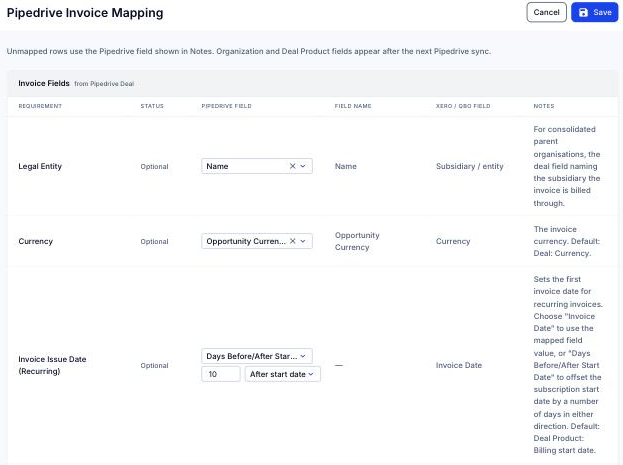
The Invoice Fields section reads from the Pipedrive deal. These fields fill in the invoice header.
- Legal Entity - for consolidated parent organizations, the deal field that names the subsidiary the invoice is billed through.
- Currency - the invoice currency. Default: Deal: Currency.
- Invoice Issue Date (Recurring) - the first invoice date for recurring invoices. Choose a mode:
- Invoice Date uses the value of the field you pick. Default: Deal Product: Billing start date.
- Days Before/After Start Date moves the subscription start date by a number of Days. Choose After start date or Before start date.
- Invoice Issue Date (One-off) - the invoice date for one-off invoices, always taken from the field you pick. Default: Deal Product: Billing start date.
- Due Date - leave it unmapped to follow the payment terms set in Xero or QuickBooks, for example 30 days after the invoice date. Map a deal field only to override them.
- Reference - the invoice reference, such as a PO number held in a custom deal field. Default: Deal: Title.
- Xero Tracking Category 1 and Xero Tracking Category 2 (in QuickBooks, QBO Class and QBO Location) - optional reporting dimensions. Tick Visible In Invoice to show them on the invoice.
3. Map the customer and billing entity fields
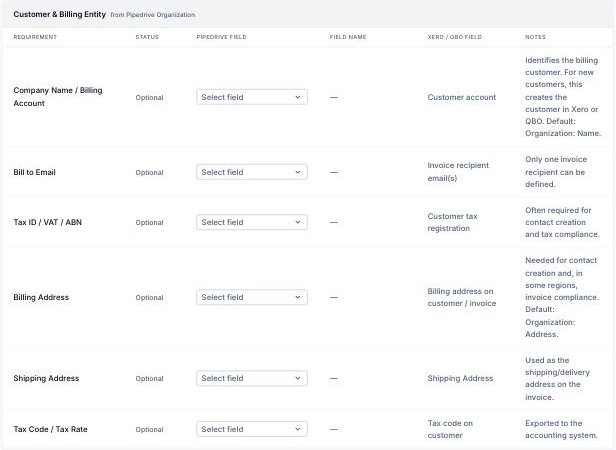
The Customer & Billing Entity section reads from the Pipedrive organization linked to the deal. These fields identify who you are billing.
- Company Name / Billing Account - the billing customer. For a new customer, this creates the customer in Xero or QuickBooks. Default: Organization: Name.
- Bill to Email - the invoice recipient. Only one recipient can be set.
- Tax ID / VAT / ABN - the customer's tax registration, often needed to create the contact.
- Billing Address - used to create the contact and, in some regions, needed on the invoice. Default: Organization: Address.
- Shipping Address - the delivery address on the invoice.
- Tax Code / Tax Rate - the customer's tax code in your accounting system.
4. Map the line items
The Line Items section reads from the products on the Pipedrive deal (deal products). These fields create each invoice line and set up recurring invoices.
- Product / Item Code - links the Pipedrive product to the item in Xero or QuickBooks. Default: Deal Product: Product code (SKU).
- Product / Invoice Description - the invoice line description. You can pick more than one field, and they are joined in order. Default: Deal Product: Product name + Comments.
- Quantity - Default: Deal Product: Quantity.
- Unit Price - Default: Deal Product: Item price.
- Discount Amount and Discount Percentage - both default to Deal Product: Discount. Pipedrive keeps one discount per product with a type, and the type decides whether it is an amount or a percentage. For example, a 70% discount in Pipedrive stays 70%. If you link Discount Percentage to another field, its value must be a percentage from 0 to 100 and it wins over Discount Amount.
- General Ledger Account Code - the account in your chart of accounts.
- Tax Rate - Default: Deal Product: Tax. Pipedrive stores tax as a percentage, so ScaleXP picks the Xero or QuickBooks sales tax rate with the same percentage. Tax-inclusive Pipedrive prices are entered before tax, so tax is not added twice.
- Subscription Start Date - the start of the service period. Default: Deal Product: Billing start date.
- Billing Frequency - Default: Deal Product: Billing frequency. Monthly, quarterly, semi-annually and annually create recurring invoices. One-time creates a one-off invoice. Weekly is not supported and fills in as a one-off invoice.
- Terms in Months - the contract length. When unmapped, ScaleXP works it out from the product's billing cycles, for example quarterly × 4 cycles = 12 months. Products with no cycles fill in as one-off invoices.
5. Choose the deal fields for contract values
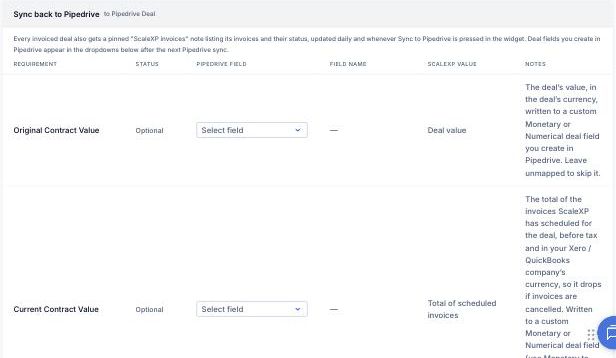
The Sync back to Pipedrive section writes to the Pipedrive deal. Both rows are optional. Leave a row unmapped to skip it.
- Original Contract Value - the deal's value, in the deal's currency.
- Current Contract Value - the total of the invoices ScaleXP has scheduled for the deal, before tax and in your Xero or QuickBooks company's currency. It drops if invoices are canceled.
ScaleXP does not create these fields for you. To set them up:
- In Pipedrive, create two custom deal fields with the type Monetary or Numerical. Use Monetary if you want the currency shown.
- In ScaleXP, run Sync now on the Pipedrive card so the new fields are imported.
- On the Pipedrive Invoice Mapping page, pick one field for each row.
The dropdowns only list custom Monetary and Numerical deal fields, so the deal's own value can never be overwritten. Each row needs its own field, so a field picked in one row is hidden from the other.
6. Save your mapping
- Click Save at the top right. You will see Mapping saved successfully.
- To leave without saving, click Cancel.
If you clear a row and save, it stays cleared and ScaleXP uses the Default field shown in Notes, if the row has one.
7. Fill in invoices from a deal
- In Pipedrive, open the deal and find the ScaleXP panel.
- Click View and amend invoices.
- Click Auto-Fill. ScaleXP fills in the invoices from your mapped fields and shows Invoices auto-filled successfully.
- Check the invoices, then click Save Progress to keep your work, or sync them to Xero or QuickBooks.
8. Sync invoices back to Pipedrive
ScaleXP updates Pipedrive automatically once a day for every deal it has invoiced. You don't need to turn this on. To update a deal straight away:
- Open the deal in Pipedrive and click View and amend invoices.
- Click Sync to Pipedrive. You will see Pipedrive sync started while ScaleXP refreshes invoice statuses from Xero or QuickBooks.
- When it finishes, you will see Pipedrive deals updated and the invoice editor shows the latest statuses.
- Refresh the deal in Pipedrive to see the changes.
What gets synced back to the deal
- A pinned note called ScaleXP invoices, which shows when it was last updated from Xero or QuickBooks and lists:
- each invoice with its number, date, status, total and outstanding amount
- any recurring schedule, with its next invoice date
- The Original Contract Value and Current Contract Value, in the deal fields you chose in section 5.
ScaleXP keeps one note per deal and updates it, so you won't get a new note each time. If someone deletes the note, clicking Sync to Pipedrive adds it back.
Troubleshooting
The organization or deal product dropdowns are empty
These fields appear after the next Pipedrive sync. Run Sync now on the Pipedrive card, then open the mapping page again.
My custom field isn't in the Sync back to Pipedrive dropdown
Only custom deal fields of type Monetary or Numerical are listed. Check the field type in Pipedrive, then run Sync now. If the field is already picked in the other row, it is hidden.
Failed to load field mapping configuration.
The page couldn't load your mapping. Check that Pipedrive is still connected on Load Data > Connections, then reload the page.
Failed to save mapping
Your changes were not saved. Try Save again. If it keeps failing, contact support.
Failed to auto-fill invoices
ScaleXP couldn't fill in the invoices from the deal. Check the deal has products, then click Auto-Fill again.
Sync already running
A Pipedrive sync is already running in the background. Wait for it to finish. You can click Sync to Pipedrive again afterwards.
Pipedrive sync failed
Check the invoice statuses and try again, or contact support.
Your session has expired. Reopen the editor and try again.
Close the invoice editor, click View and amend invoices again, then retry.