Your data most likely does not update because your import start dates or your sync time are not set far enough back.
Open your connection settings
You can check both causes in your connection settings.
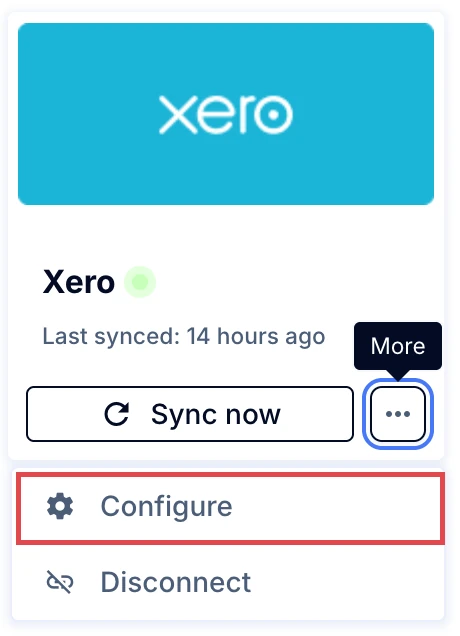
- On the Load Data tab under Connections, click the three dots under the icon for your accounting system.
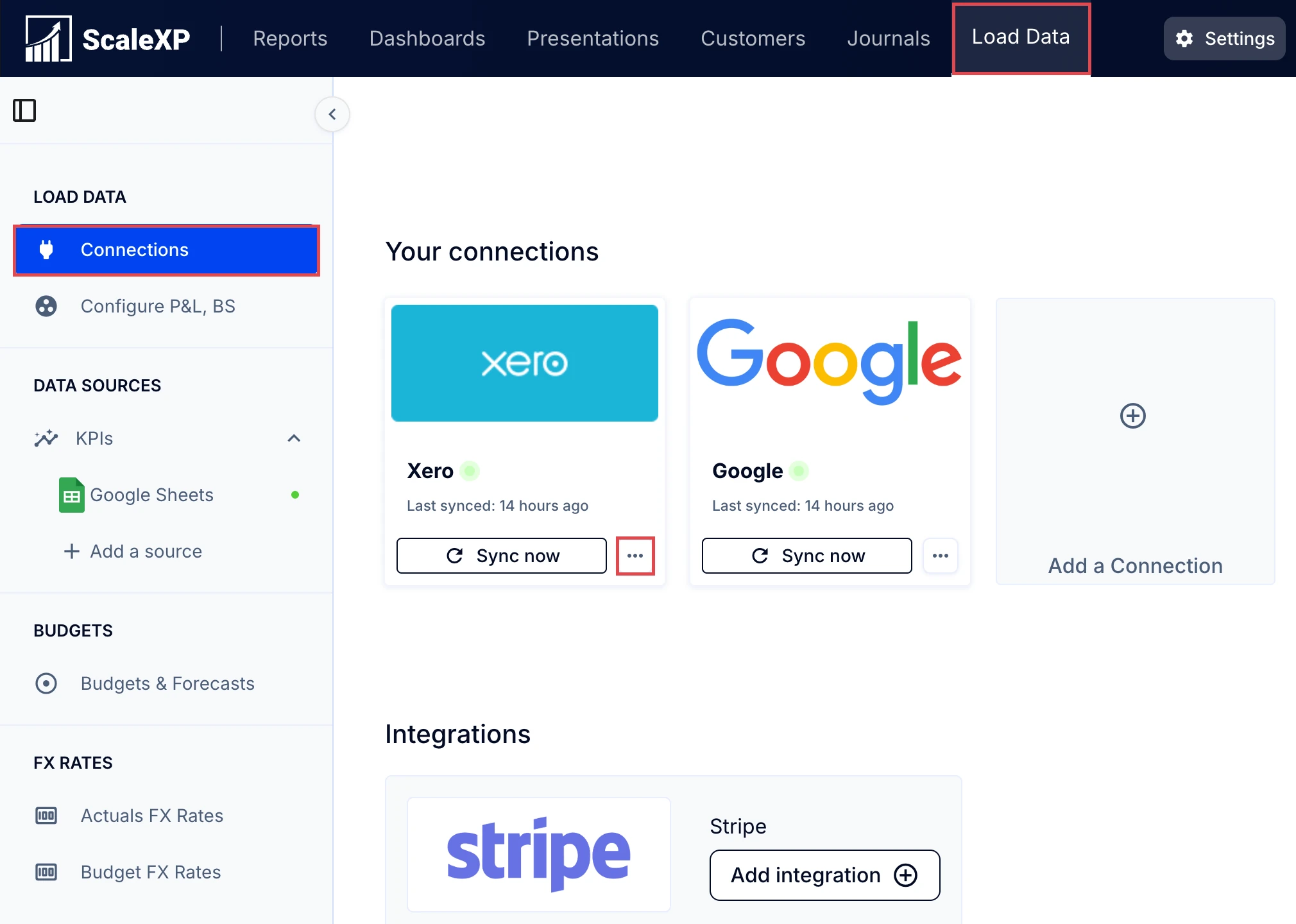
- Select Configure.
If you need help with how to sync data, see How to activate an immediate data sync.
My data is missing entirely
You may have set the import start date later than your current requirements.
Fix:
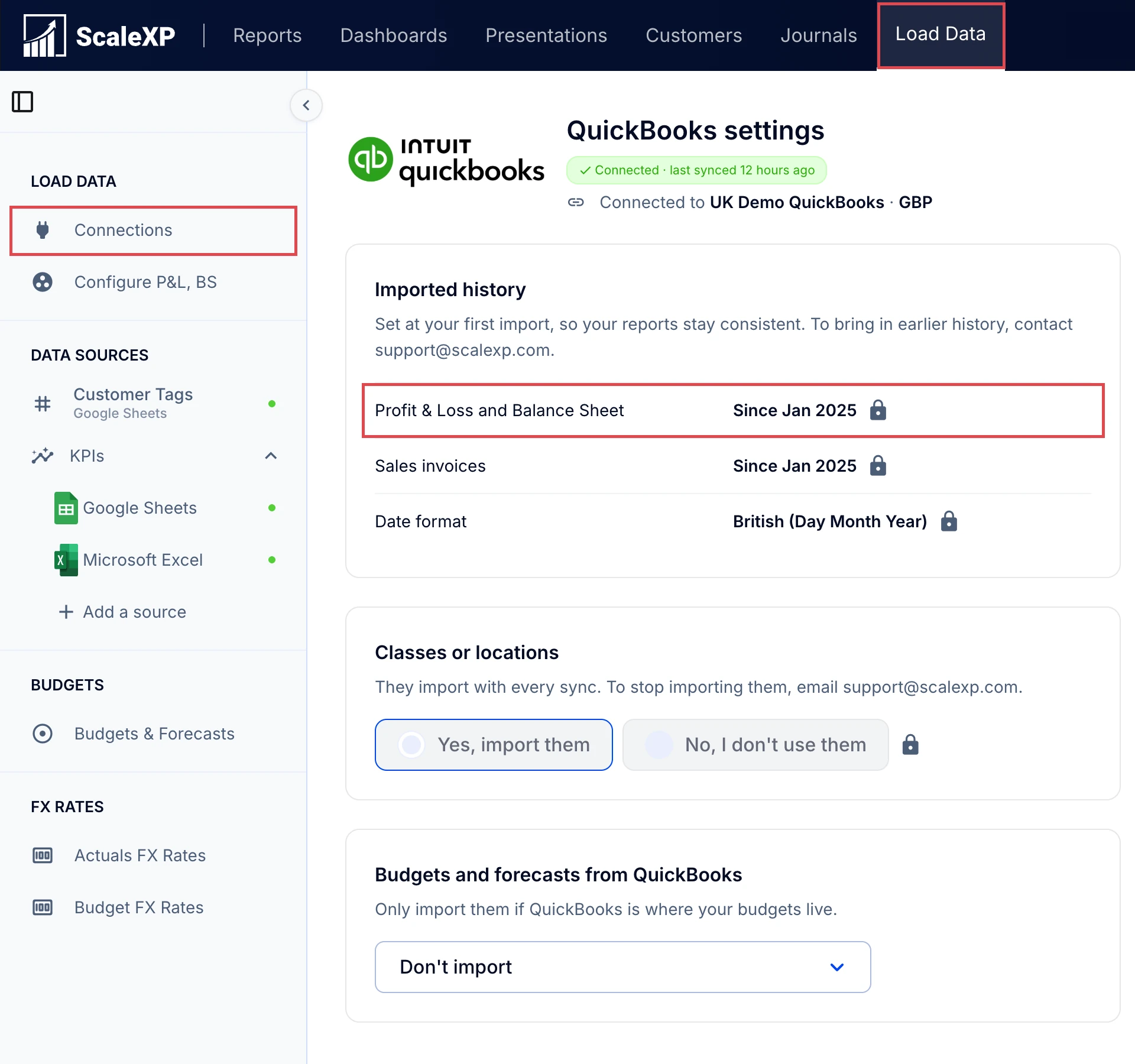
- After clicking the three dots and selecting Configure, check the Profit & Loss and Balance Sheet date under Imported history for your financial data import start date.
- If you need to change this, contact [email protected].
An immediate sync doesn't change my reports as expected
You may have made changes outside the import period. By default, ScaleXP only re-imports accounting data going back 6 months, but you can change this at any time.
Fix:
- Select Configure from Load Data as shown above.
- Open Advanced settings and choose how many months to refresh in Daily sync refreshes the last.
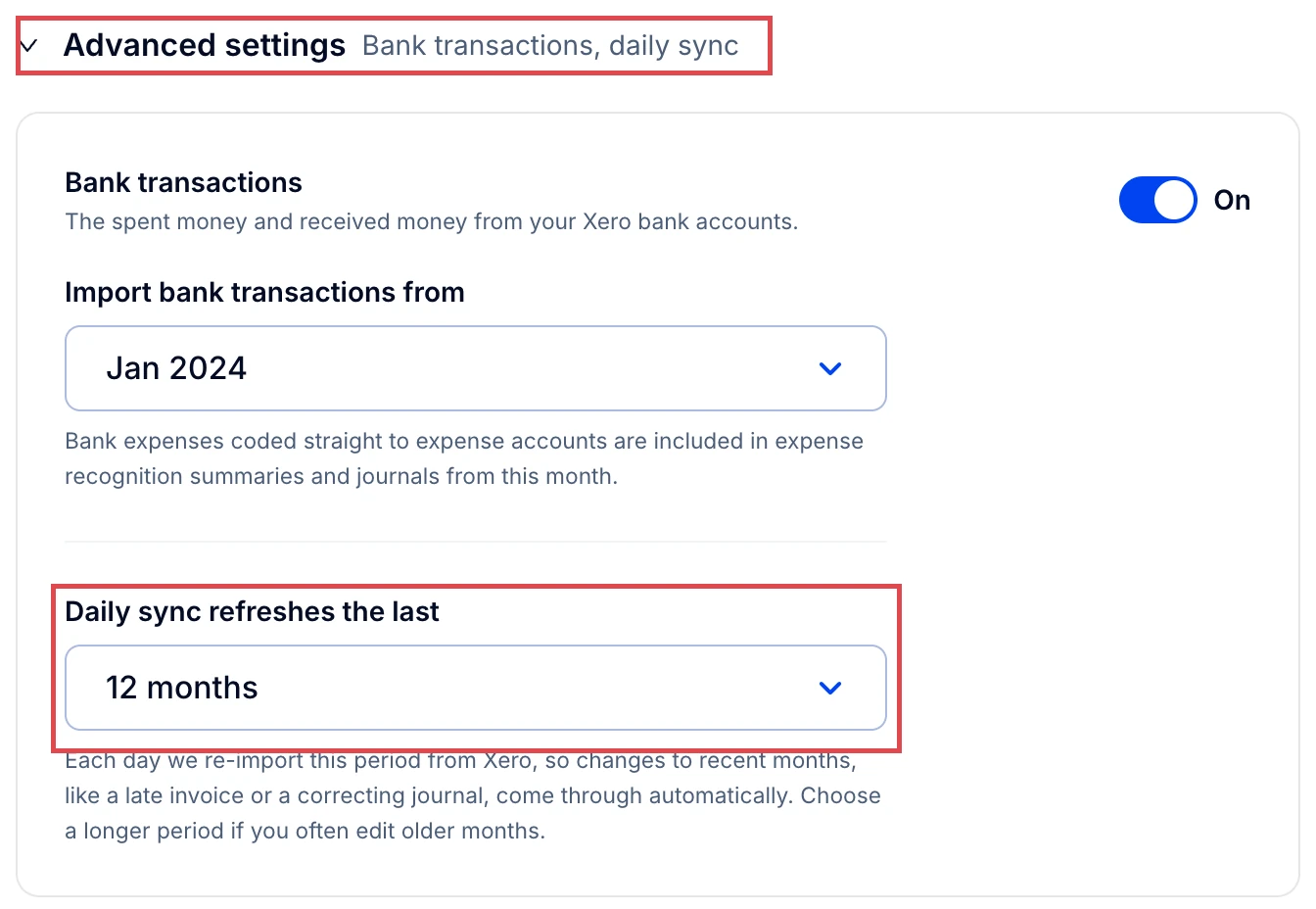
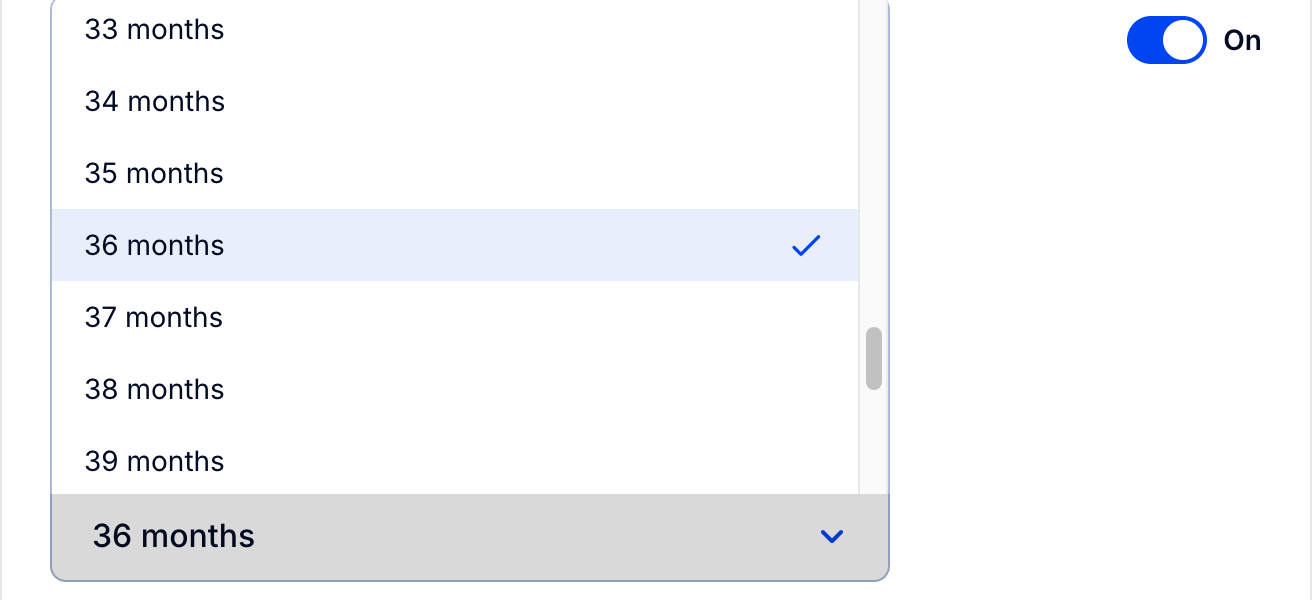
- Make your selection and click Save changes.
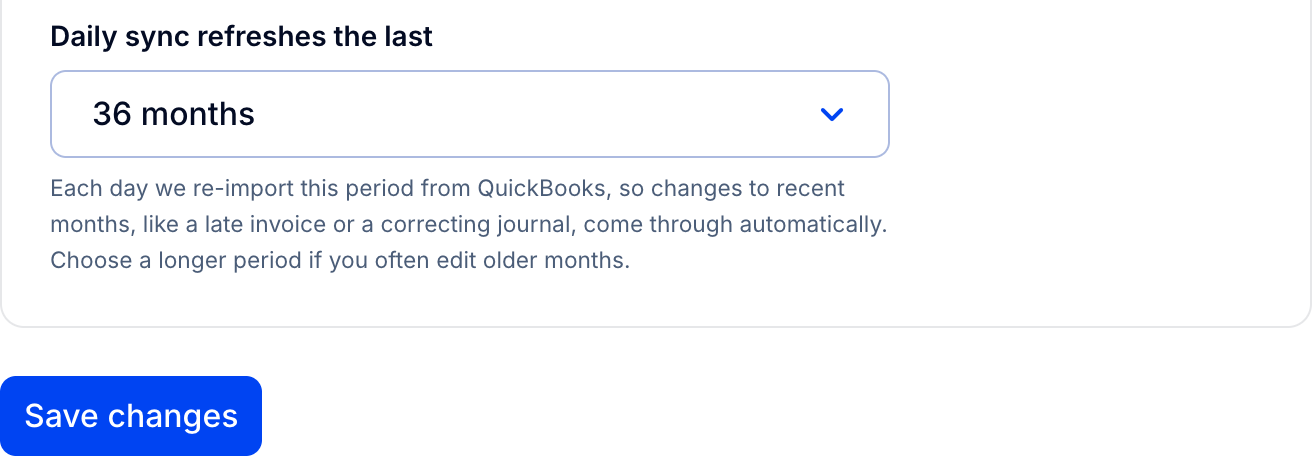
Note: You can import data up to 48 months in the past.
Tip: To reduce load times for regular use, we suggest keeping a shorter timeframe in settings, and changing as and when required.