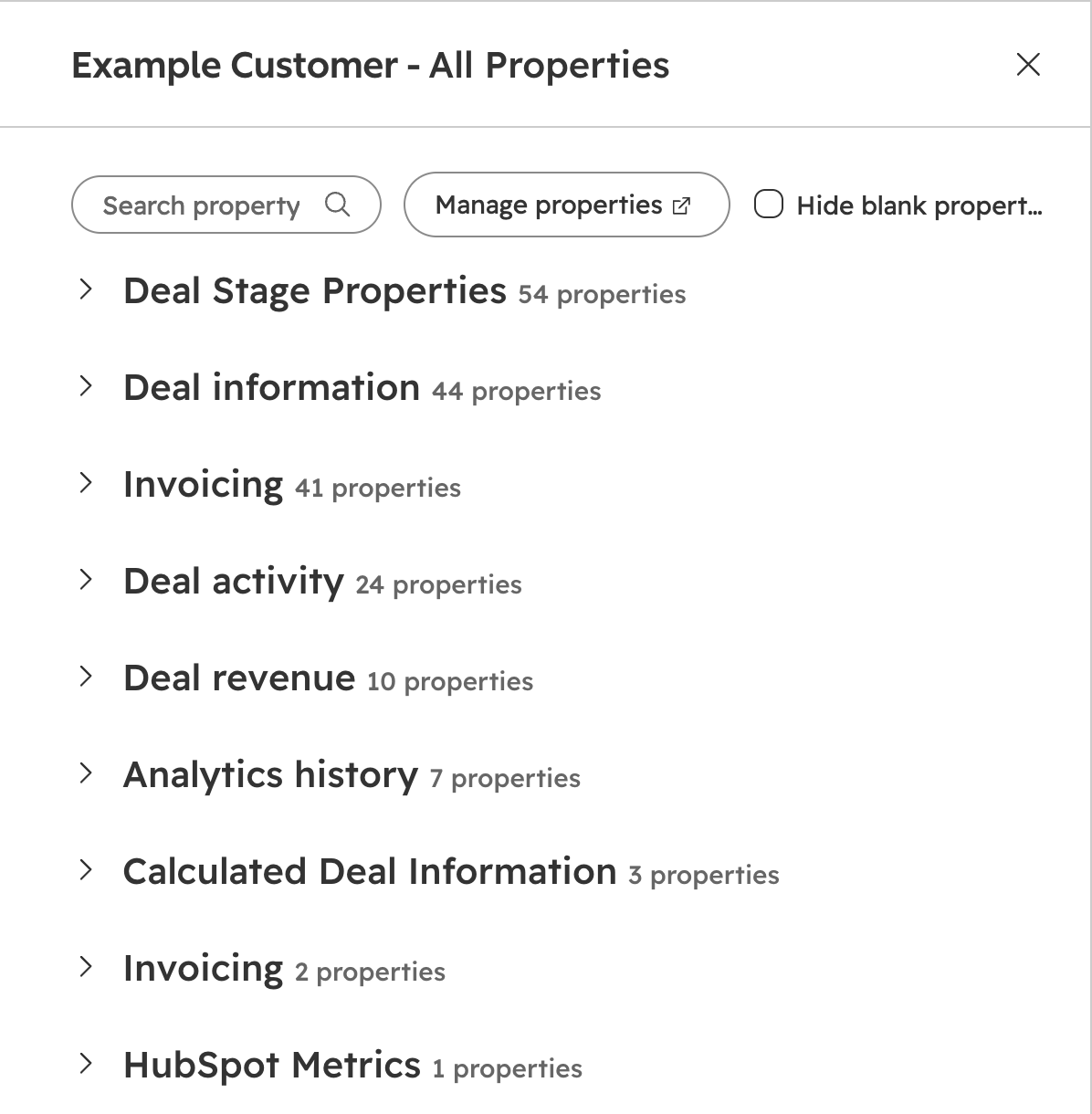
Set up products, due dates, the reference field and deal properties so ScaleXP Invoicing fills in more of each Xero invoice for you and keeps invoice data visible in HubSpot.
1. Link products between HubSpot and Xero
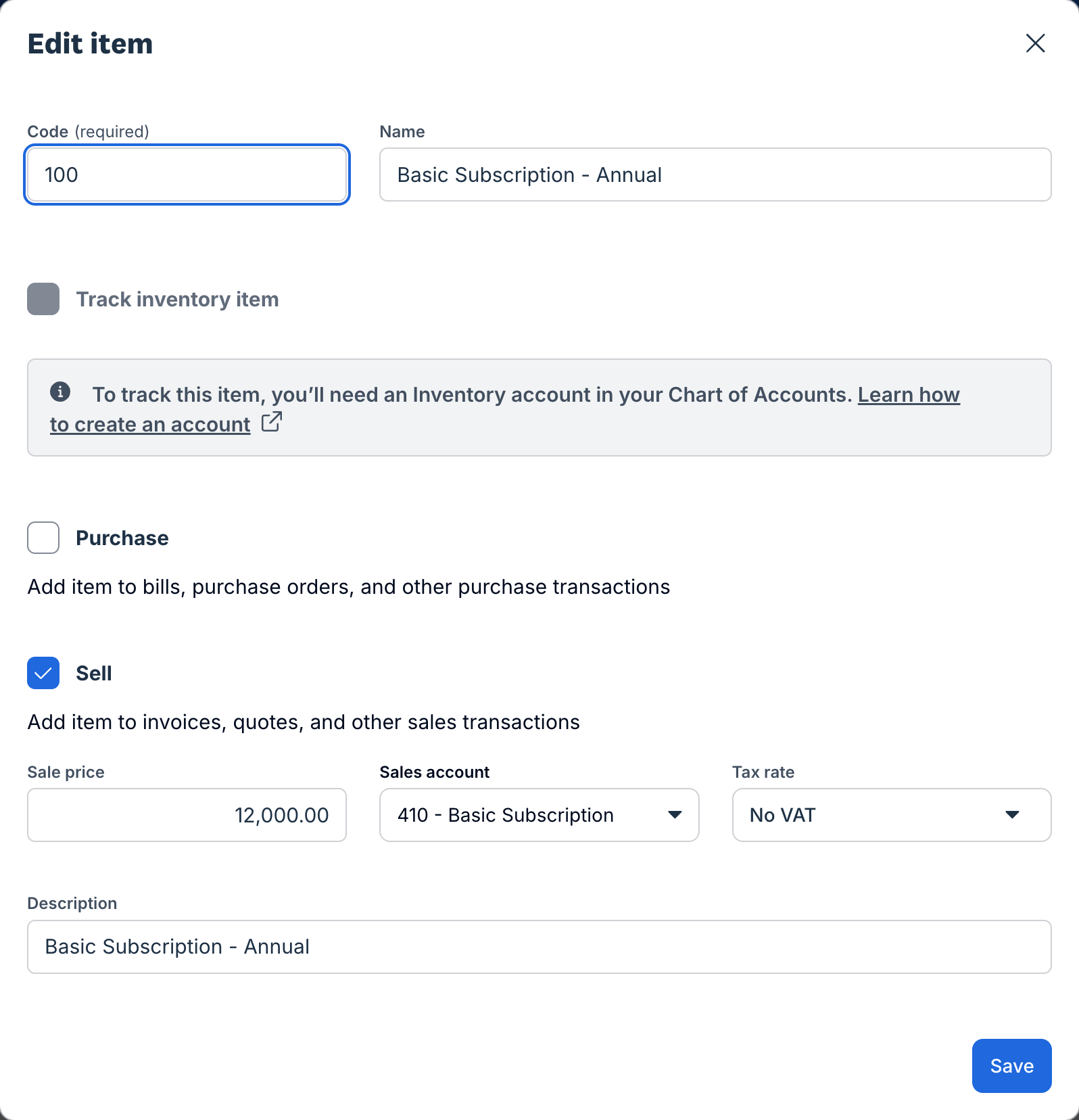
When ScaleXP Invoicing fills in a HubSpot product from your deal, it searches Xero for the matching item code. As long as both codes match, it will automatically fill in the account and tax rate from Xero, so your sales team no longer needs to enter this manually.
- Make sure the SKU on each HubSpot product matches the Code on the Xero item.
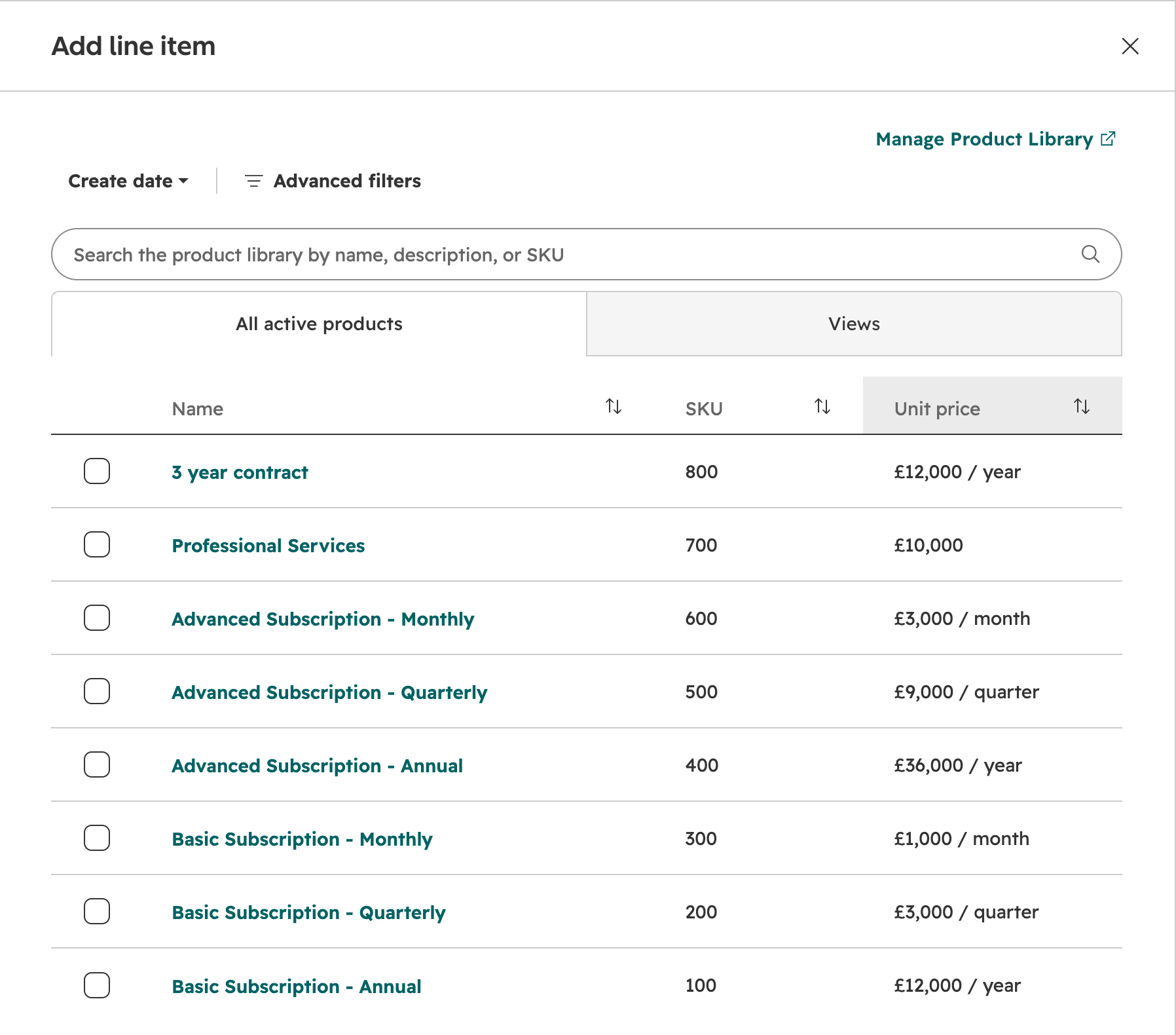
- Go to Preferences > Create invoices in your ScaleXP Invoicing dashboard and, under Use your Xero products when creating invoices?, choose Yes - Match to products.
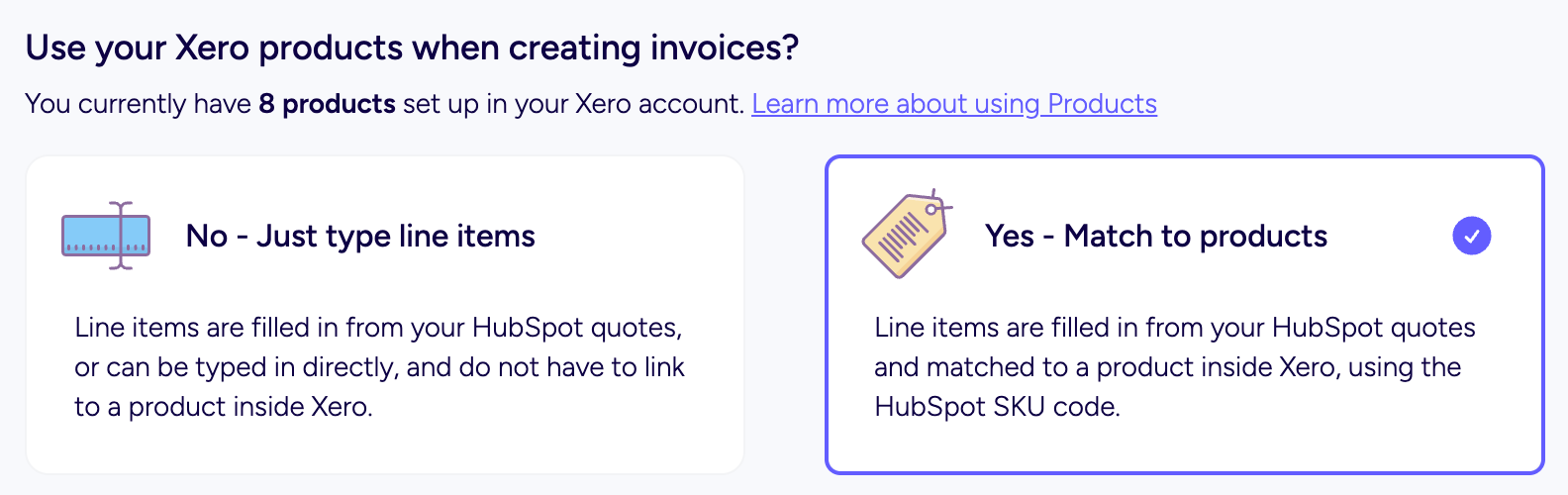
If you’re not using products in HubSpot and are typing in line items, then having products inside Xero means it’s easy to search for a product and fill in new line items quickly.
2. Set due dates on invoices automatically
You can get due dates to fill in automatically by configuring Xero to have a default due date for your organization.
- Inside Xero, go to Settings > Invoice Settings, then click the Default Settings button.
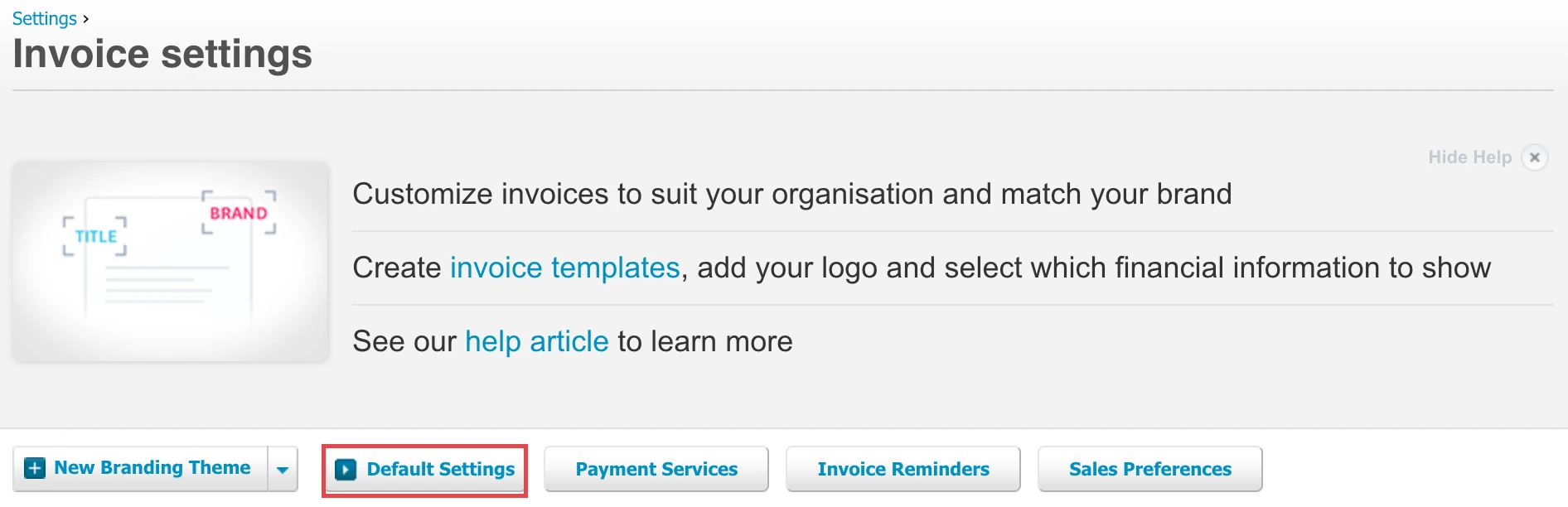
- Under Sales Invoices Default Due Date, configure the due date. You can choose between:
- X day of the following month
- X day of the current month
- X days after the invoice date
- X days after the end of the invoice month
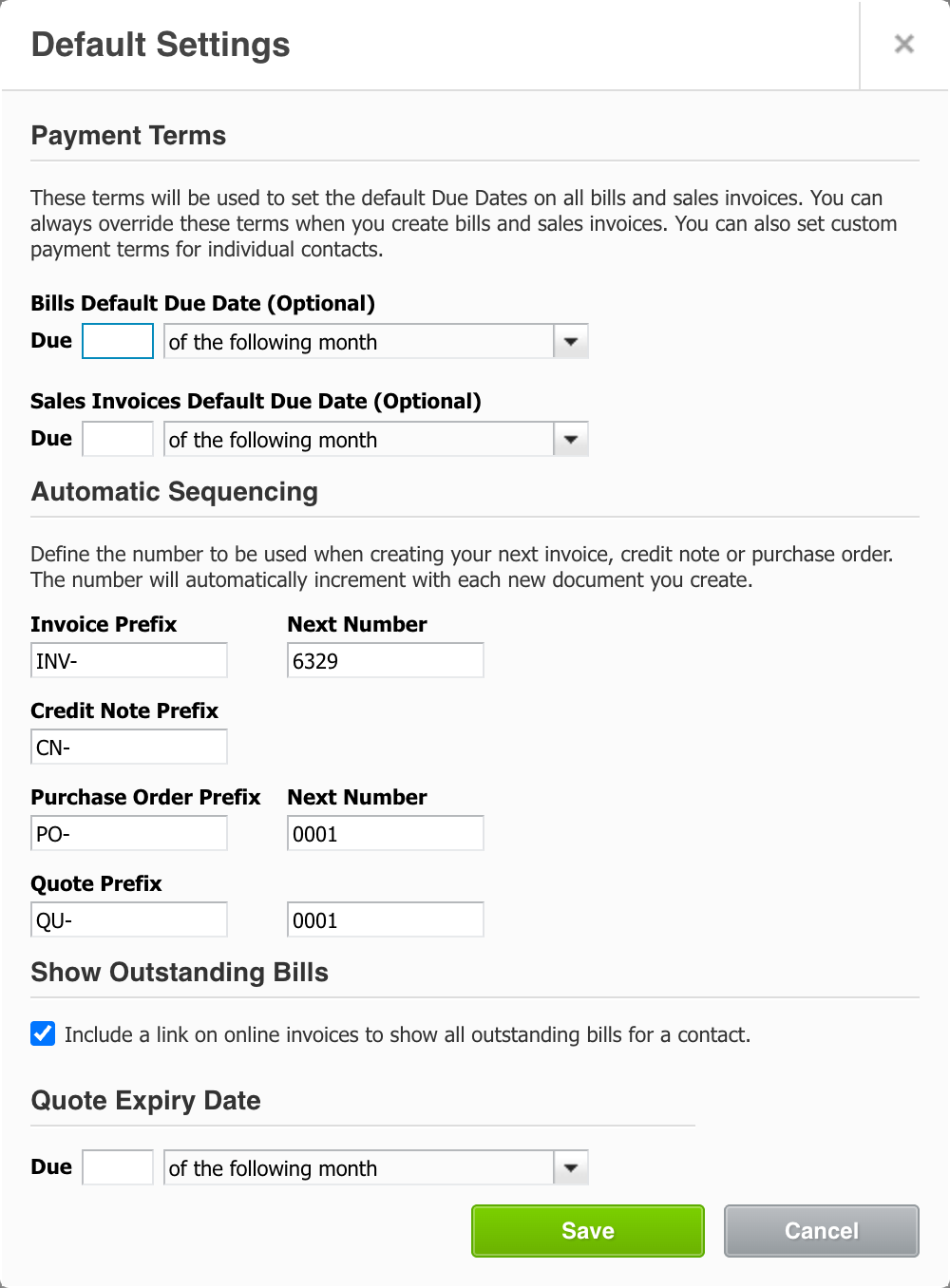
Once set, ScaleXP Invoicing will automatically use this setting when creating your invoices. You can even have custom due dates set for an individual contact, and ScaleXP Invoicing will use this setting too. Changes to your Xero due date settings apply to deals that haven’t been invoiced from yet.
3. Set a reference field automatically
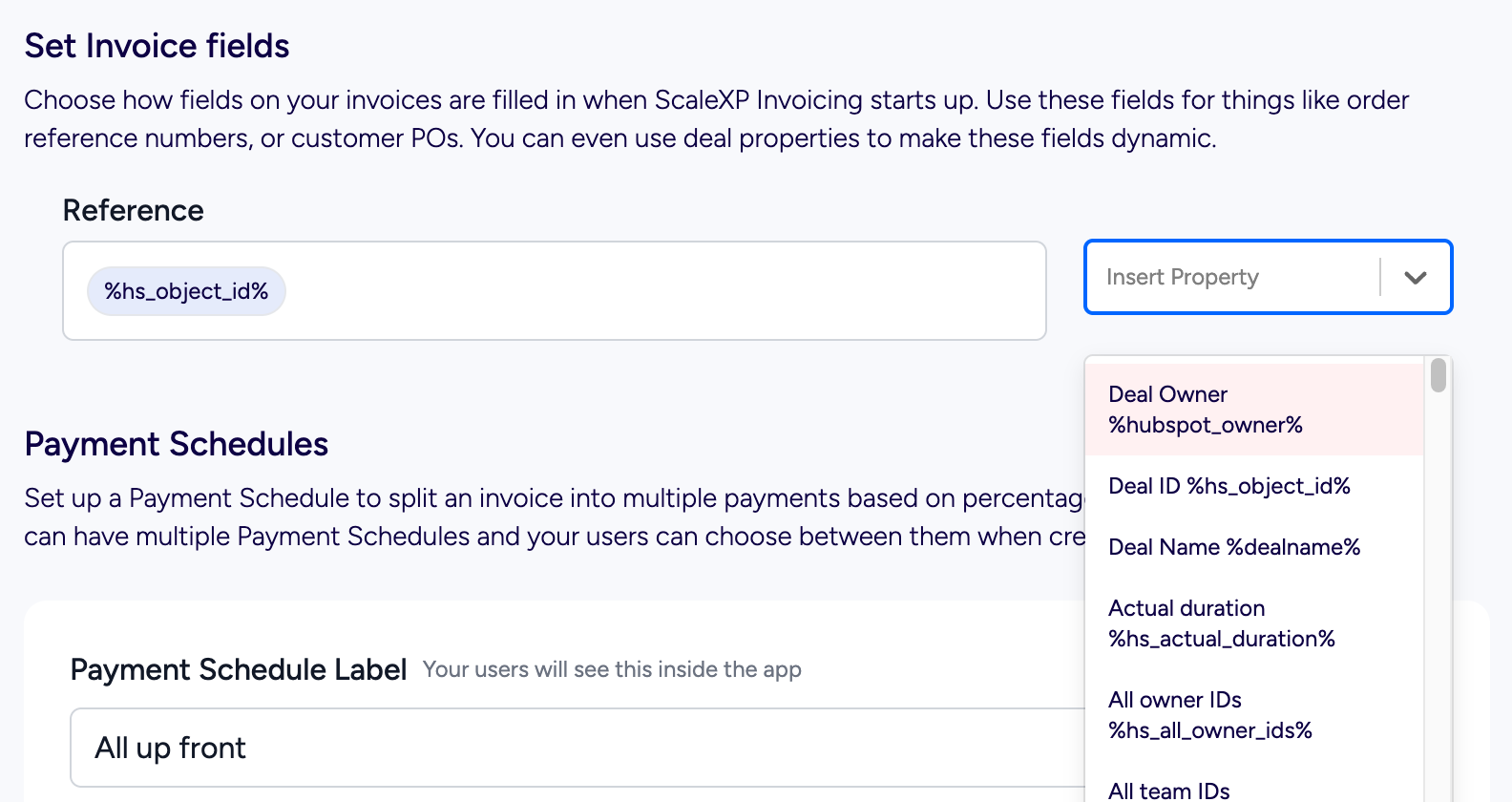
ScaleXP Invoicing can fill out the reference field on your invoices automatically, by using some of the data inside your HubSpot deal. For example, you could add the deal ID, Deal owner and a custom deal property with purchase order number in it.
- Head to your dashboard and go to Preferences > Create invoices > Set Invoice fields.
- Add the fields in the Reference box. Use Insert Property on the right to add any of your HubSpot deal properties.
About products in HubSpot and Xero
Both HubSpot and Xero support using a “product” object instead of just free typing a line item on your invoice. A product object can be used to keep track of physical products, services or even an hourly rate card. Using products means you can standardize your quoting and better track the things you’re selling, but also it can save on data entry between HubSpot and Xero.
Inside HubSpot, a product can have a set price and description and a variety of custom properties. Inside Xero, products can have this plus a default Account and Tax rate. Both systems have a SKU code (the Code field on a Xero item).
About the Xero reference field
Xero has a free text field known as a reference field, attached to each invoice. This reference field is shown inside the Xero interface, and also on the invoice when it gets sent to the customer (although this can be customized).
It’s commonly used by businesses to add extra context and to help keep track of invoices by linking invoice numbers with internal jobs or orders. For example, you might use it to record an order number and the salesperson who made the deal, so your finance team can easily see what the invoice relates to. Another common use case is to use it to record Purchase Order numbers that a customer has provided.
About deal properties
When you create an invoice on ScaleXP Invoicing, we populate your HubSpot deal record with a number of custom properties, and these are kept updated no matter what changes on your Invoices in Xero. These can be used inside workflows and reports to gain live visibility of your invoices inside HubSpot, and to combine deal data with invoicing data. See ScaleXP Invoicing: Data fields synced back to HubSpot for the full list of deal properties.