You can change the decimal places for every row at once with the Format button, or for one row at a time with Edit > Edit rows.
1. Change decimal places for the whole report
- On the Reports tab, click the Format button.
- Under Number Format, choose the Decimal places: 0, .0 or .00 (∅ uses the default).
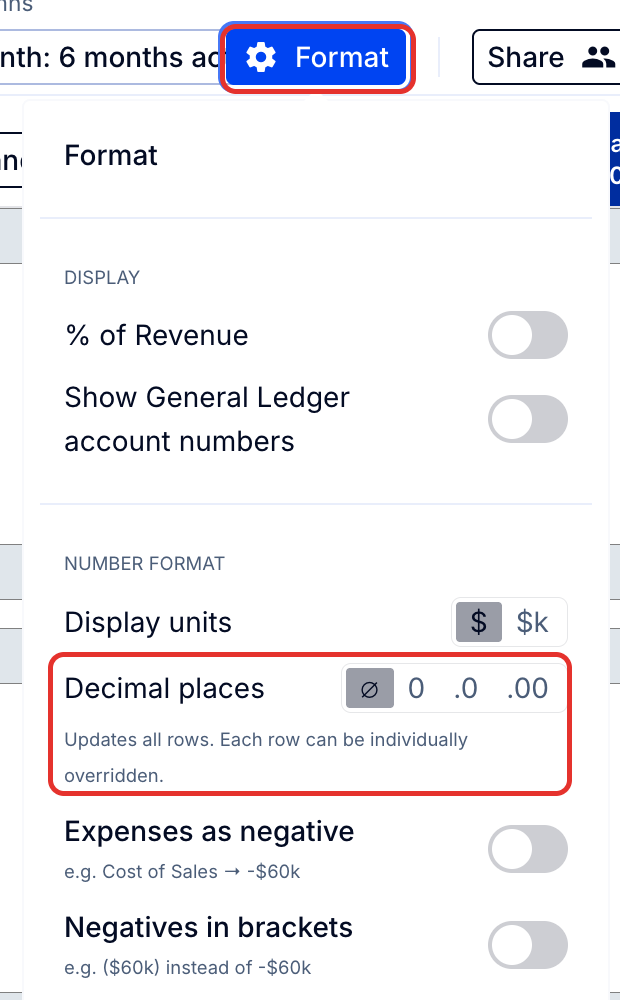
Note: This updates all rows. You can still set individual rows differently, as below.
2. Change decimal places for one row at a time
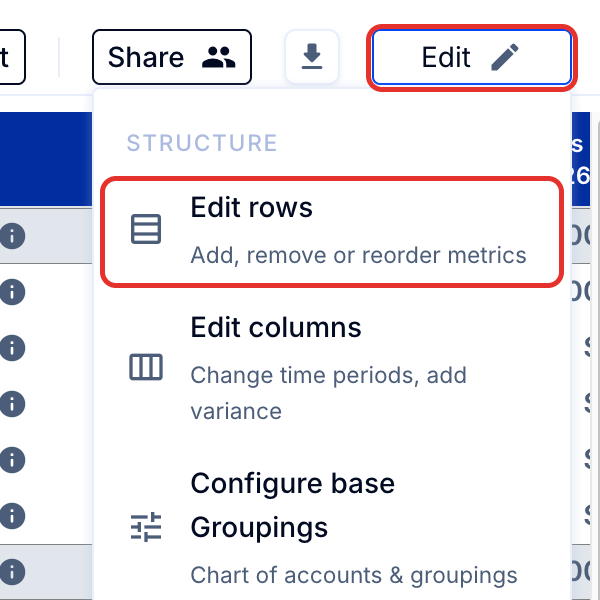
- Select Edit, then Edit rows.
- Click on the row you wish to edit to reveal its formatting and editing options.
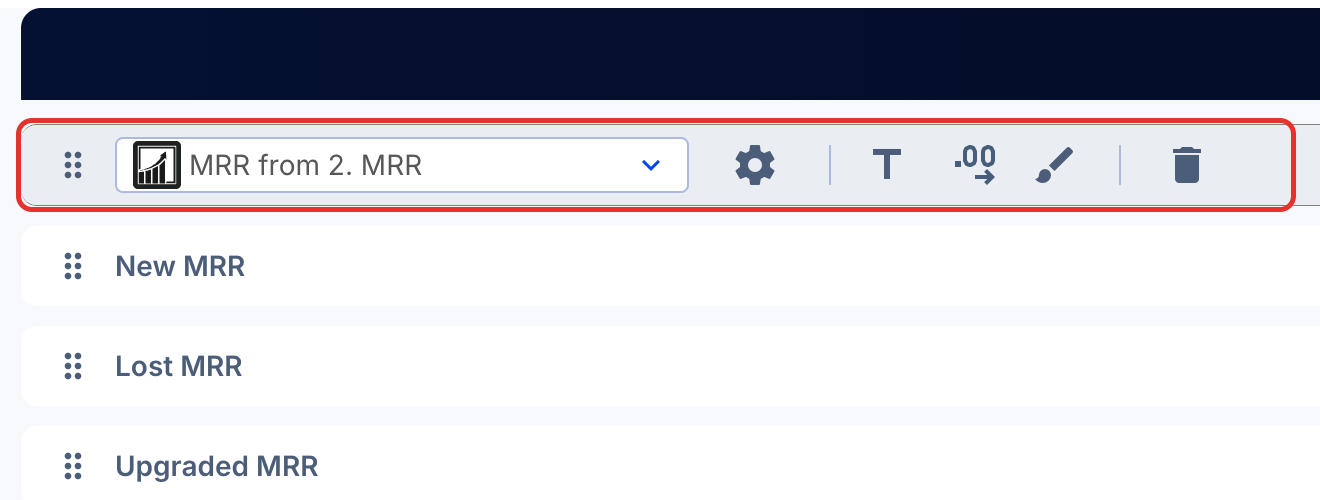
- Click the Decimals icon (.00 with an arrow).
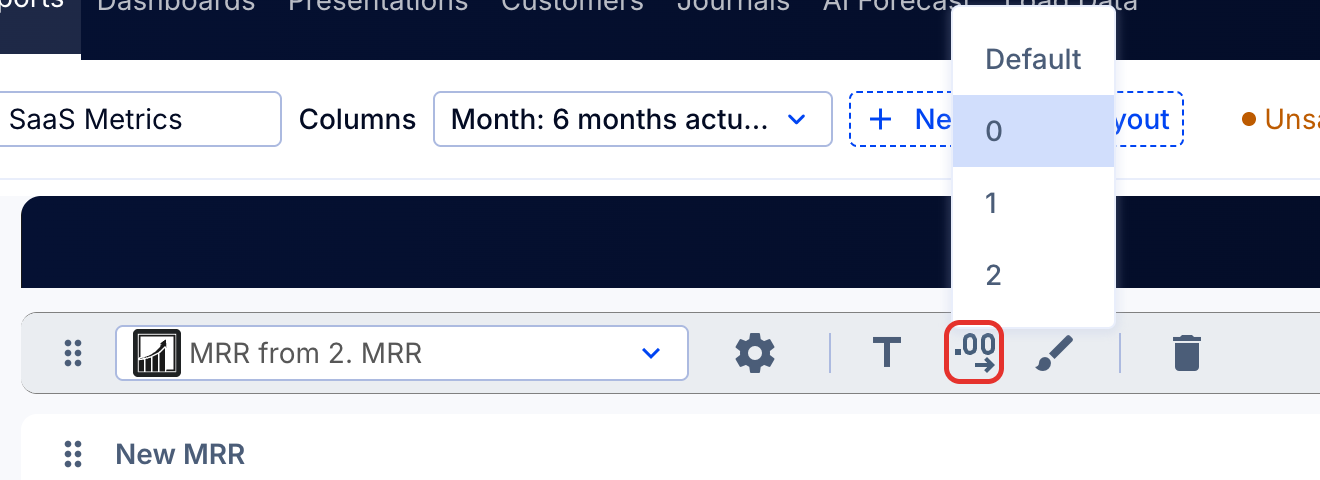
- Select the number of decimal places to show (Default, 0, 1 or 2), then click Save & Exit.