Customer information is consolidated on the Customers tab of the parent company, which shows customer numbers and revenue across the group, translated at the invoice exchange rates.
1. View customer detail at a consolidated level
- Select the parent company (top right).
- Open Customers (top navigation bar).
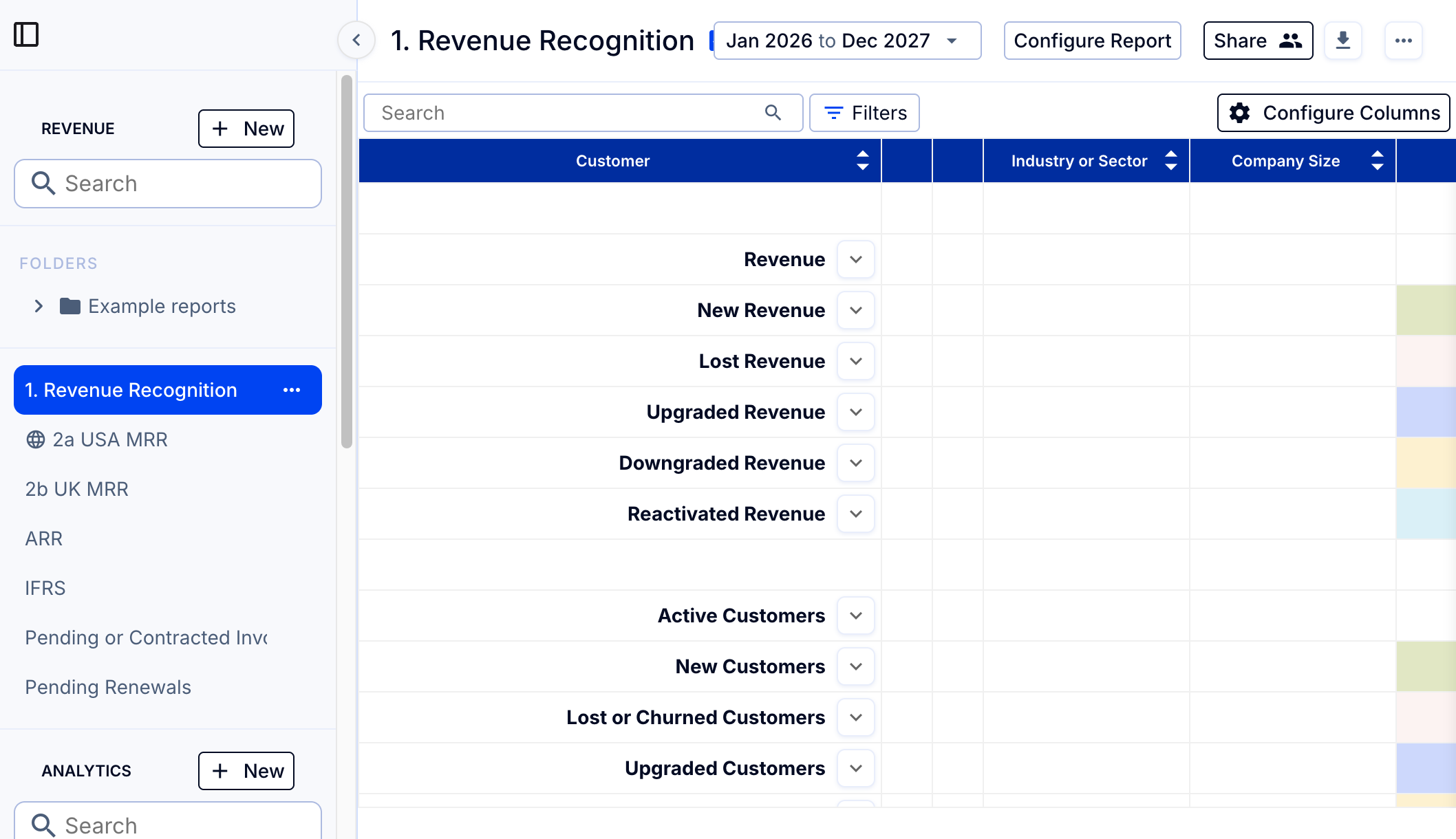
This shows customer numbers and revenue, including deferred revenue, MRR, customers lost, customers gained, reactivated customers, upsells, and downgrades. From here you can see customer summaries and detail by customer, invoice and line item.
For the Customers tab configurations and default reports, see Revenue setup 1: Configure and validate revenue recognition.
For a detailed description of the filters available in the Customers tab reports, see How to view MRR and/or deferred revenue by income type; how to filter accounts on the Customer page.
Once configured, you can download the detail as described in How to download Customer page detail; how to download all invoice line item detail into Excel.
Exchange rates
By default the customer page uses the average exchange rate (P&L rate) from the month the invoice was issued. To view or edit these rates, go to Load Data > Invoice FX Rates.
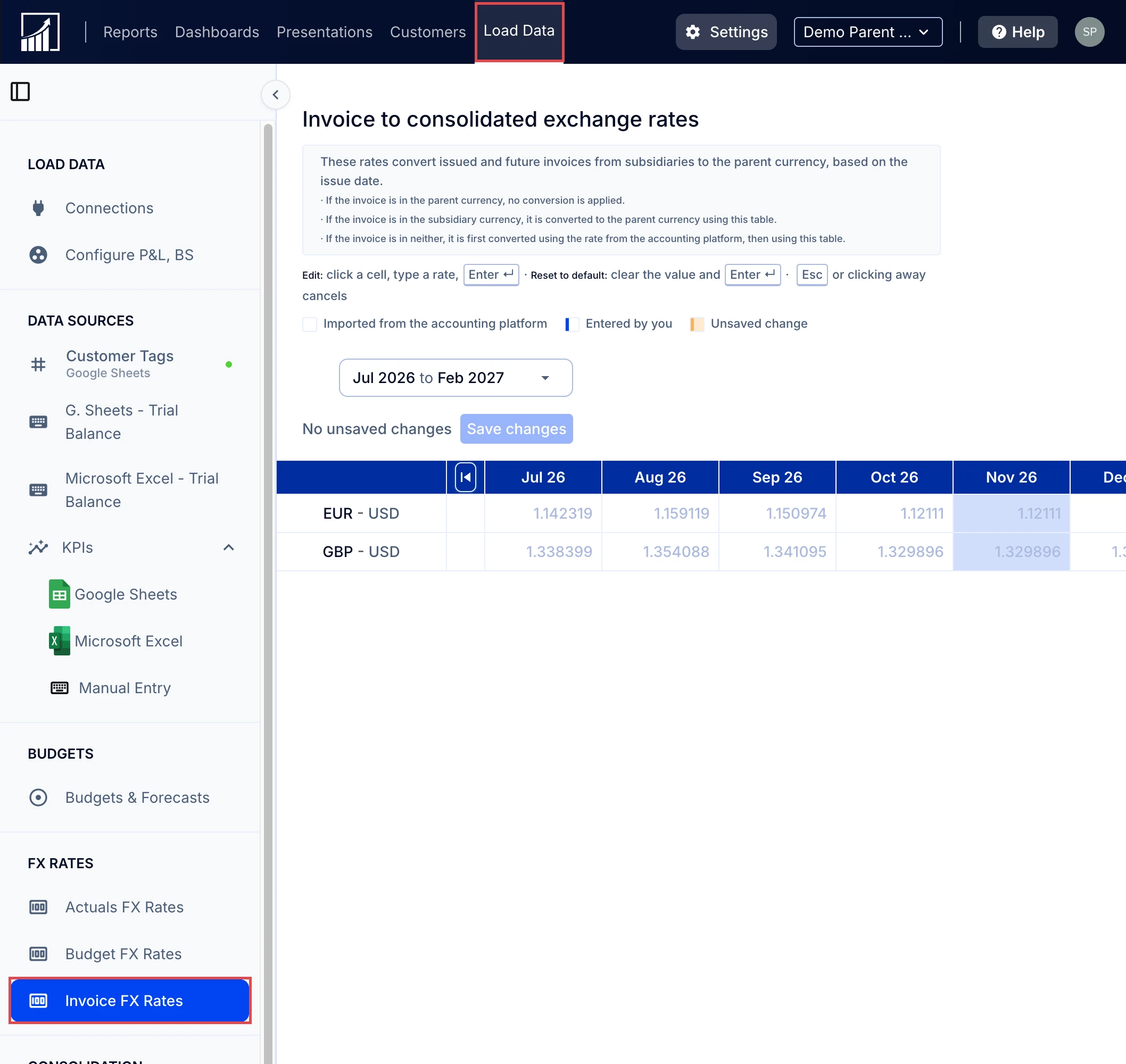
Changes are saved and flow through all reports in the consolidated entity that use customer page data, such as MRR and churn.
How are consolidated metrics calculated?
By default, consolidated metrics use data from the global report at the consolidated company, which is set as the MRR report with no account filters and a full month view.
To learn how to configure and read MRR, see How to change MRR.
For more about metric definitions and the metric library, see What is the ScaleXP metric library?
Note: Metrics viewed at consolidated level can sometimes differ slightly from those viewed at subsidiary level due to the impact of exchange rate translations.