You do not need to set up users in ScaleXP Invoicing: anyone with access to the ScaleXP Invoicing card on a HubSpot deal (ScaleXP Invoicing - Create Invoices in HubSpot's app card settings) can create invoices, and only admins need the ScaleXP Invoicing Dashboard.
At a glance
One of the real advantages to using ScaleXP Invoicing is that users can create invoices without needing access to your accounting platform.
Here are some key concepts which will help you understand how ScaleXP Invoicing permissions work:
- You do not need to set up users in ScaleXP Invoicing
- Any user with access to the ScaleXP Invoicing card on the sidebar of a HubSpot deal can create invoices
- The ScaleXP Invoicing Dashboard only needs to be accessed by admins
ScaleXP Invoicing sync settings
- In the ScaleXP Invoicing Dashboard app.scalexp-invoicing.com, go to Preferences > Create invoices.
- Select Default to ensure that all information from ScaleXP Invoicing is automatically synced in both directions with your accounting system and ScaleXP reporting.
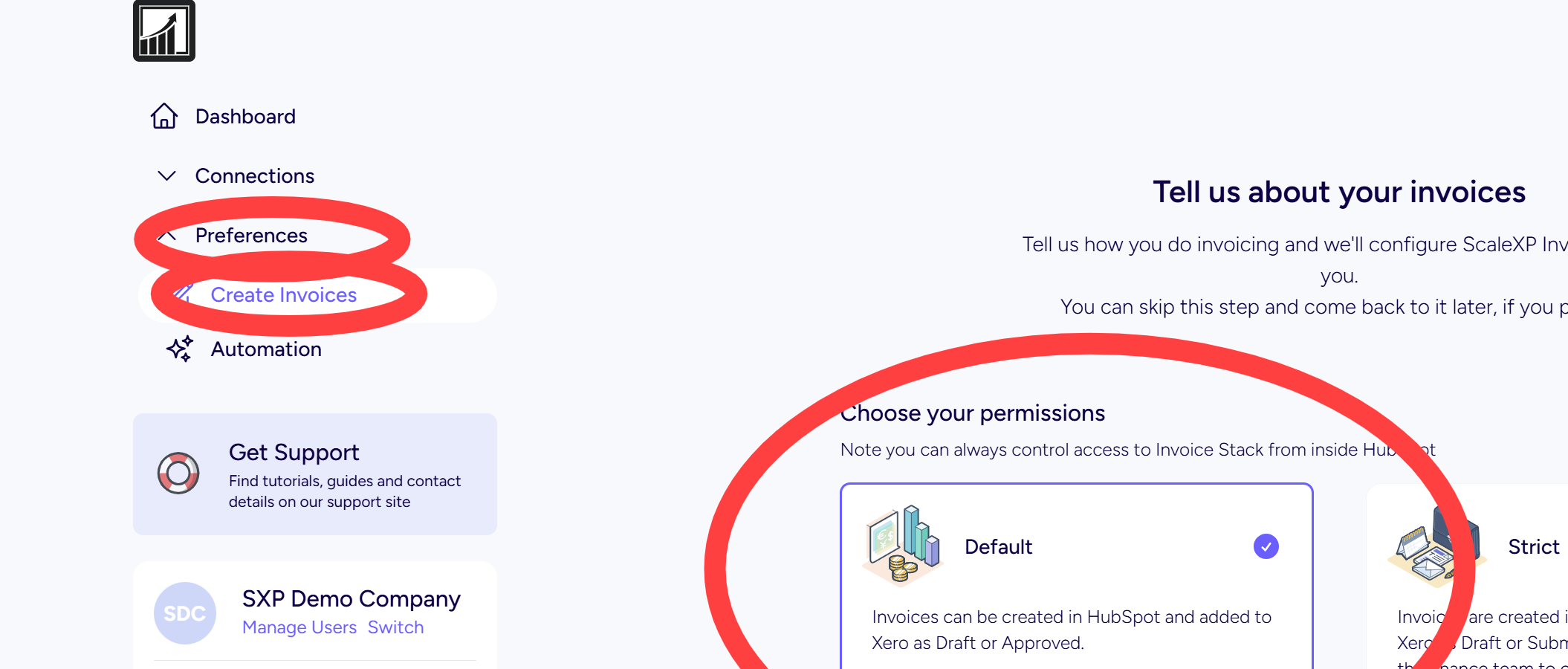
Note: Everyone with access to the ScaleXP Invoicing window can see and do the same actions; you cannot control these settings per user.
Control access to ScaleXP Invoicing
Access to view, create or send invoices with ScaleXP Invoicing is exclusively controlled by the ScaleXP Invoicing card that sits on the sidebar of your HubSpot deal. Users can only create invoices for that deal if they have the card visible. This means you can control access to ScaleXP Invoicing using the HubSpot sidebar settings, and control access to deals using HubSpot's permissions.
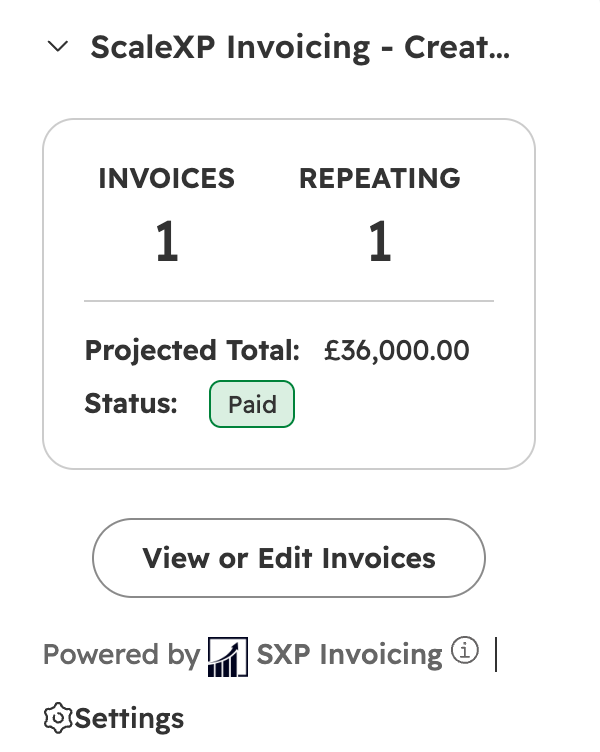
For example, if you want to only allow the Finance Team to create invoices via ScaleXP Invoicing, then you could hide the deal card from all other users. They would still be able to see the invoice data such as invoice number or status using deal properties.
To control access to the deal card:
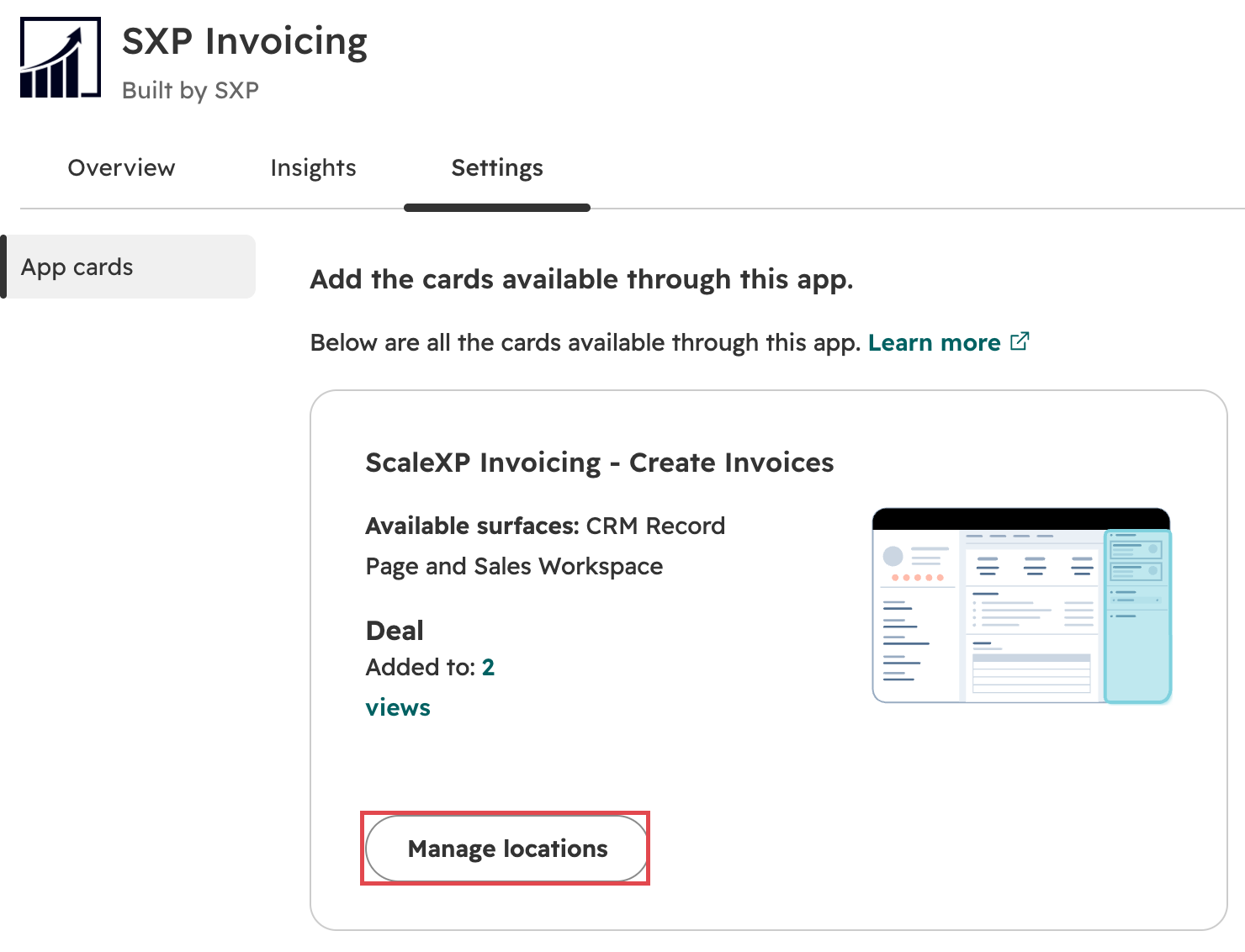
- Go to Connected Apps in HubSpot (Settings > Integrations > Connected Apps) and open SXP Invoicing.
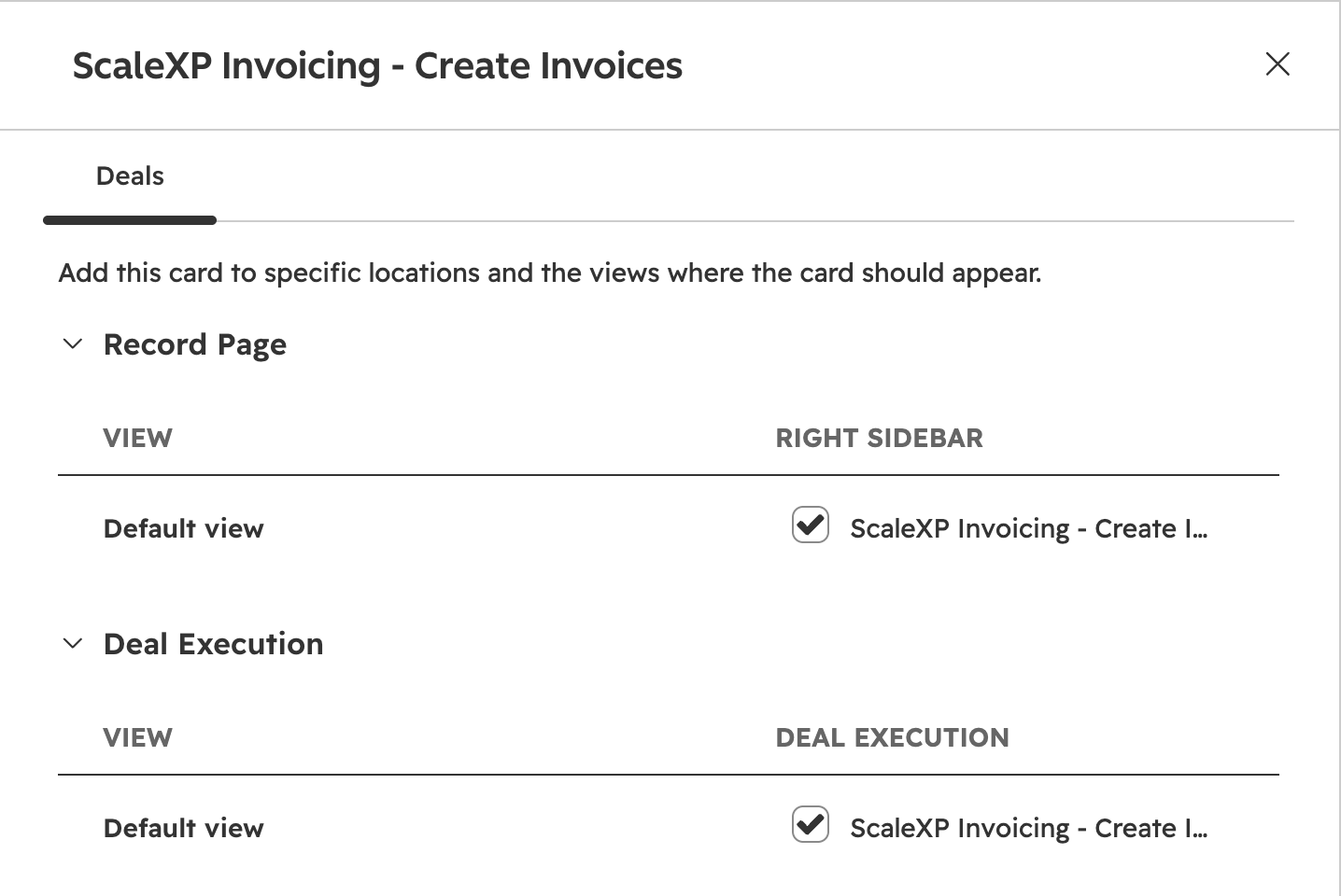
- Choose the Settings tab, then App cards, and click Manage locations on the ScaleXP Invoicing - Create Invoices card.
- Choose which deal views show the card, in the right sidebar of the record page and in Deal Execution. Untick a view to remove the card from it, or tick one to add it.
To give certain teams their own sidebar, set up team-specific record views in HubSpot. For more information, see the HubSpot Knowledge Base article.
The dashboard
The ScaleXP Invoicing dashboard is the admin area for ScaleXP Invoicing that you will have used in order to set up the app. Users do not need access to the dashboard to be able to use ScaleXP Invoicing. The dashboard supports the following administration options, and you probably will not need to use it often:
- Connecting or Troubleshooting Xero / QuickBooks / HubSpot connections
- Preferences
- Managing users
There is no subscription or billing page in the dashboard. For billing questions, contact [email protected].
Users and billing
ScaleXP Invoicing does not require you to configure or define users as part of the billing process. ScaleXP Invoicing supports unlimited users, and everyone with access to the deals as defined above can use ScaleXP Invoicing.