Use the "Download Journal Detail" report in Excel on the Deferred Revenue Journal page. It documents the journal you post in Deferred revenue 2: Review and post the journal - attach it to the journal in your accounting system.
1. Download the detailed journal report
You can access this in either of two places:
- Use the download button at the top right of the page and select "Download Journal Detail for a Specific Month", then select the month to download.
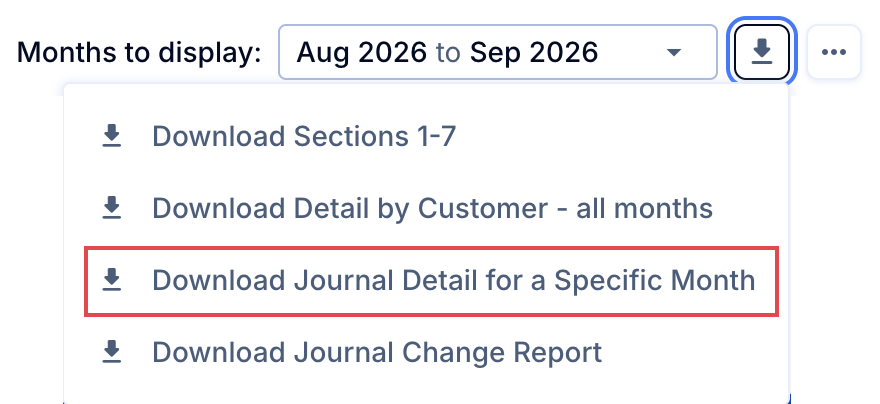
- When you click Post journal (Post draft journal in Xero) in Section 1, the confirmation window also has a Download Journal Detail button, so you can save the detail before you post. It downloads the same Excel file for that month.
What is included
The download is an Excel file for the month you choose, with five tabs:
- Deferred Revenue Journal - a summary of Sections 1 to 6 of the Deferred Revenue Journal page, including journals posted as late adjustments.
- Section 4 - Invoiced Revenue - every invoice line issued in the month.
- Section 5 - Balance Sheet Detail - every invoice line with deferred revenue at month end, with the balance and the months it will be recognized in.
- Section 6a - Recognised Revenue - the revenue recognized from each invoice line in the month.
- Balance Sheet Movements - each line’s movement in deferred revenue in the month, split between invoices issued and revenue recognized, with the deferred revenue and revenue accounts it posts to.
Each line of detail includes:
- customer name
- account name and number
- Xero tracking codes or QuickBooks classes, where used
- invoice source, number and issue date
- line description and amount
- revenue recognition start and end dates