Copy a report on the Customers tab by changing it in Configure Report and saving it as a new report.
1. Copy a report
Note: These steps are for reports on the Customers tab only. To copy a report on the Reports tab, see How to copy a report (Reports tab) and to copy a chart see How to copy a chart.
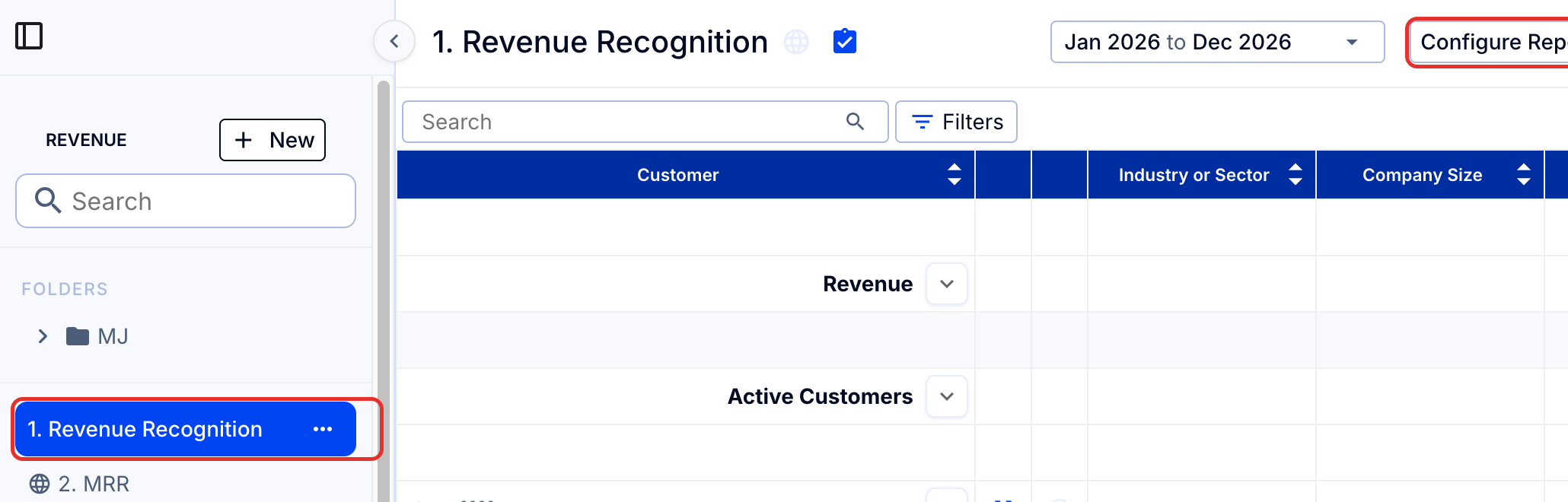
- Select the report in the left sidebar of the Customers tab.
- Click Configure Report at the top right.
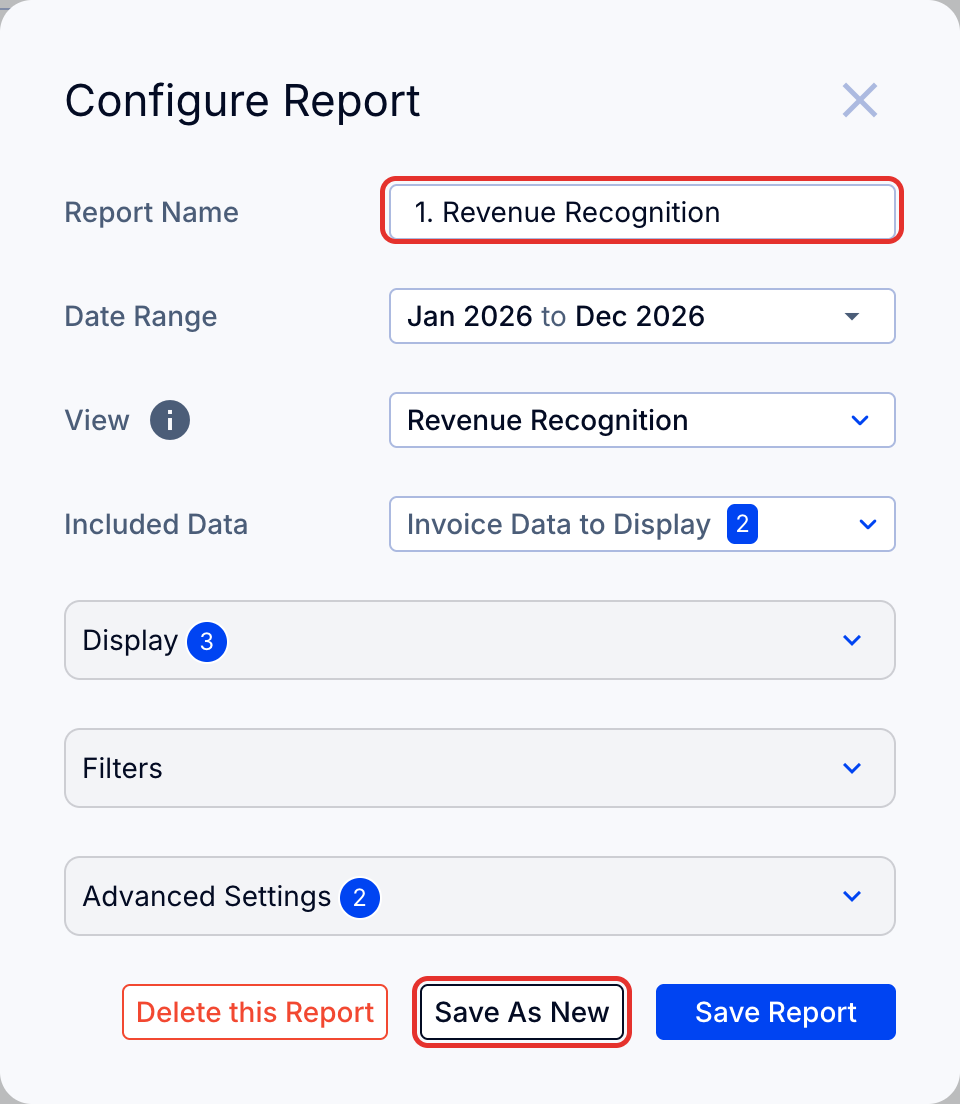
- Make your changes and rename the report.
- Click Save As New.
Your new report will now appear in the left sidebar, ready to use.