To move accounts to a different financial category, group or subgroup in your P&L and Balance Sheet, open the base P&L or Balance Sheet and use Move to.
1. Open the base P&L or Balance Sheet
To move Profit and Loss accounts:
- Go to Reports (top bar) > P&L (any P&L report from the left sidebar).
- Click Edit (top right) > Configure base Profit & Loss. The Configure P&L, BS page opens in a new tab.
To move Balance Sheet accounts:
- Go to Reports (top bar) > Balance Sheet (any Balance Sheet report from the left sidebar).
- Click Edit (top right) > Configure base Balance Sheet. The Configure P&L, BS page opens in a new tab.
2. Move the accounts
- Click Expand all to see all accounts in any Financial Category.
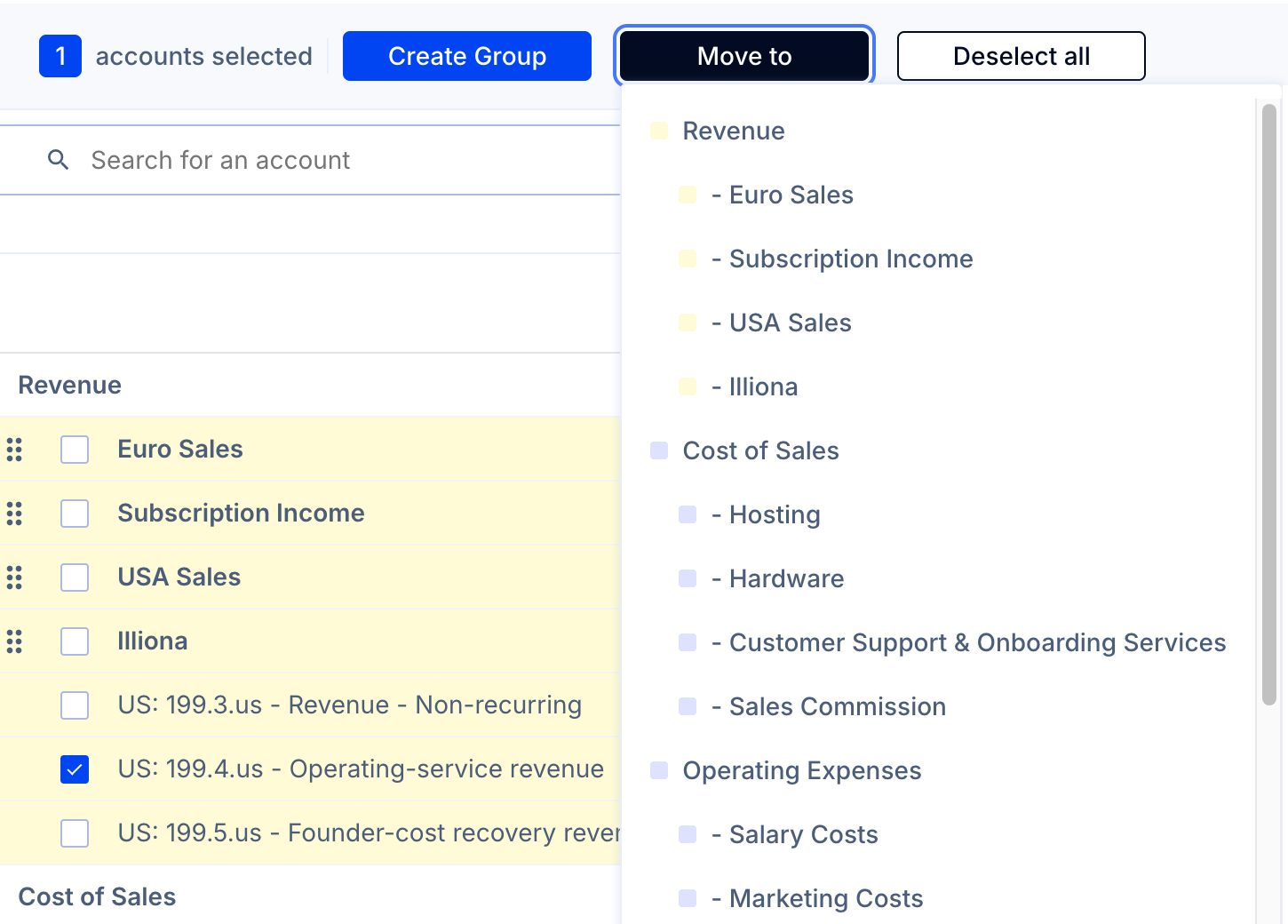
- Check the box to the left of the account or accounts you wish to move.
- Click Move to (top of page).
- Select the financial category, group, and subgroup to which you want to move the account and click on it.
Tip: In a consolidated company, move, group and rename at the consolidated level first, then cascade settings down. See How to move and group financials across entities using cascade from parent.
Tip: To quickly find an uploaded account (or set of accounts) by name, use the Find command on your computer (Control+F on a PC or Command+F on a Mac). You can then select multiple accounts at a time and move them all at once.