Review the Stripe invoices issued in a month on the New Customer Invoices in [month] page in Journals, filtered to show Stripe invoices only.
Note: Stripe invoices are created automatically only for periods after the Stripe connection is live. To upload historic Stripe invoices, contact [email protected].
1. Show only Stripe invoices
- Go to Journals > New Customer Invoices in [month].
- Click the Included Data filter at the top of the page to open the dropdown menu.
- Tick only Stripe invoices imported to Xero (or QuickBooks) or Stripe invoices imported to ScaleXP, depending on where your Stripe invoices go.
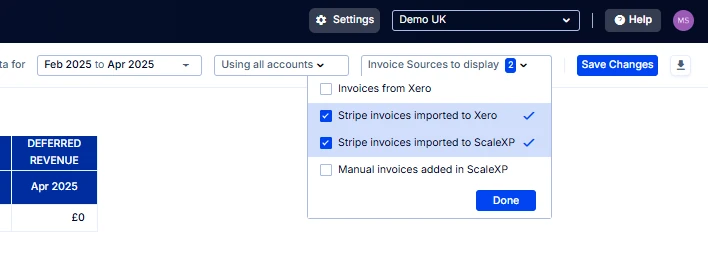
At the top is a summary by account. You can select different revenue recognition date ranges and filter for one or more accounts.
2. Download the list
- Click the download button at the top right of the page and choose Download All Page Data (Excel) to download the full list of invoices and line item detail.

3. Change an invoice's dates
- Find the invoice line in the table.
- Review and change its Start Date and End Date in the row.
- The Account can't be changed on this page. To change it, edit the invoice in Xero or QuickBooks (click the invoice number to open it there).
Read more about this page on How to review invoices issued in the month and download a list in Excel; how to find a missing invoice.
See all options for reviewing and changing the date in The system has not recognized dates correctly. Why? How can I change them?