You choose how dates are shown to you in Settings > Profile.
1. Change your date format
- Click Settings (top right).
- Click Profile (left sidebar).
- Use the dropdown menu to choose Day-Month-Year (British), Month-Day-Year (American) or Year-Month-Day (International).
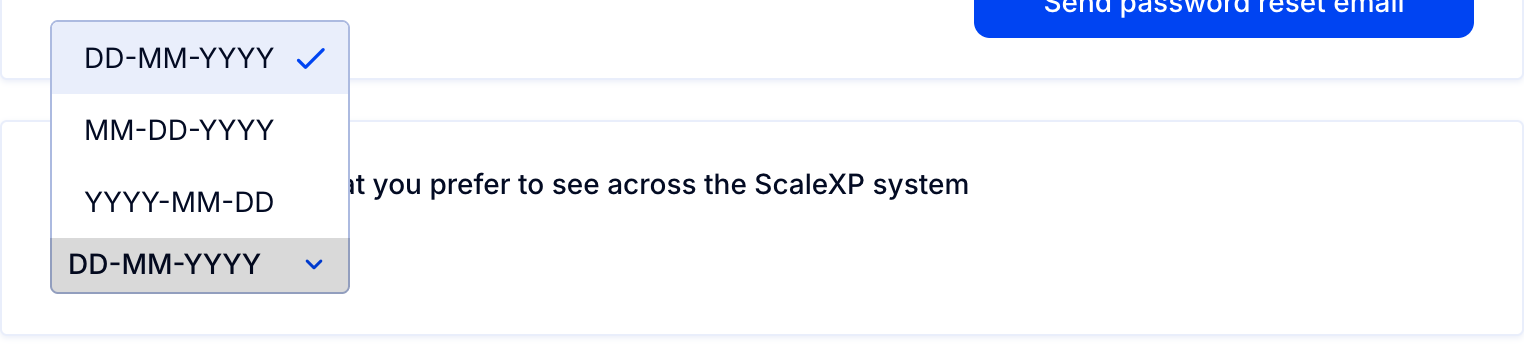
Note: This view is specific to you as a user and does not impact how ScaleXP reads dates on bills and invoices, which is set during the initial accounting connection. To change it after connecting, email [email protected] - see How to choose British or American date formats.