To reduce data sync time, set your accounting connection to sync fewer historical months.
1. Change the number of historical months synced
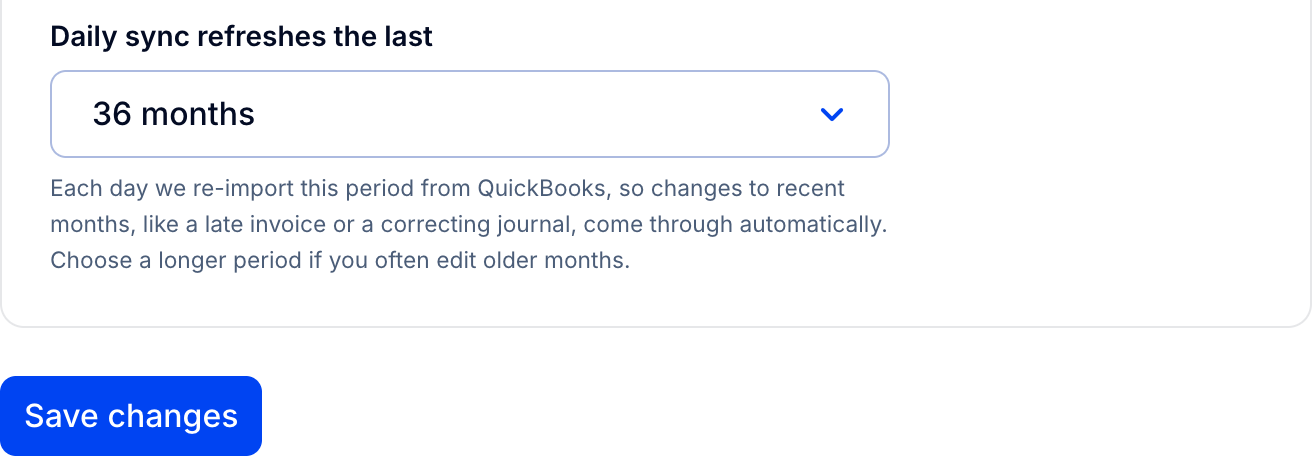
By default, the daily sync re-imports the last 6 months of accounting data. You can adjust this window to anything from 3 months to 48 months depending on your reporting needs.
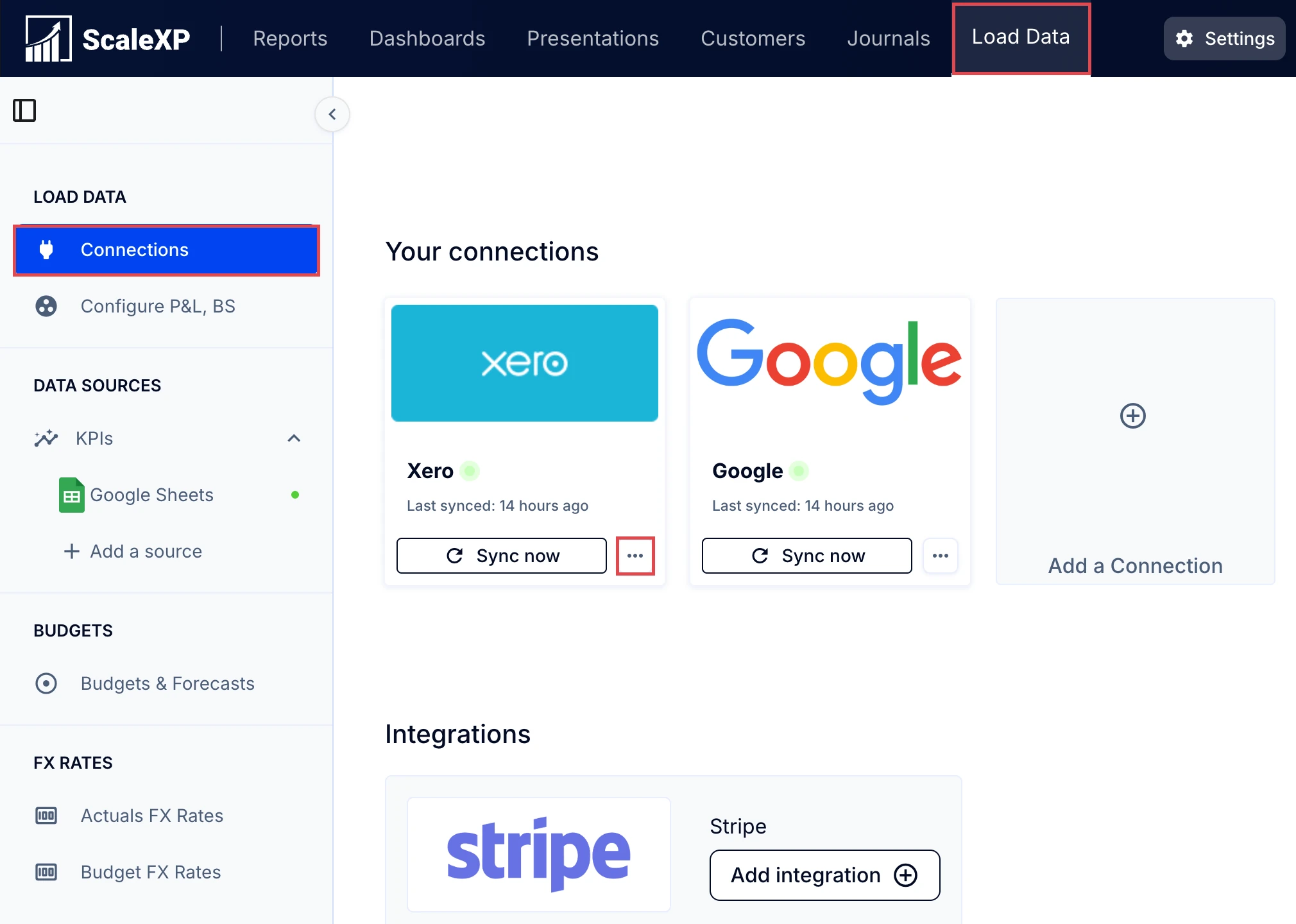
- Go to Load Data in the top menu.
- In the left sidebar, select Connections.
- Find your accounting system connection and click the three dots (•••) menu.
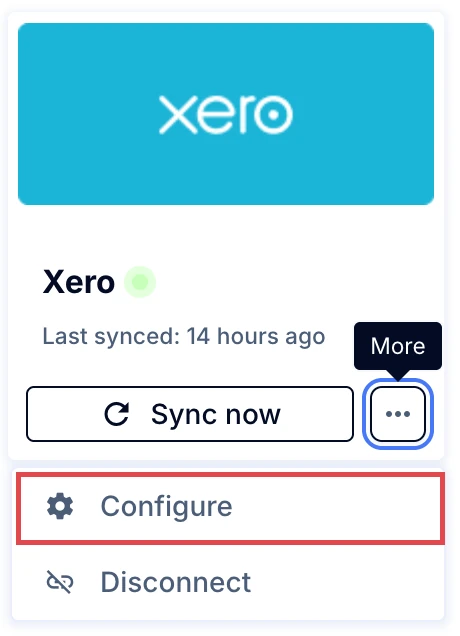
- Choose Configure.
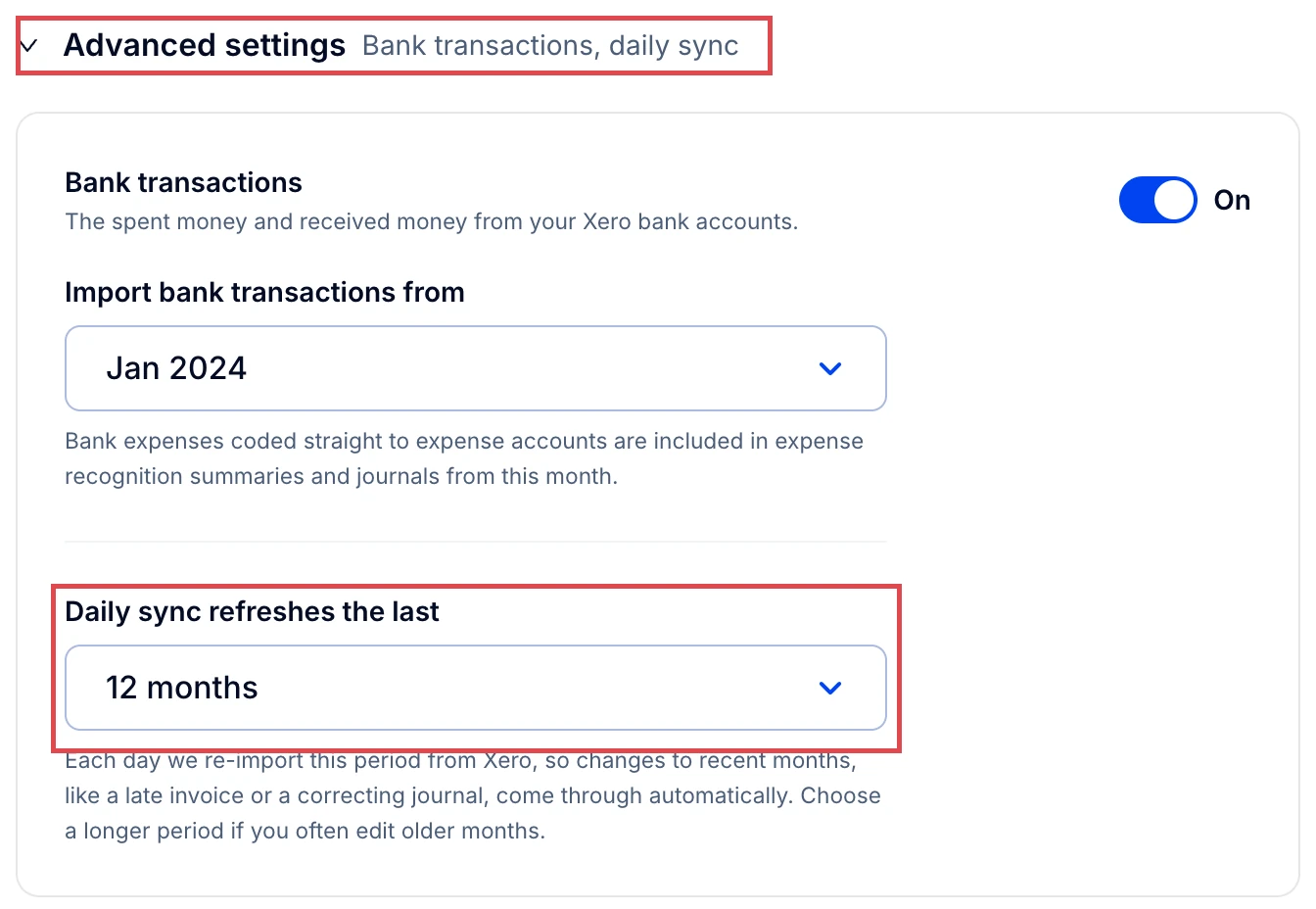
- Open Advanced settings and find Daily sync refreshes the last.
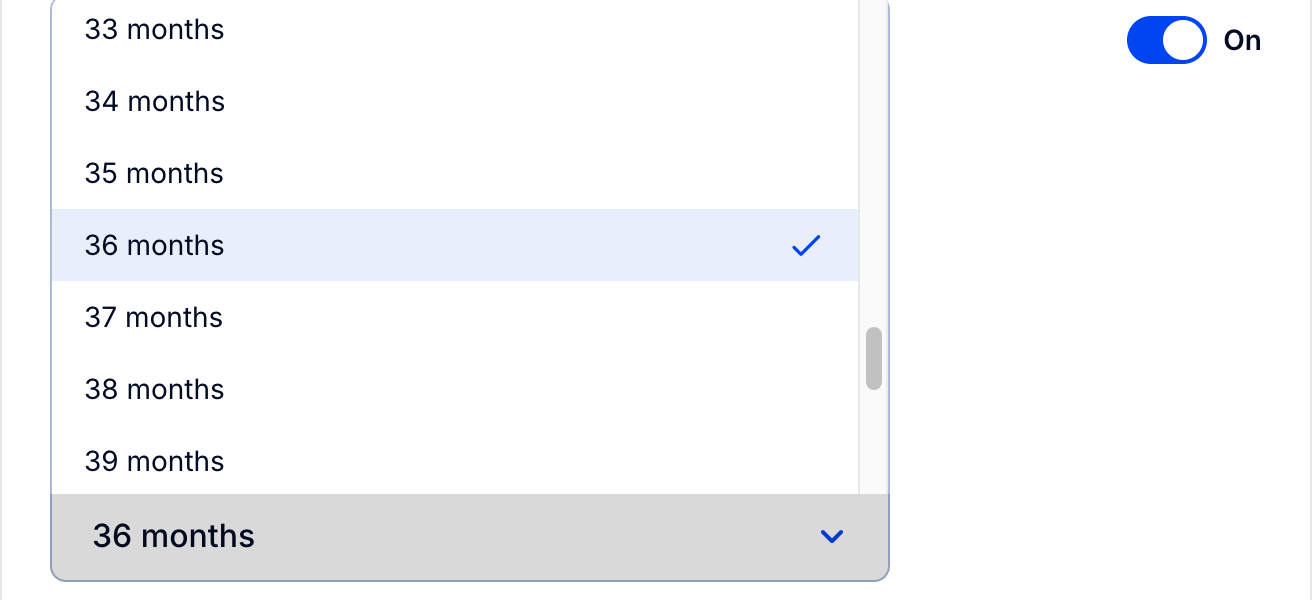
- Select how many months to refresh.
- Click Save changes.
Tip: For faster syncs, stick to the shortest timeframe you need. If you only require current-year data, set the sync window to 12 months or less. Use longer timeframes only when reviewing revised historical data.
Important: Importing only the last 3 months of data reduces sync time, but it impacts every sync. Be sure to change this back if you make changes to prior periods of any kind.
Other ways to reduce your data sync time
Other things to consider are:
- can you reduce the time period being viewed in your report?
- have you synced multiple times recently? This can hit data limits, for example on Xero APIs
- are you on the best available internet connection and computer processor?
- is it a peak time in the network?
To find out how to sync data, see How to activate an immediate data sync.