Use the New supplier bills page to find a missing bill, review and change expense recognition start and end dates, and download bill detail in Excel. It is a useful cross-check before you post your expense journals.
1. Open the New supplier bills page
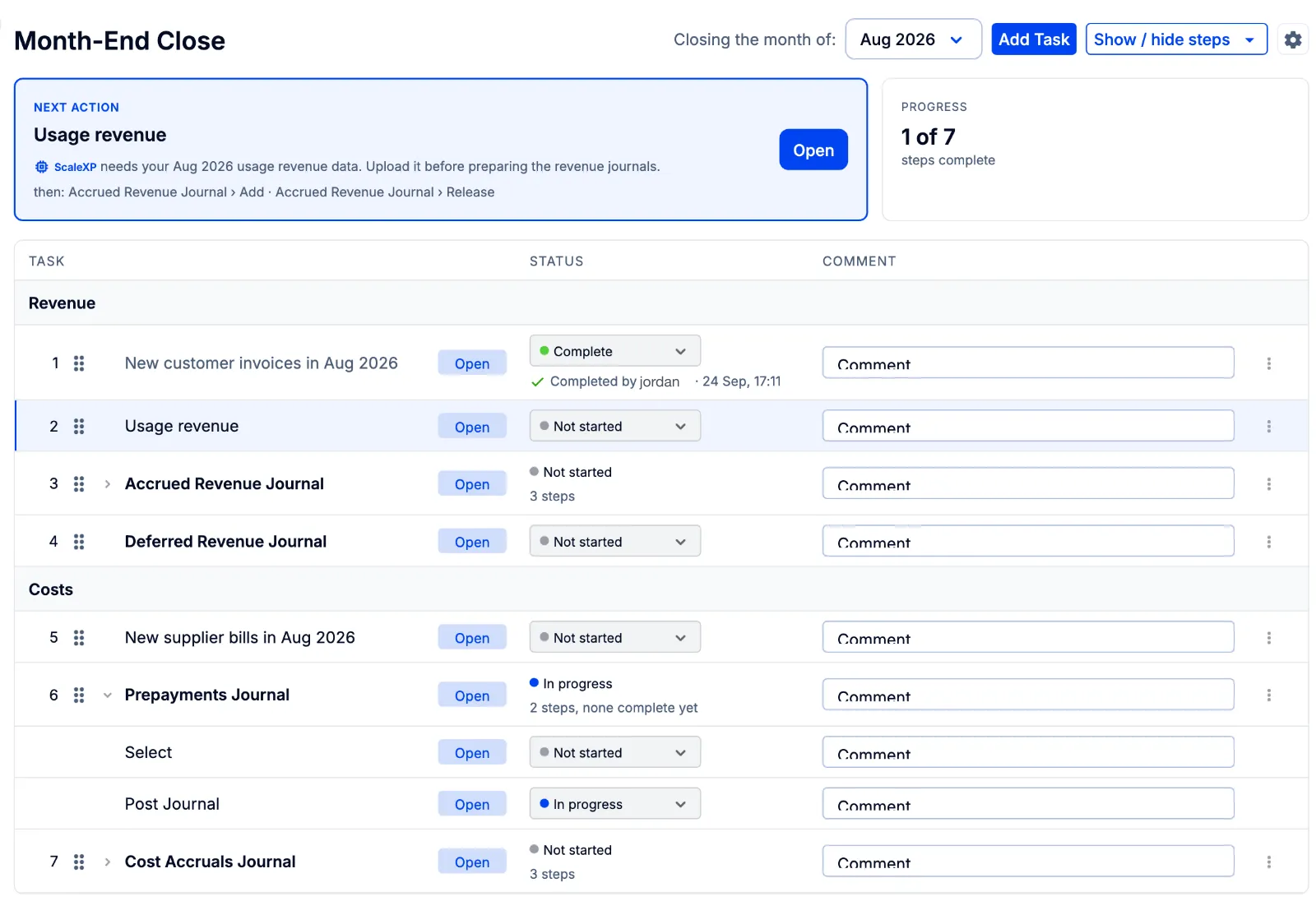
- Go to Journals > Month-End Close and click Open on New supplier bills in [month] under Costs.
2. Select the issue month to review
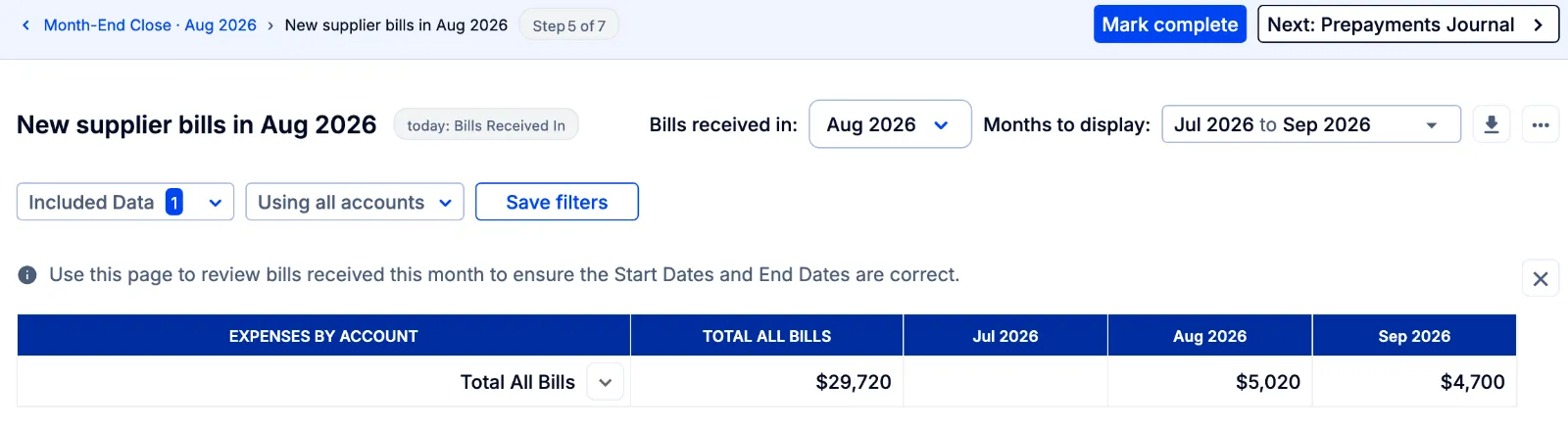
- Choose the month in Bills received in at the top of the page. This is based on the issue month saved in the bill in your accounting system when last synced with ScaleXP.
3. Sort and/or filter
- Filter by expense account and then sort by bill number, bill date, amount, line description, expense recognition start date, expense recognition end date, or line amount.
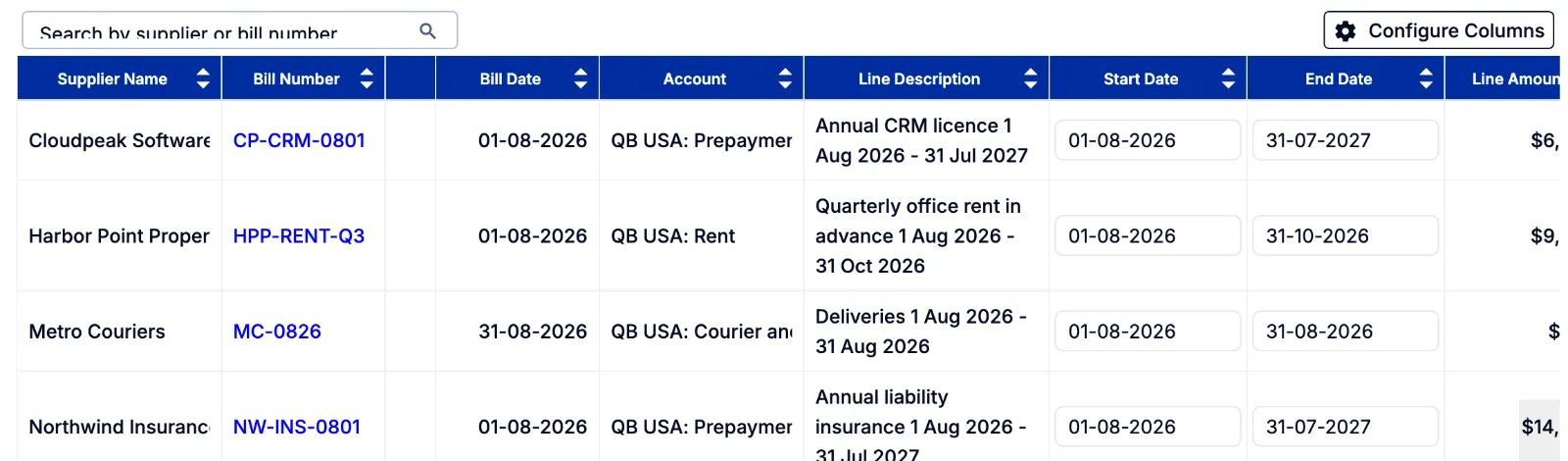
Tip: We recommend sorting by start date, then end date to look for outliers. You may also want to check by account and supplier to ensure the start and end dates are consistent with the cost type.
4. Use the search bar
- To find a specific bill, use the search box above the table to search by supplier name or bill number.
5. Expand Total All Bills to see a summary by expense account
- Expand Total All Bills. The table shows the totals for each expense account with bills coded against it.

6. Download the bill information
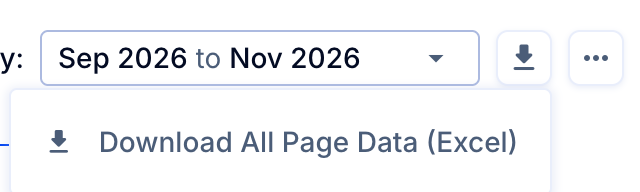
- Click the Download icon at the top right and choose Download All Page Data (Excel).
- Summary by accounts will show on the first tab.
- Detail by line item will show on the second tab.
What to do if a bill is missing from this page
If a bill is missing, it may have been recorded as spent money (paid directly from a bank or credit card account) rather than as a bill in your accounting system. You have two options:
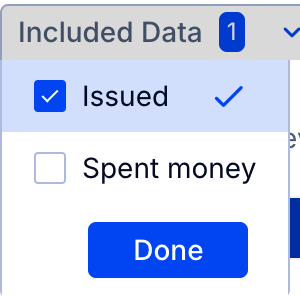
- Include spent money: click Included Data, select Spent money, then click Done. Click Save filters to keep this view. Spent money only shows if you import bank transactions - see How to include all expenditure (not just bills) in your cost recognition reports.
- Add a bill: create the bill in your accounting system and sync with ScaleXP, or add a manual bill in ScaleXP - see How to add a missing bill or cost supplier.
More about expense recognition
For a full review of how to automate expense recognition in ScaleXP, see Overview: Automate expense journals.