Choose the GL accounts in the Costs in CAC metric, which is blank until you do because by default ScaleXP does not know which GL accounts to include in CAC.
1. Choose the accounts in Costs in CAC
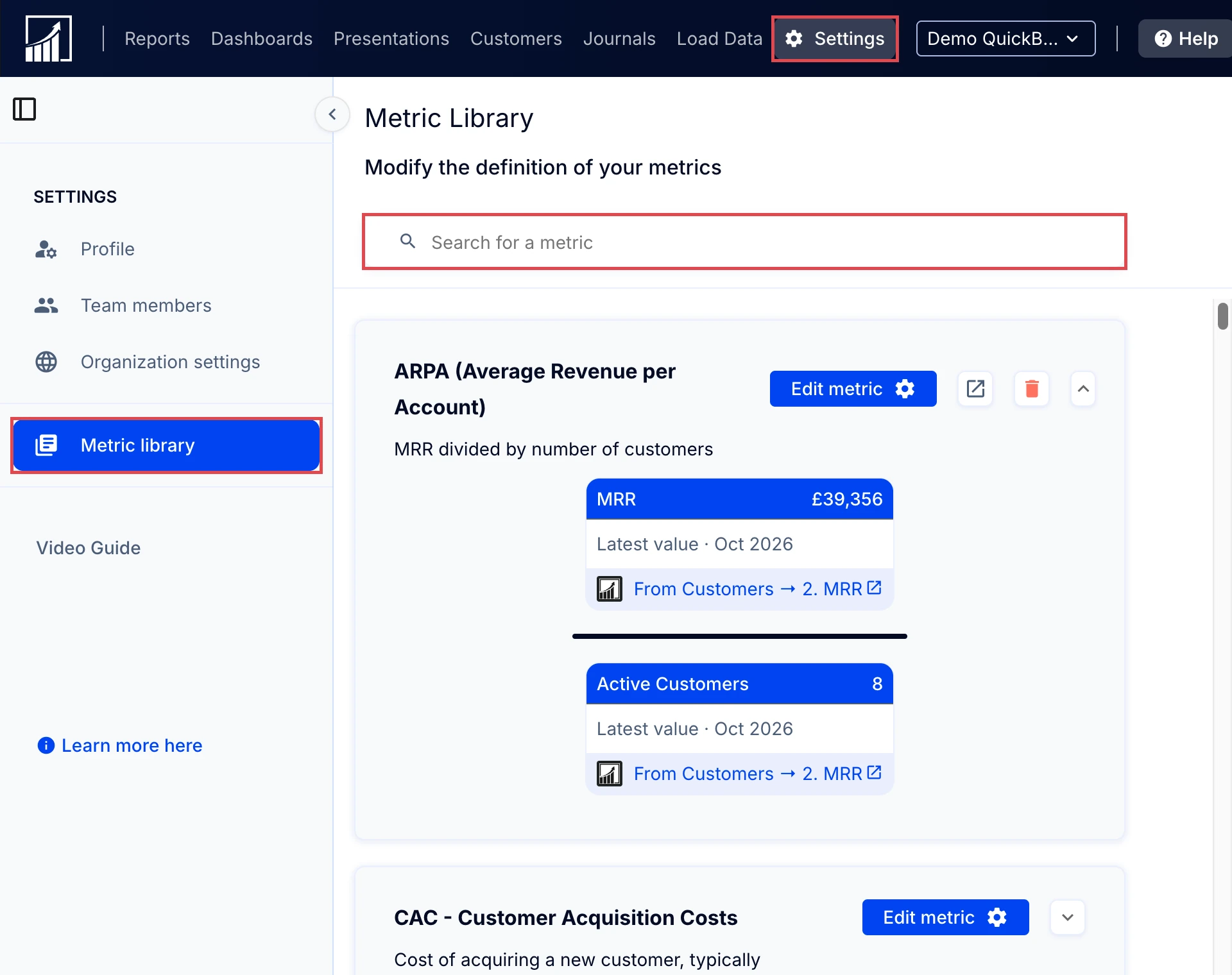
- Click the Settings cog (top navigation menu, right side), then Metric library (left sidebar), and search for Costs in CAC (top left).
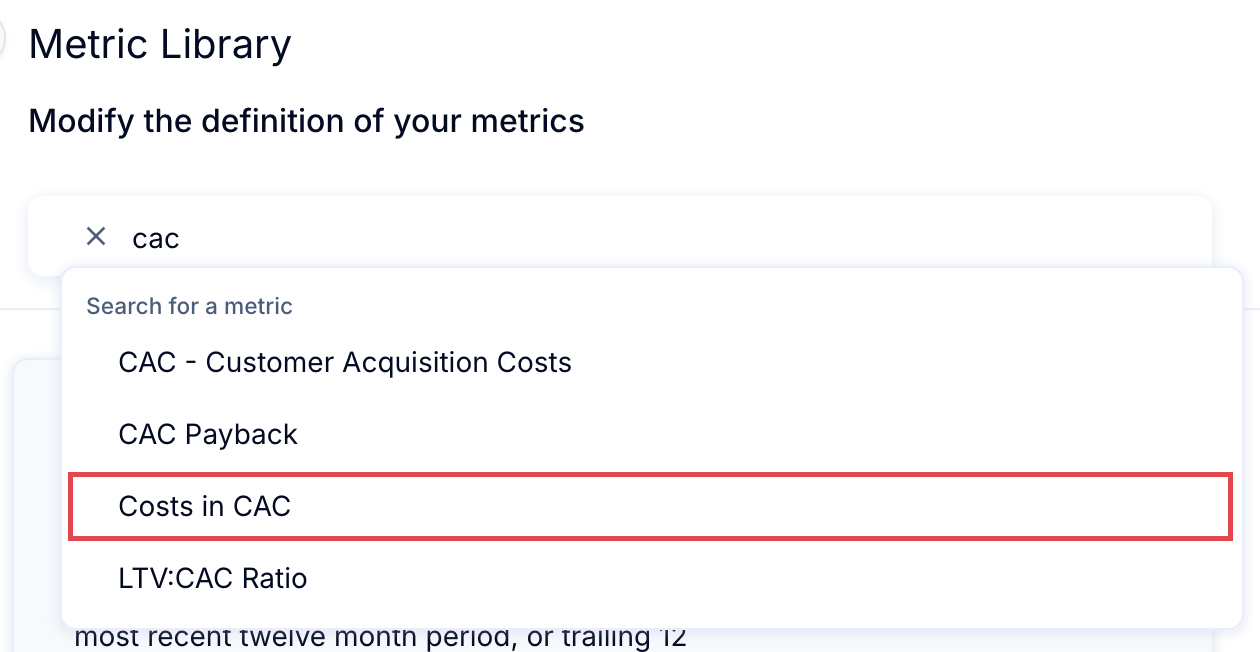
- Select Costs in CAC from the options.
- Choose Edit metric (right side button).

- You will see a warning that updates or changes in the metric library will impact all users. Select Ok.
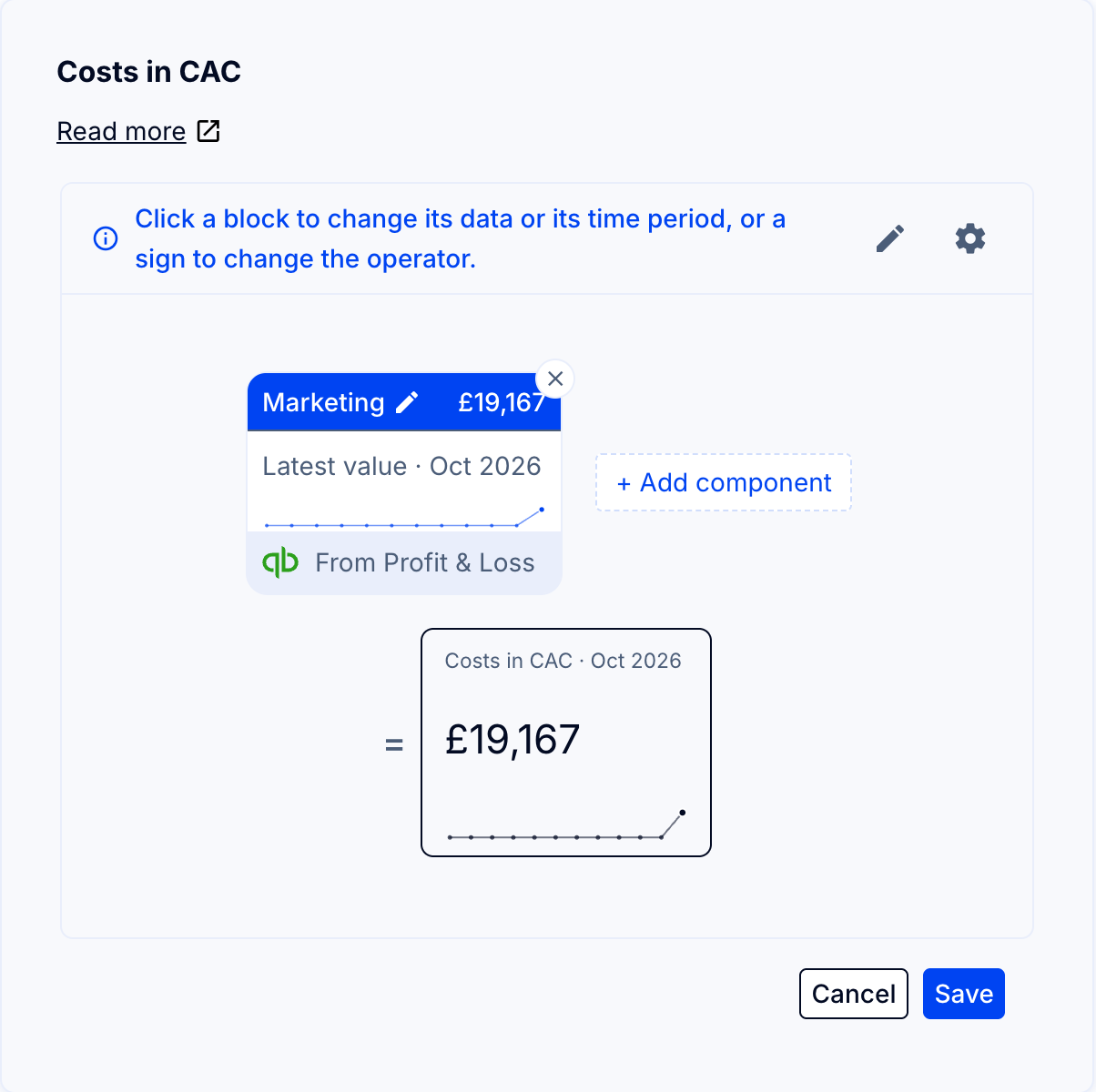
- In the builder, click a block to change its data or time period, or a sign to change the operator.
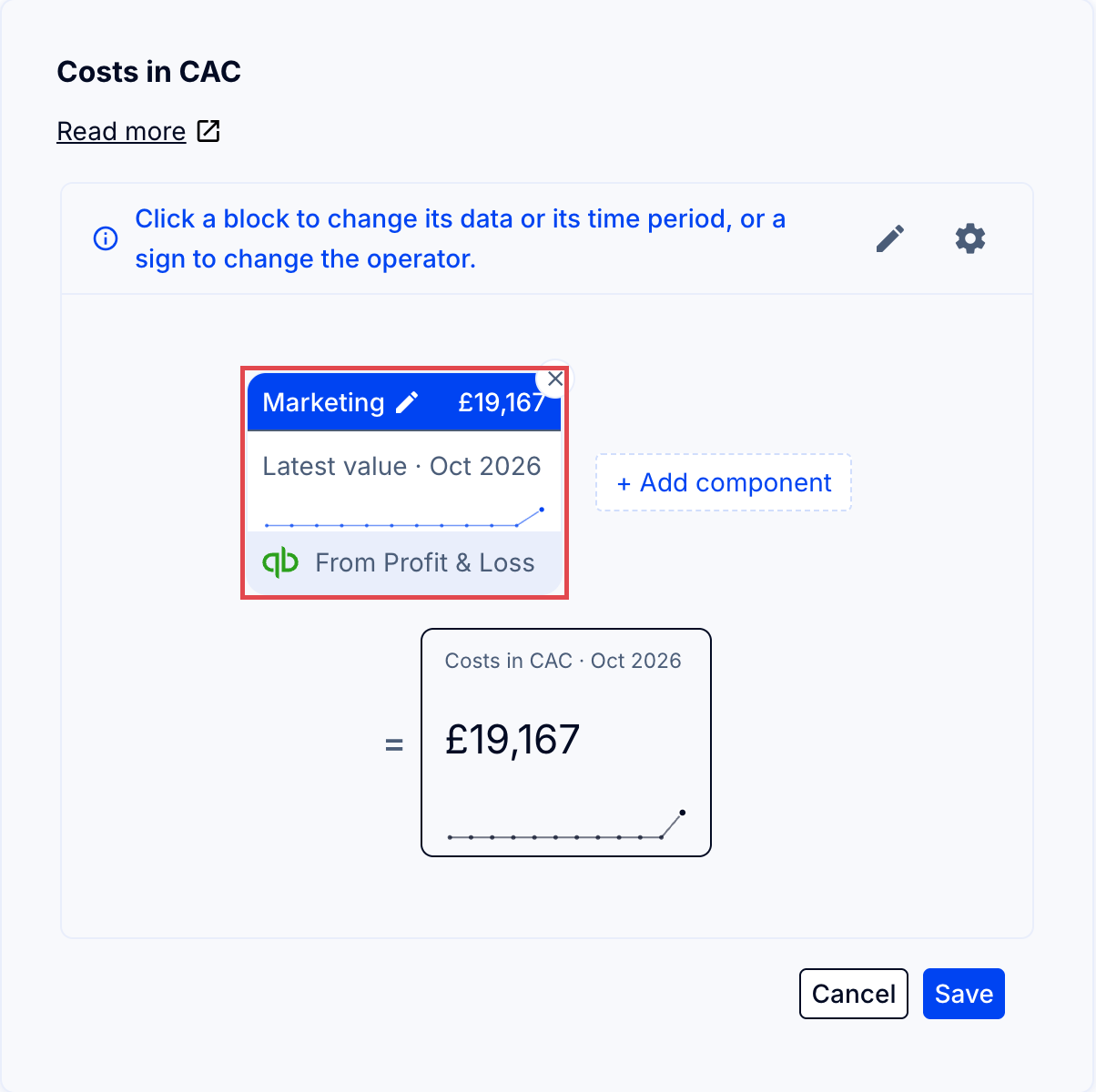
- Click + Add component to add or subtract an account, group, subgroup or other formula.
- Click Save.
For more, see How to edit a metric and change how it is calculated.
How it works
Customer Acquisition Cost or CAC is a critical foundation for SaaS metrics in ScaleXP. Metrics throughout the system rely on CAC, and Costs in CAC is where you define which GL accounts contribute to it. You can adjust the definition for CAC (Customer Acquisition Costs, or Cost of Customer Acquisition) to include any combination of GL accounts from your accounting system.