When a customer upgrades before their current contract ends, use Option 1 to handle the part of the old contract not yet recognized with a customer discount on the upgrade invoice, or Option 2 to handle it with a manual adjustment in ScaleXP that the customer does not see.
Option 1: Create an explicit customer discount for the existing prepaid amount
Show a discount on the upgrade invoice for the amount already paid in the previous invoice.
- Create a line item crediting the customer for the amount not yet recognized from the previous invoice:
- The amount of the credit should equal the remaining invoiced amount in the previous invoice.
- In the text, use words that show the start and end date of the discount, where the start date is the upgrade invoice date and the end date is the end date of the previously invoiced amount.
- Add a line item for the full (gross) new amount, so the invoice total nets off the credit, and use the start and end date for the new invoice period.
Option 2: Create an adjustment in ScaleXP to reallocate the revenue
If you prefer not to make these adjustments visible to the customer, you can make them in ScaleXP instead. See How to create a manual invoice or credit note below for where to do this.
- Create a manual credit note in ScaleXP:
- Set the negative value to equal the unallocated revenue from the previously issued contract invoice.
- Set the start and end date to reflect the time period remaining unallocated on the previously issued invoice.
- Save the credit note (negative invoice).
- Create a manual invoice:
- Set the value to equal the opposite of the credit note.
- Set the start and end date to equal the start and end date of the new invoice period.
- Save the invoice.
Note: You can also create the credit note and invoice as separate line items on a single manual invoice with a total value of nil. This works for any manual invoice as long as the revenue recognition date is different from the credit recognition date.
How to create a manual invoice or credit note
- Go to the Customers tab.
- Make sure your filters are set to show all customer invoices.
- Click the down arrow next to the customer name to expand the customer detail.
- Select Add Manual Invoice at the bottom of the invoice list.
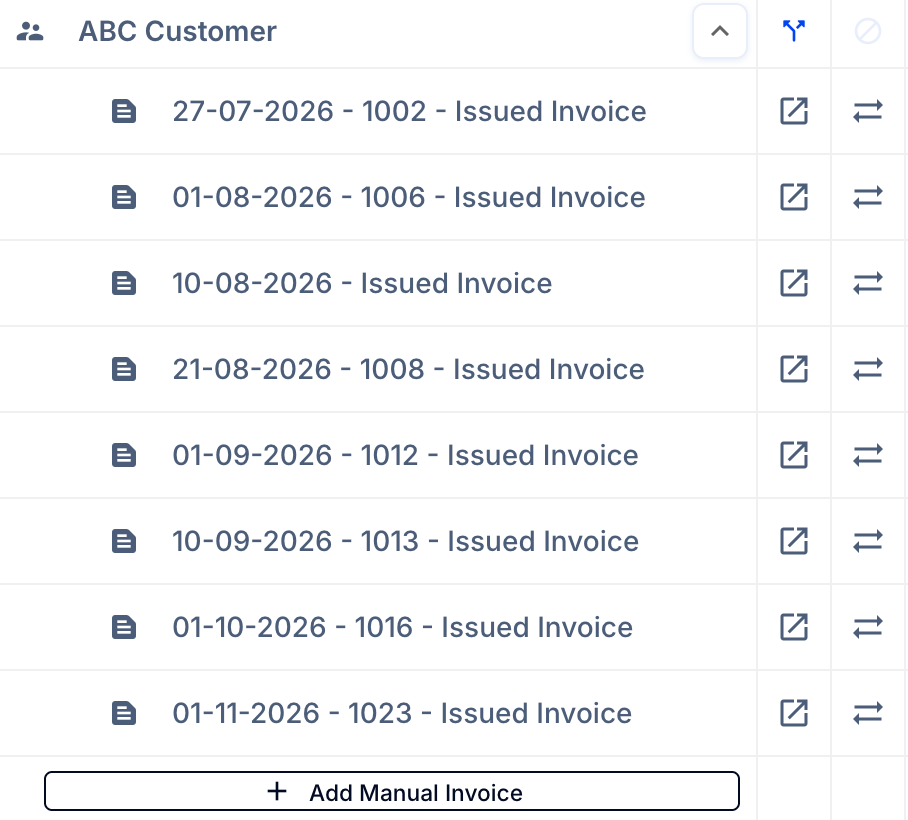
- Enter the new invoice detail. Use positive numbers to create an invoice, or negative numbers to create a credit note.
- Click Save.
How it works
Both options apply correct IFRS principles for an early termination that has not yet been fully recognized but is ended by mutual consent and superseded by a new agreement and payment.