Connect a Microsoft Excel Online spreadsheet to ScaleXP so your Usage Based Cost data syncs automatically every day.
Before you start
- A Microsoft 365 work or school account. Personal Microsoft accounts and the free Excel for the web aren't supported.
- Admin (full access) role in ScaleXP.
- If your organization only lets Microsoft 365 admins approve new apps, ask your admin to approve ScaleXP the first time you connect.
1. Get started
1. Set up a Usage Based Cost account
- From Journals, go to the Usage Costs page (under Costs on Month-End Close) and click the gear icon at the top right.
See Usage-based costs: Set up for full details on how to set this up.
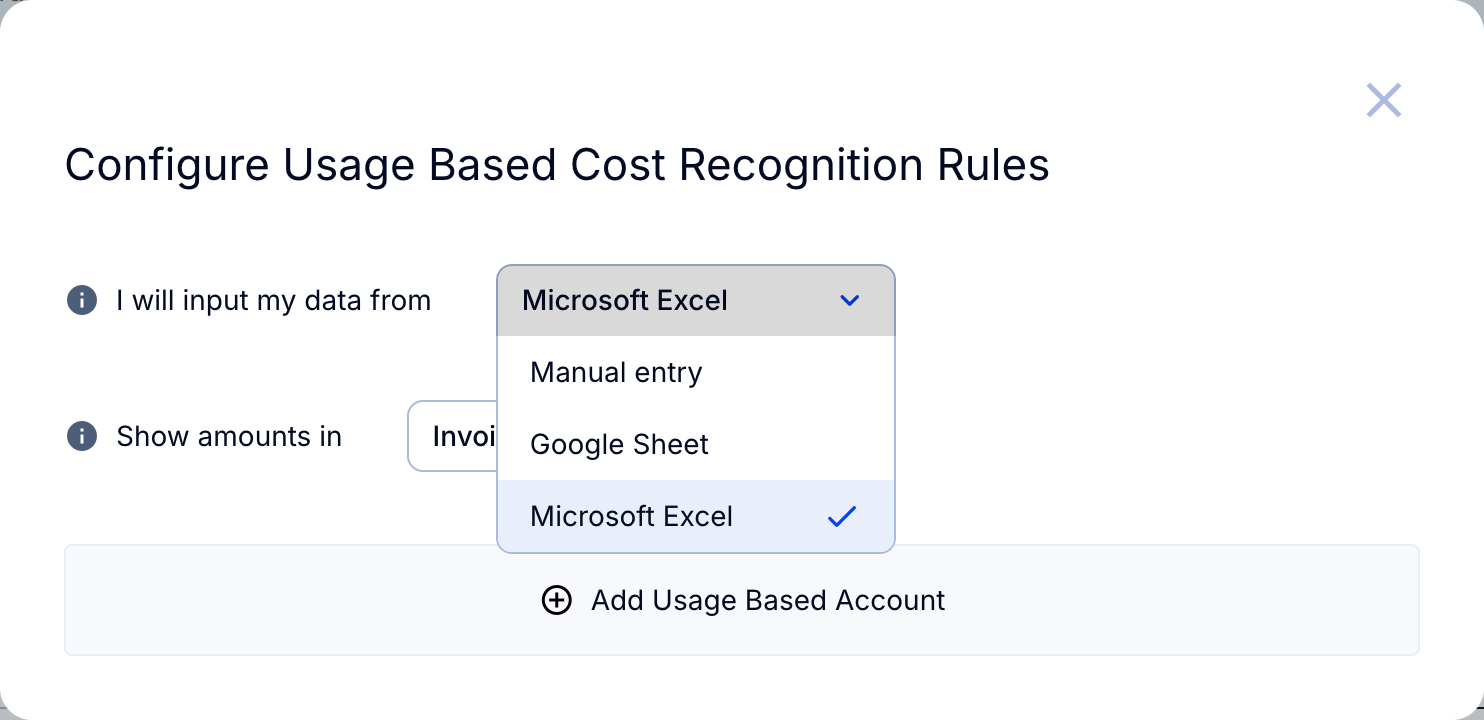
2. Select Microsoft Excel as your input source
- Under the usage-based data input source, select Microsoft Excel, then save your changes.
2. Create and connect your spreadsheet
1. Create your spreadsheet from the template
ScaleXP provides a pre-formatted template so that your data is structured correctly for the sync.
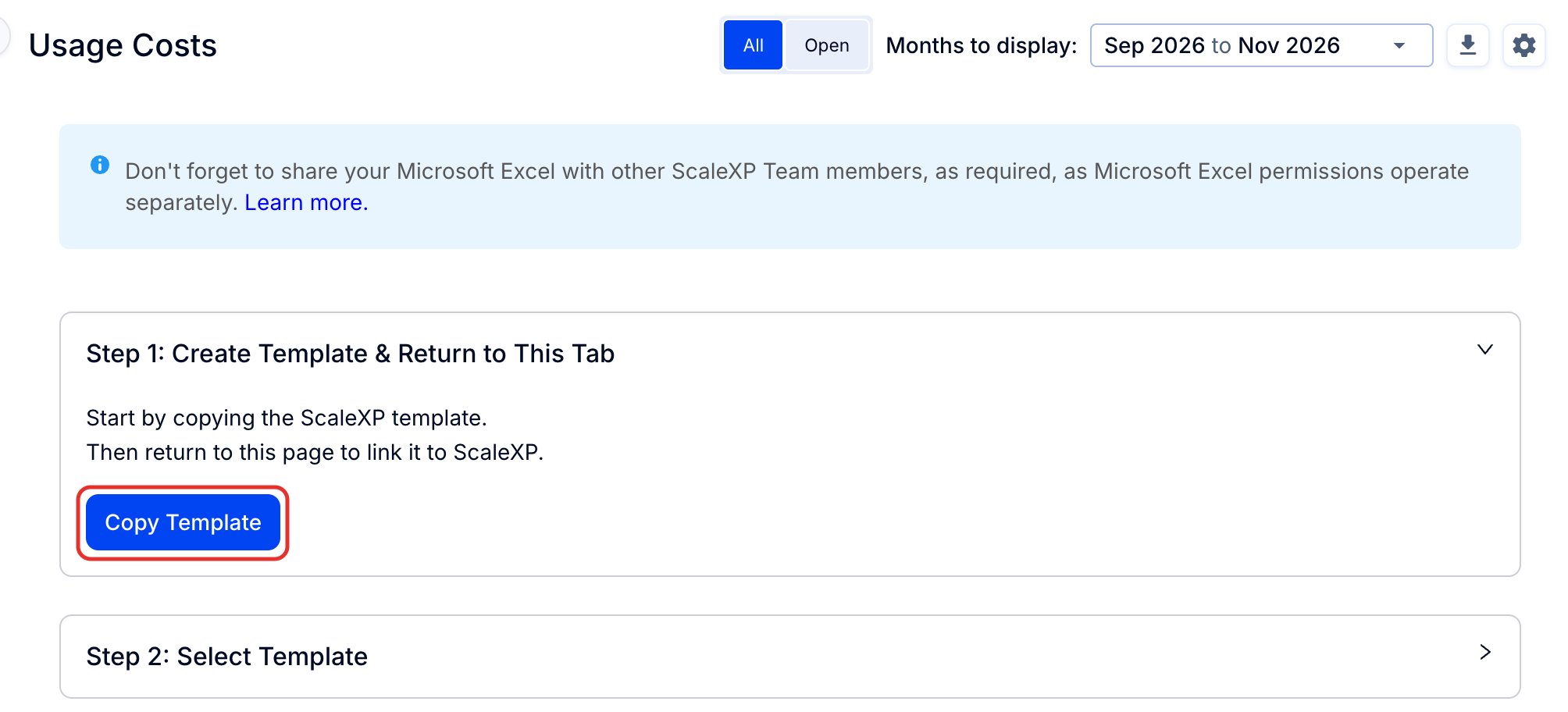
- In ScaleXP, go to Journals and select Usage Costs page (under Costs on Month-End Close, below the New Supplier Bills step).
- Click Copy Template. A new spreadsheet opens in Microsoft Excel Online.
- Sign in to your Microsoft account and grant the permissions requested.
- Rename the spreadsheet to something recognizable (e.g. “ScaleXP Usage Cost Data - [Company Name]”) and save it in your preferred location in OneDrive or SharePoint.
2. Connect your spreadsheet to ScaleXP
- Go back to the Usage Costs page in ScaleXP.
- Click Select Template.
- Browse to the spreadsheet you saved and select it.
- Choose the default “Usage Based Costs” or another sheet as appropriate.
After connecting, the sheet automatically populates with all bill line items posted to the Usage Based Cost account, ready for you to update with actual usage figures. Return to the open Excel file to see the populated sheet for updating.
Note: Your usage data is visible to all Admin users in your organization once connected.
3. Update and sync your costs
Allocate your costs in the spreadsheet
Once the connection is live, your spreadsheet contains the bills and amounts to be allocated.
- Allocate costs in the monthly columns. You can:
- Add a formula that references data imported from another source or another Excel file.
- Enter values manually
- Use any combination of formulas and manual entries.
However you choose to populate the cost data, the figures automatically sync to ScaleXP and update your cost recognition accordingly, including journal suggestions.
Tip: You can use formulas in the monthly columns to pull data from other Excel files - only the calculated values need to be in the connected sheet.
Note: Having chosen the Excel option, always open the Excel sheet to update usage; the connected spreadsheet is the single source of truth for your usage figures.
How syncing works
Automatic daily sync - ScaleXP pulls the latest data from your spreadsheet once a day, alongside other automated updates.
On-demand sync - click the Sync Now button on the Usage Costs page within Journals (top right) to refresh immediately.
Open in Excel - click Open Sheet to jump straight to the spreadsheet in Excel Online at any time.
Disconnect - click Disconnect to remove the connection. This does not delete the spreadsheet.
Reconnecting your spreadsheet
If for any reason you need to disconnect and reconnect your spreadsheet, keep the data in the template format - the structure of columns A - K stays as provided. You can add additional monthly date columns as required.
If you have added extra sheets to the file, make sure to select the correct output sheet when reconnecting.
When to use this
Use this to sync your Usage Based Cost data: check the prerequisites, create a spreadsheet from the ScaleXP template, connect it, then update your cost allocations in Excel each month. If you are looking to bring in general KPIs and metrics in Excel Online (rather than Usage Based Costs), see How to add live metrics through Microsoft Excel instead.