Add renewals and pending invoices to a Customers tab report under Included data in Configure report, so upcoming and forecasted revenue shows alongside your issued invoices in one place.
Before you start
- For renewals: make sure they are set up and reviewed on the Renewals Config and Output pages, so they show meaningful data. See View and manage your renewals schedule.
- For pending invoices: you need ScaleXP Invoicing (see below).
1. Add renewals to a Customers tab report
- Go to the Customers tab and open an existing report, or create a new one.
- Click Configure report.
- Under Included data, check Renewals.
- Save the report.
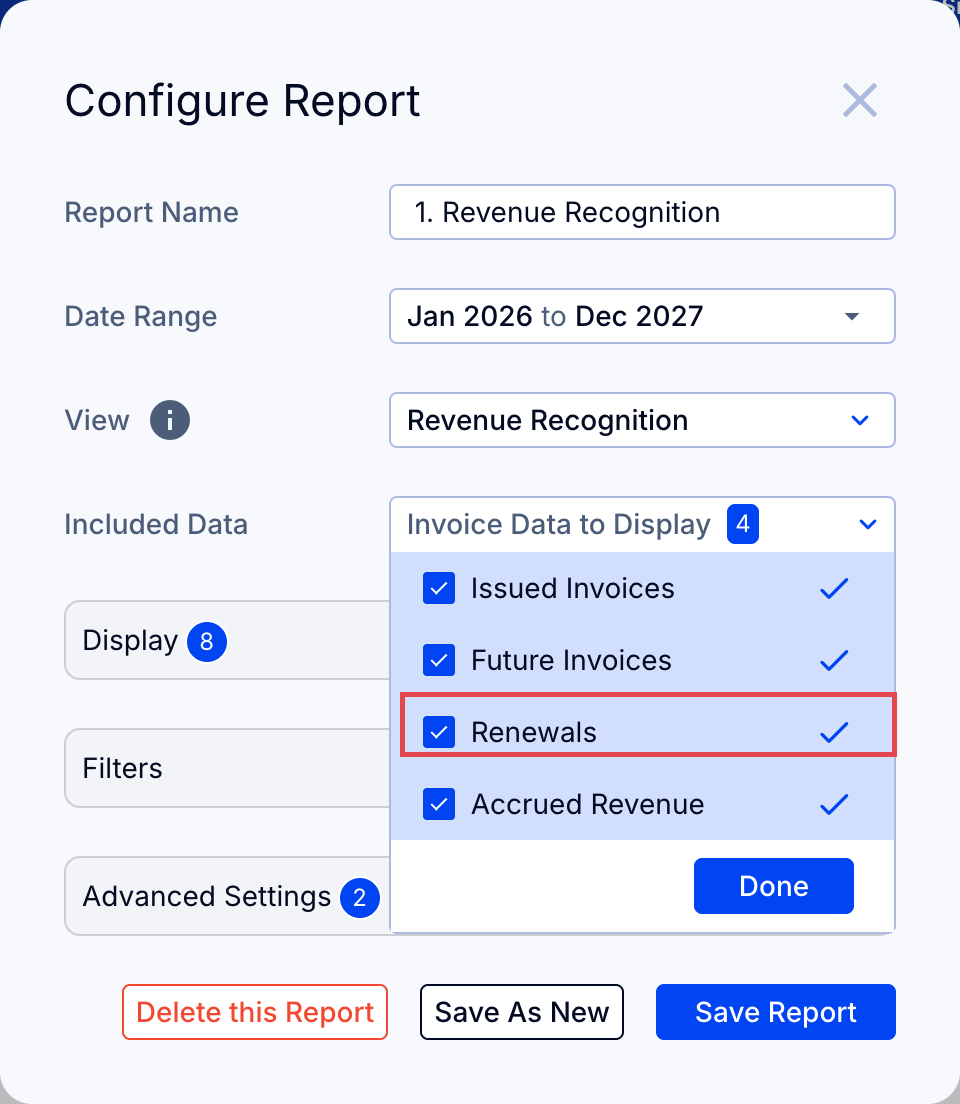
2. Add future invoices to a Customers tab report
- Go to the Customers tab and open an existing report, or create a new one.
- Click Configure report.
- Under Included data, check Future invoices.
- Save the report.
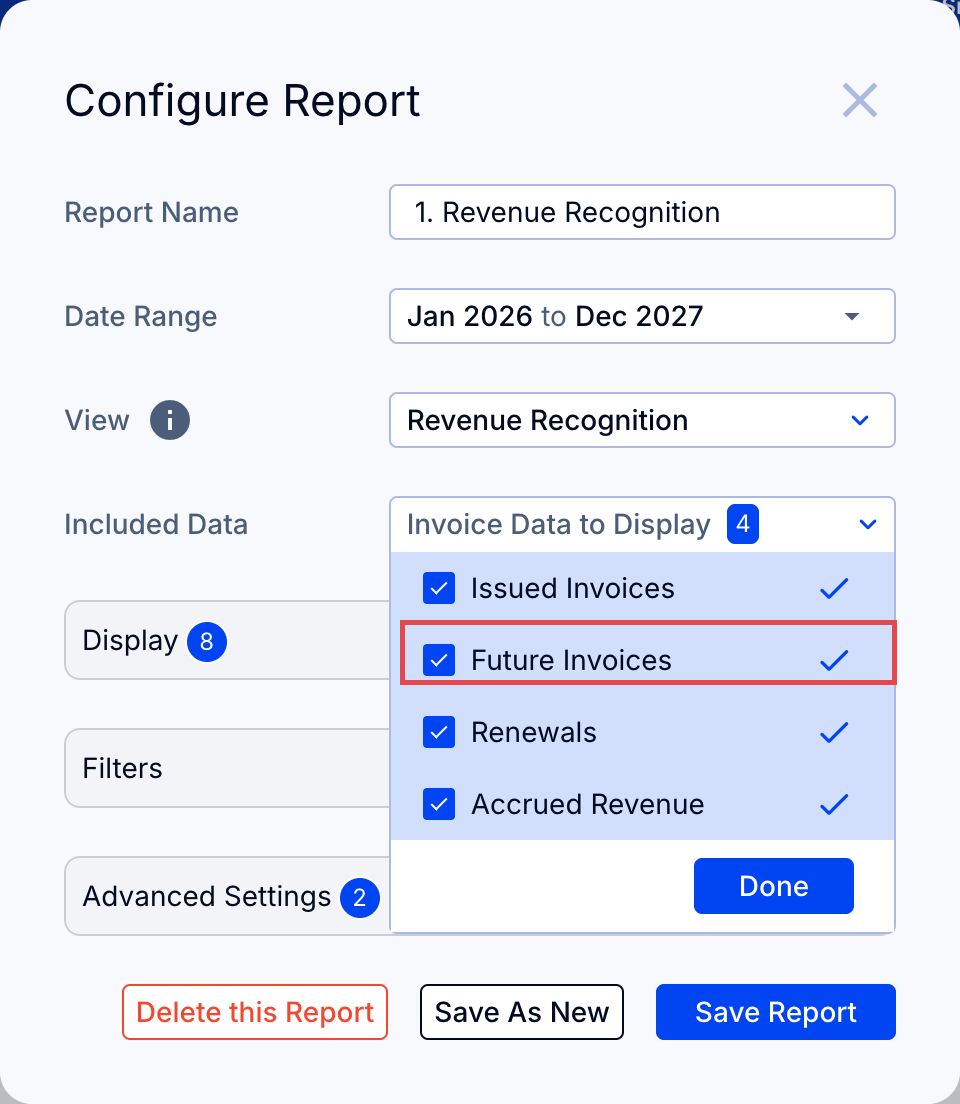
Troubleshooting: Renewals or pending (future) invoices missing from a report
- Pending invoices only appear once the related deal has been moved to Closed Won in your CRM - until then, ScaleXP has nothing to pick up.
- Confirm the deal's pipeline is included in your CRM configuration - see Select pipelines to include.
- For a fuller breakdown of causes, see Why are some of my pending invoices missing from my sales report?
What are renewals and pending invoices on the Customers tab?
Renewals are the expected next contract for each customer, generated automatically once a contract is created in ScaleXP - see View and manage your renewals schedule.
Pending invoices are invoices not yet issued but identified to be issued in the future as part of a contract. They are generated automatically from repeating or one-off invoice templates set up in HubSpot using ScaleXP Invoicing - see How to set up ScaleXP Invoicing (Step 1): Installing the invoicing module. If you do not use ScaleXP Invoicing, you will not have pending invoices to add.
Both are added to a report the same way, using Included data in Configure report.