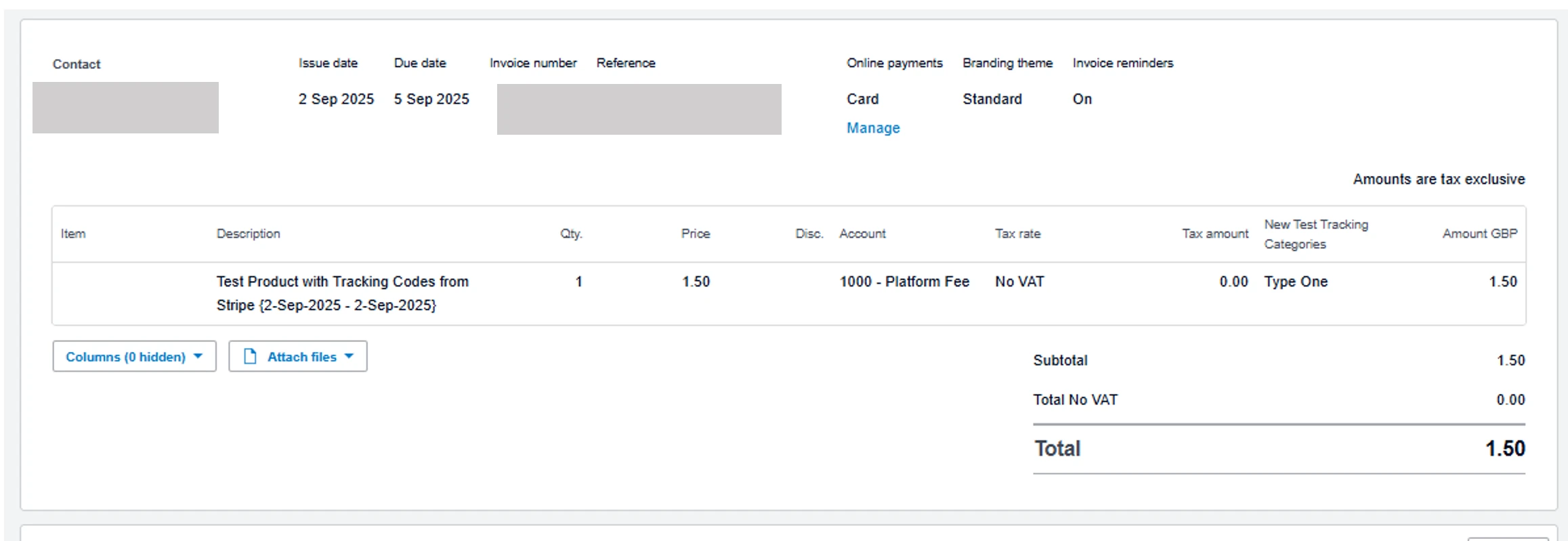
Set up tracking categories in Xero, add matching metadata in Stripe, then map it in ScaleXP so the tracking codes are set on imported invoices automatically.
1. Set up tracking categories in Xero
- If you've not set up the desired categories of data in your accounting system, set them up in Xero. See this article from Xero: Set up Xero tracking categories.
Once set up, these fields will be automatically added to the invoices generated in your accounting system and synced with ScaleXP reporting.
2. Add the metadata to Stripe
- Add the metadata to Stripe at line item level in any of the following ways:
- Add subscription metadata in Stripe.
- Add metadata to the price or line item on the invoice.
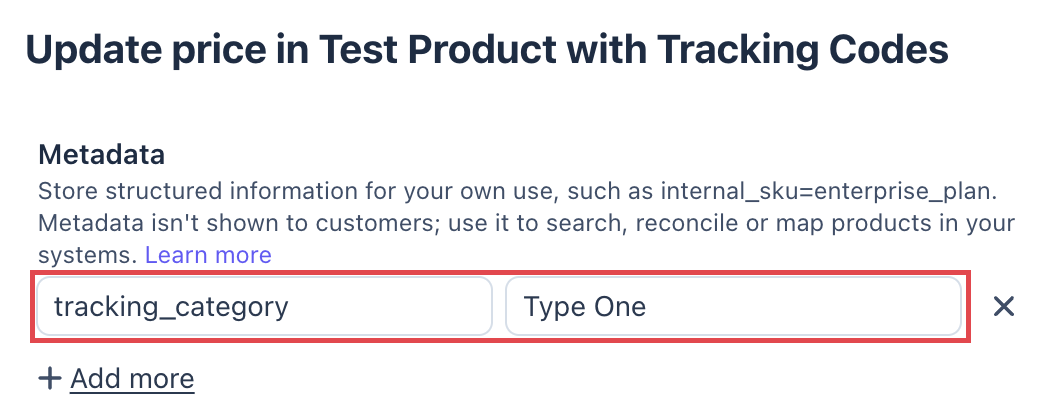
See this Stripe article on Metadata parameters.
3. Map the new fields in ScaleXP
- In ScaleXP, go to Load Data (top bar) > Connections (left sidebar) > Stripe card > Configure. In the Mapping section, click Edit next to Tracking codes.
- Type in the name of the Stripe metadata category, exactly as you set it up in Stripe.
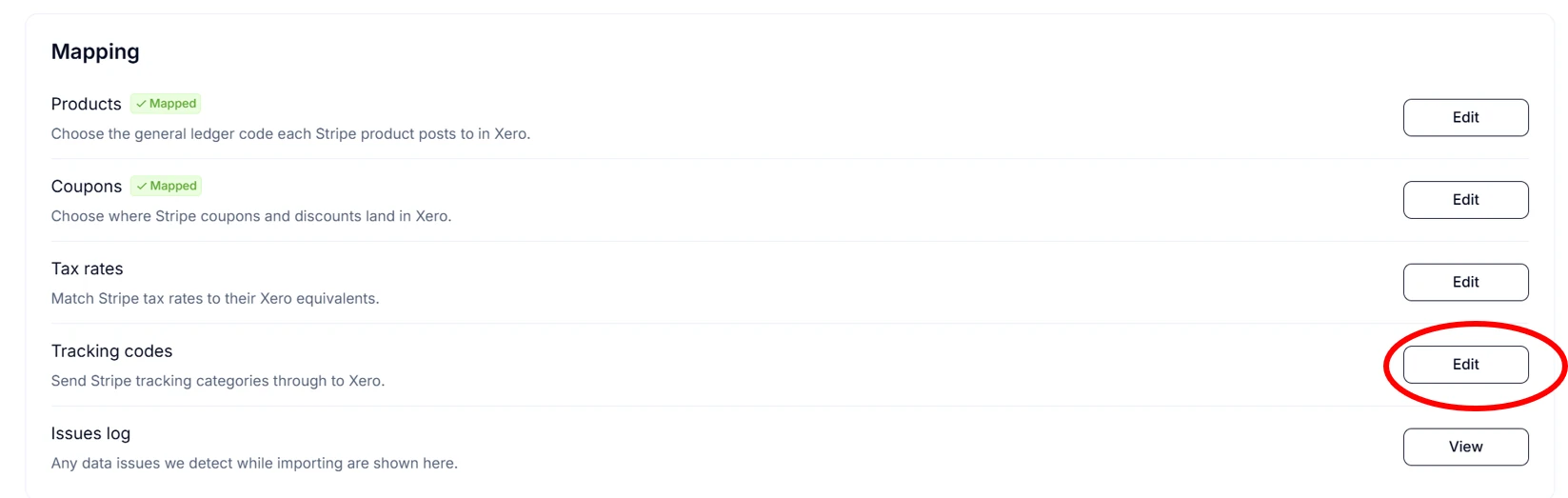
Invoices will include metadata fields from the time the mapping is complete, using the data associated with the price you have invoiced in Stripe.
Example invoice (Xero):