A trial balance report lists every ledger account with its debit or credit for each column of the report, so you can check that your books balance.
1. Create a trial balance report
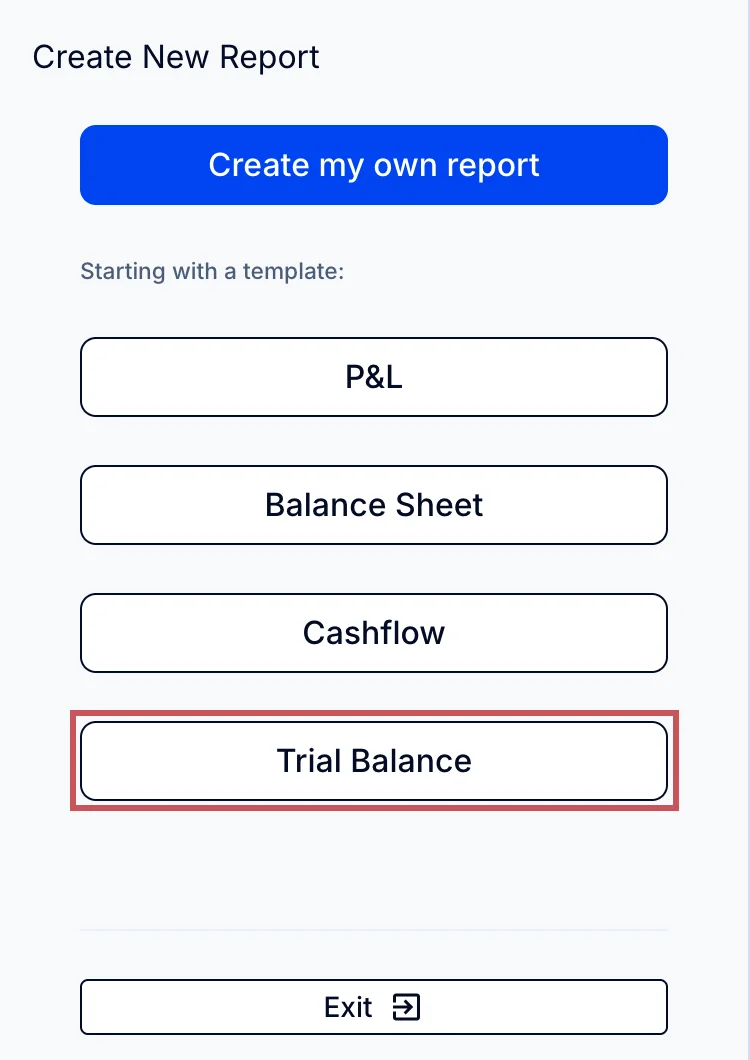
- Go to Reports and click + New at the top of the sidebar, then New report.
- Under Starting with a template, choose Trial Balance.
- Set the columns as you would for a P&L report: on the Time tab choose how many Months, Quarters and Years to show and, if you want, a budget under Compare to. Use the Fixed Period tab to report from a fixed start date, or the Tracking Codes tab to report by tracking code. The preview on the right updates as you go.
- Type a name for the report in the title box at the top of the preview and click Save.
Later, you can change the report's columns (for example to add year to date, variance or entity columns) with Edit. The rows of a trial balance are always every ledger account, so there are no rows to edit.
2. Read the report
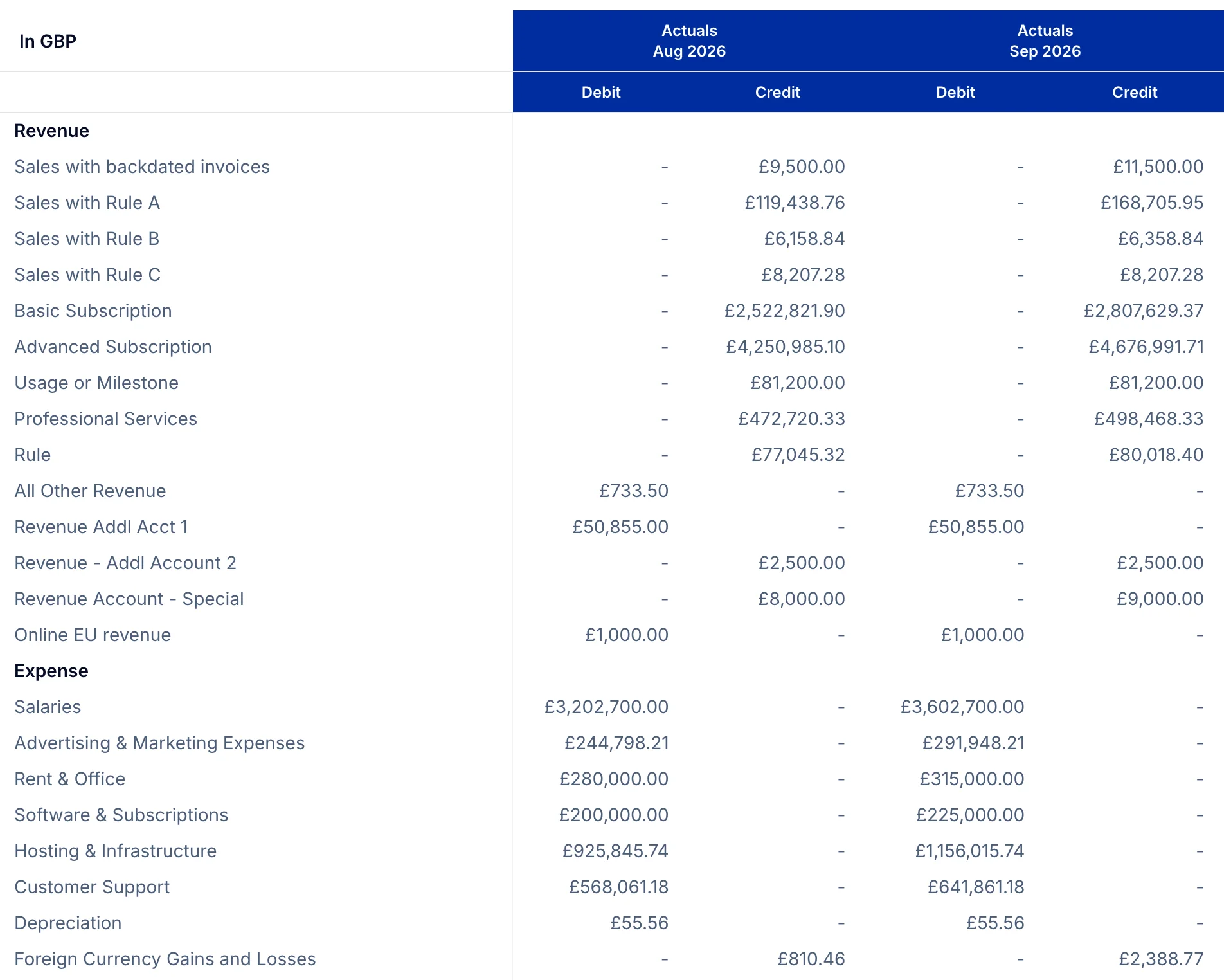
- Accounts are grouped under Revenue, Expense, Asset, Liability and Equity.
- Each column of the report has a Debit and a Credit under it, and each account's balance shows on one side.
- P&L accounts show the financial year to the end of the column, so every actuals column balances.
- The Total row adds up the debits and credits. If an actuals column doesn't balance, the row reads Total (debits and credits do not balance) and that column's totals turn red.
- Your report's format settings, such as showing GL account numbers, apply as on other reports.
3. See the transactions behind a figure
- Click a figure on a P&L account to see that account's transactions for the year to date. Balance sheet accounts don't open transactions from the report.
- To export the transactions for a period, choose Download Transaction Detail from the report's Download menu. It lists the lines for every P&L and balance sheet account. Balance sheet accounts show only the period's documents and manual journals, so their lines don't add up to the account balance.
See How to see transaction detail behind account balances and How to download a report to Excel.