Data is synced daily from all of your connected systems; when you can't wait for the next daily import, use Option 1 to sync all subsidiaries of a consolidated group from the parent company, or Option 2 to sync a single connection, which also brings in the most recent changes from your accounting system.
Option 1: Sync all subsidiaries from the parent company
If you have a consolidated group, you can sync all of your subsidiaries' accounting data in one go from the parent company, without switching between companies.
- Select your parent company in the company dropdown at the top right.
- Go to Load Data > Connections.
- Click Sync all subsidiaries next to the Your connections heading.
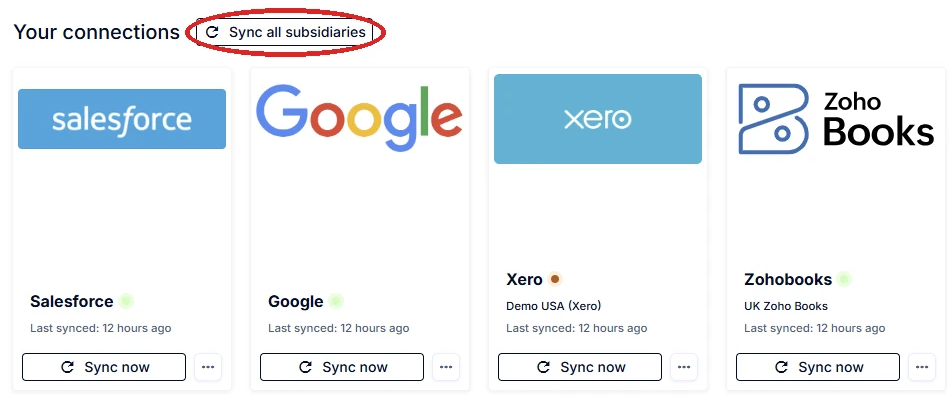
This runs a sync of all of your subsidiaries' accounting connections (Xero, QuickBooks and Zoho Books) and their Stripe connections. It does not sync Google Sheets or your CRM. To refresh those, use the Sync now button on their own connection cards.
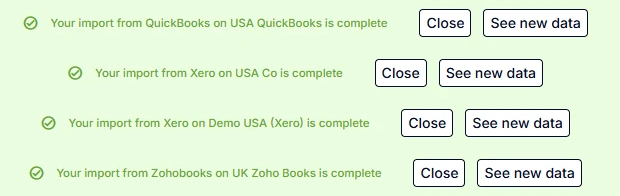
While the sync runs, a status message appears at the top of the page for each connection and updates as each import finishes. When every import shows as complete, click See new data to view the updated figures, or Close to dismiss the message.
Option 2: Sync a single connection
Use this to refresh one system, or to see the most recent changes to data in your accounting system.
- Go to Load Data > Connections.
- Click Sync now on the card for the system you want to refresh.
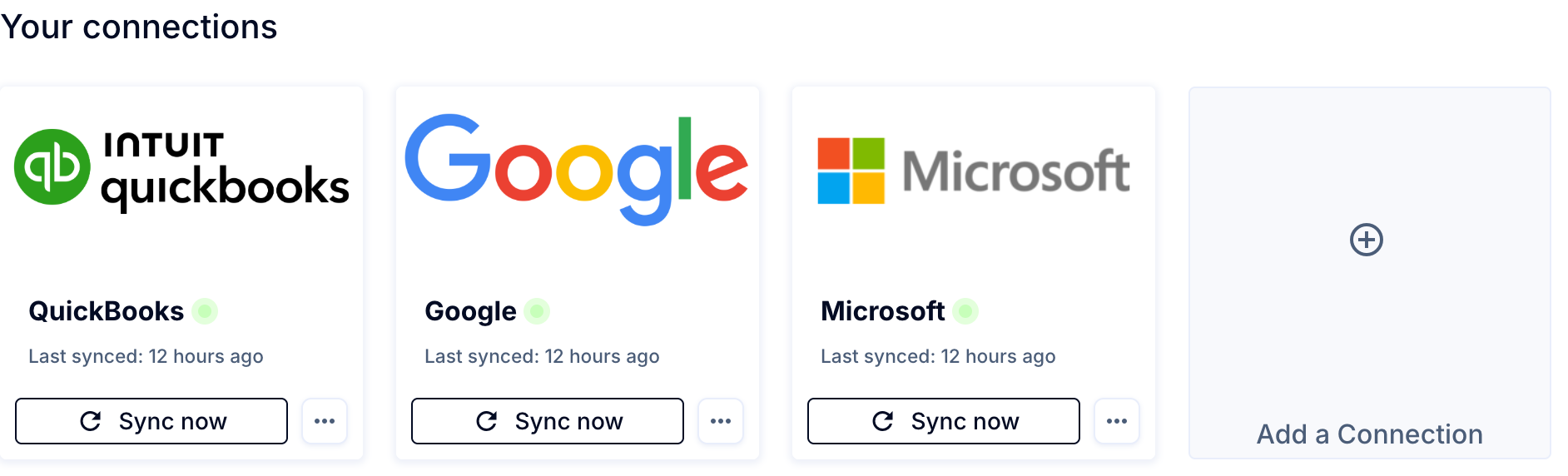
Note: Accounting connections are at the subsidiary level, and CRM data is imported at the parent company level.
Note: There is a short delay between making changes in your accounting system and the data appearing in ScaleXP. For Xero and QuickBooks changes, this takes a few minutes. For Sage and Zoho Books changes, it takes 1-2 hours.
How far back a sync goes
By default, ScaleXP only re-imports accounting data going back 6 months. You can change this at any time. See How often is data imported? When is data synced? and Why is my accounting data not updating when I sync? (How to increase sync history).