You can view, modify and add your ScaleXP connections, instantly sync files and control auto sync settings in Load Data > Connections.
1. Disconnect a connection
- Go to Load Data > Connections.
- Click the three dots next to the connection (for example, your Xero connection) and click Disconnect.
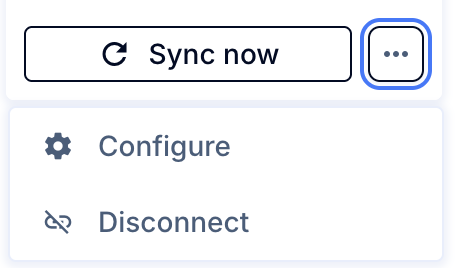
Disconnecting your system removes ScaleXP's permissions to that data in your accounting system. No data will be visible in the reports, including historical figures. We do keep minimal metadata in ScaleXP in case you want to reconnect later. If you want to completely delete your connection, let us know at [email protected].
How it works
In a consolidated organization, the parent's Connections page groups connections by company: the parent's own connections come first under its name, then each subsidiary has its own section. Subsidiaries with no connections are not shown. Sync all subsidiary connections syncs every company at once.
A connection's settings page shows which organization it is linked to and that organization's currency, under the title (for example, Connected to Demo Company (UK) · GBP). For some systems, such as HubSpot, only the Currency is shown. If a connection uses a different currency from your ScaleXP organization, an amber Currency mismatch warning appears at the top of the connection's settings page and of the connections list.