Presentations (top bar) already holds at least one pre-built template set up for you.
Presentations allow you to share any combination of reports, graphs and text as a pack which can be downloaded to PowerPoint and/or shared online.
There is at least one pre-built template already set up for you in Presentations (top bar).
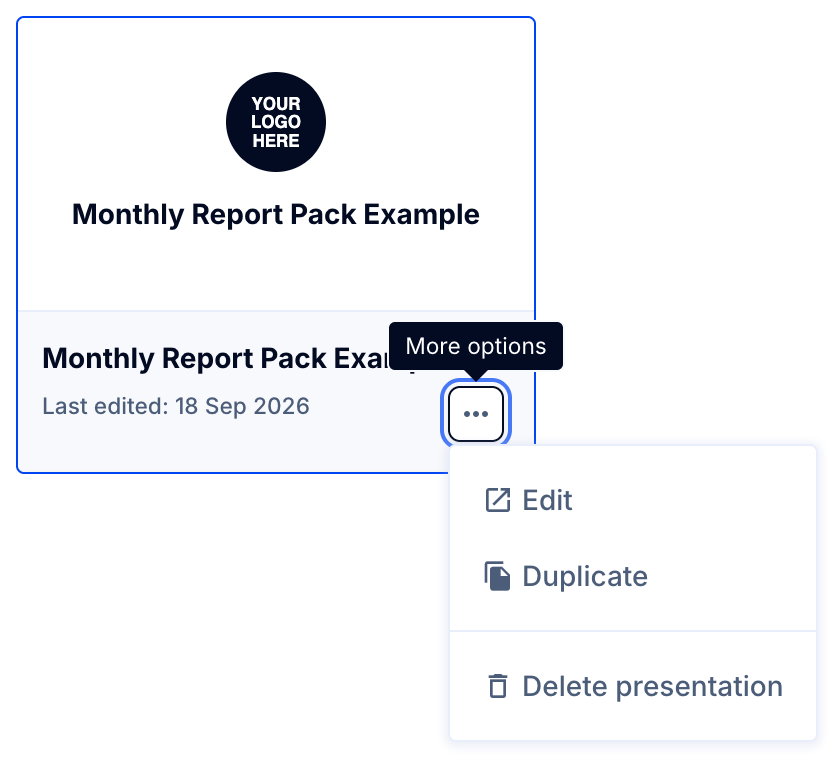
- Go to Presentations (top bar) > select a presentation to edit or copy > click the presentation to edit or use the three dots (bottom right of presentation) to Duplicate.
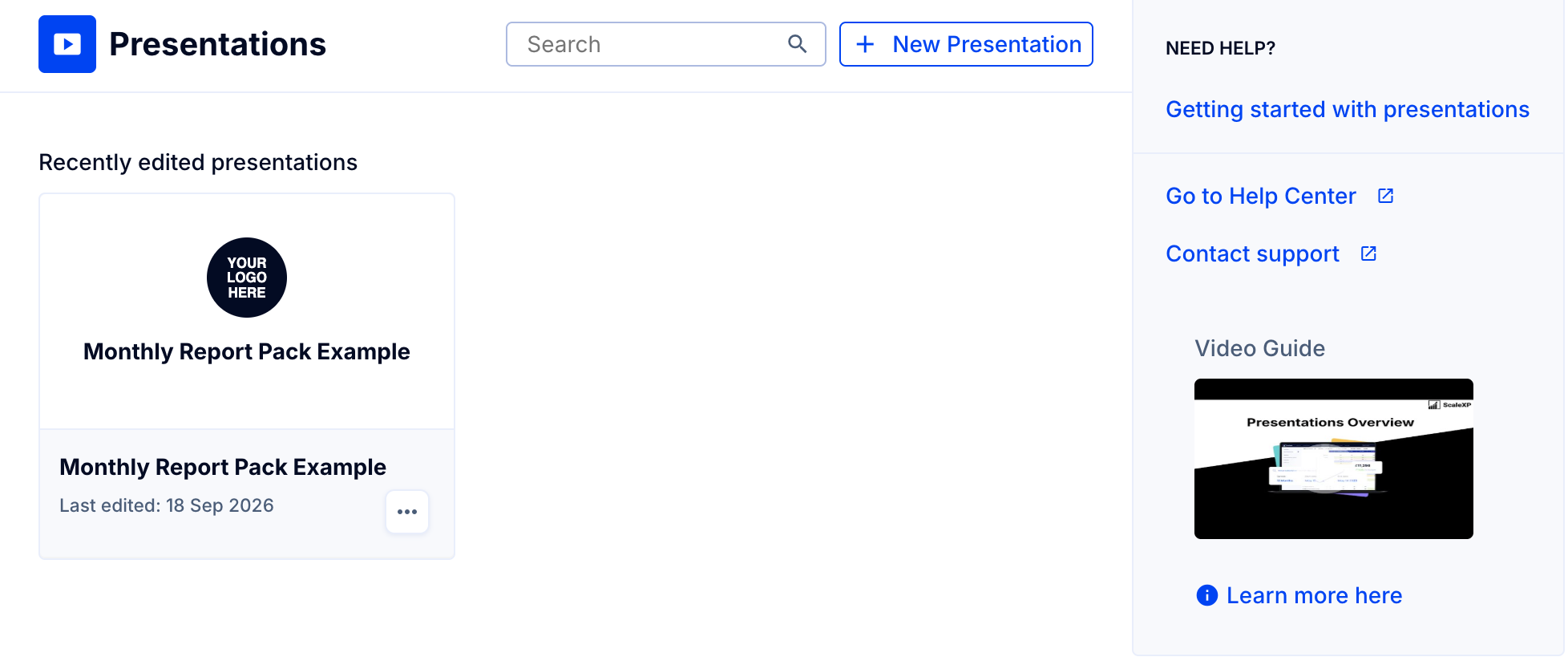
To create a new presentation from scratch, go to Presentations (top bar)>+New Presentation (top right).
See this article on How to add a page to a presentation
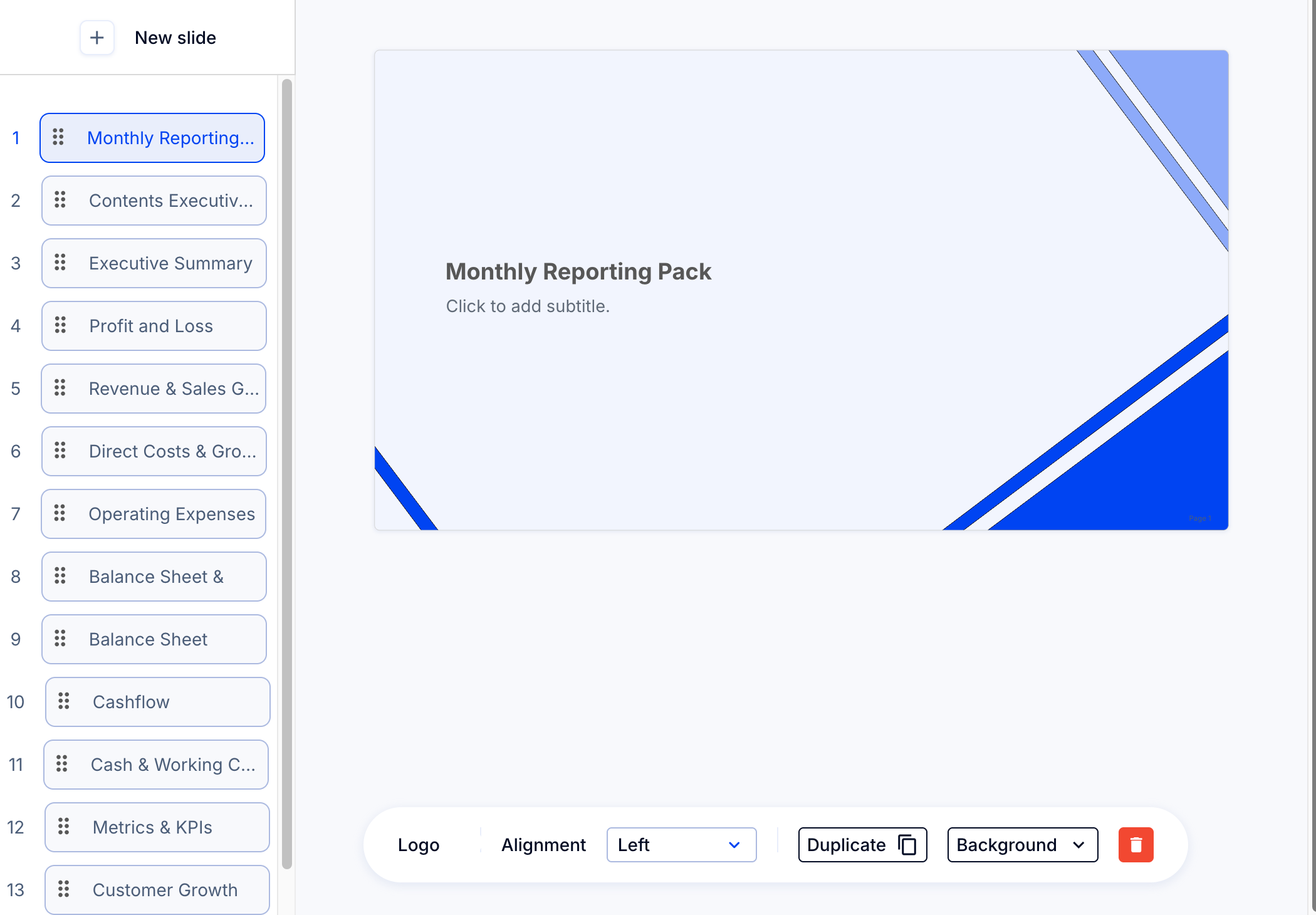
Once in a presentation, all slides are listed on the left side. Click the slide to be modified (see screenshot below).
From the menu at the bottom middle (circled below), you can:
- Duplicate the slide (Duplicate Slide button, middle);
- Delete the slide (trash can icon, far right).
To change the content of the slide and/or format specific elements, see detail by content type in the section below.
To change the style for that specific slide:
- Turn off the Title text (on/off toggle);
- Turn off the Logo (on/off toggle) - How to change or add your logo in ScaleXP
- Change or add a Background image (Background menu)
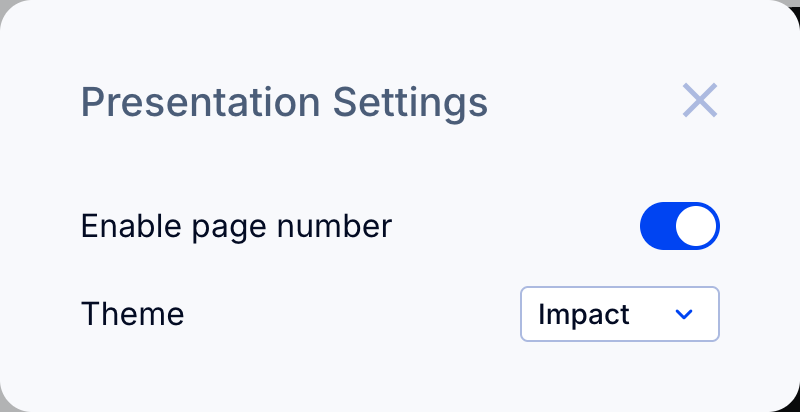
To change the style of the entire presentation, use Presentation Settings (cog icon at top right corner) to:

- set page numbers (turn on or off for all pages in the presentation) and/or
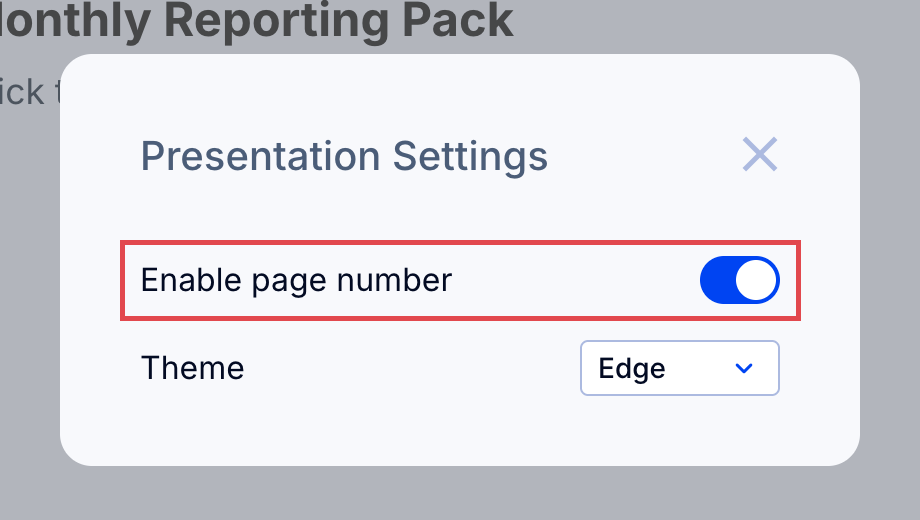
- change style template Themes and associated backgrounds, all in your brand colors (How to set brand colors in ScaleXP).
To change the content of a page,
- Use the date selector at the top right to select a new end date; save with "Done" to keep this end date for the selected presentation.
To edit or replace content, click on the content to reveal the relevant editing options - see detail by content type below.
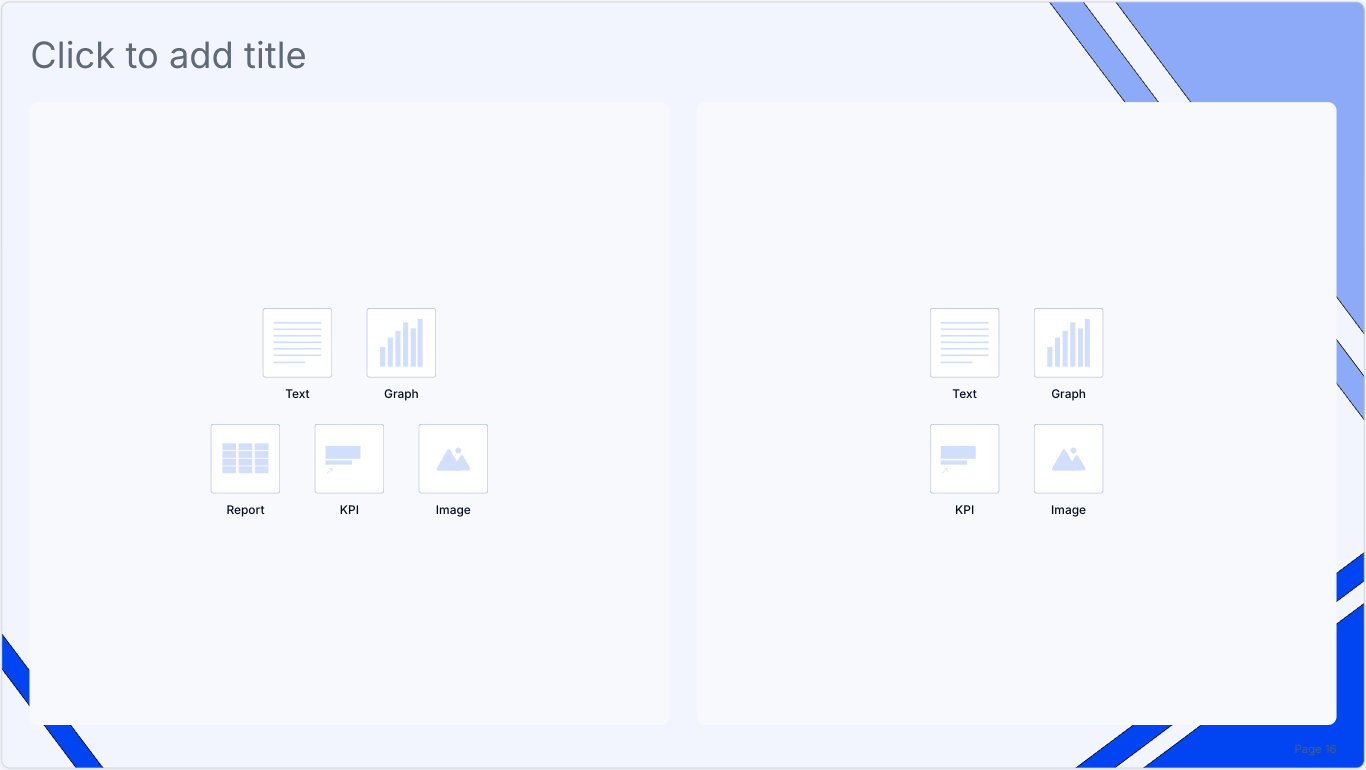
To change content type (for example, from report to chart or text or vice versa), click on the existing content > delete it (trash can icon at far right) and > select the new content type.
To change to a new slide layout (different number of content types or different arrangement), create a new slide and delete the old one; see more in How to add a page to a presentation
Content editing
Click on content to reveal a content-specific edit menu at the bottom of the screen for formatting and changing content.
- Chart

- Edit menu:
- Use Fill Container to change the size and look of the chart in the space provided;
- Use Comment to add short explanatory text below the chart
- Use Border to add or take away the border around charts
- Use Replace Chart to select a new chart
- Select from a wide selection of preconfigured charts or any chart you have created in Dashboards;
- If you can't find the chart you want, try creating it in Dashboards first; view Getting started with dashboards for more help
-
Report
- Edit menu:

- Use the report dropdown to select a different report
- Select any report that is saved in Reports; if you don't have the report you need, create a new one in the Reports section (top bar).
- This article How to create a new custom report will help you.
- Text:

- Type your own free text here
- Edit menu:
- Choose text font style, size, format, color, background color, alignment and indentation level (bold, italic and the other formats are under the three dots)
- Use the trash can icon at the far right to remove the text box; it can then be replaced with a different content type.
-
Image
- Select any .png or .jpg file to upload
- Use the Edit menu (bottom of screen after clicking on the image) to replace the image or delete it.
Exit and save using Done (top right button).
To share, use the Share button (top right) or download to PowerPoint using the download button (top right).
If you need more help with this, you can view How to download a presentation; How to share a presentation
To view in full screen, use the arrow button at the top right.