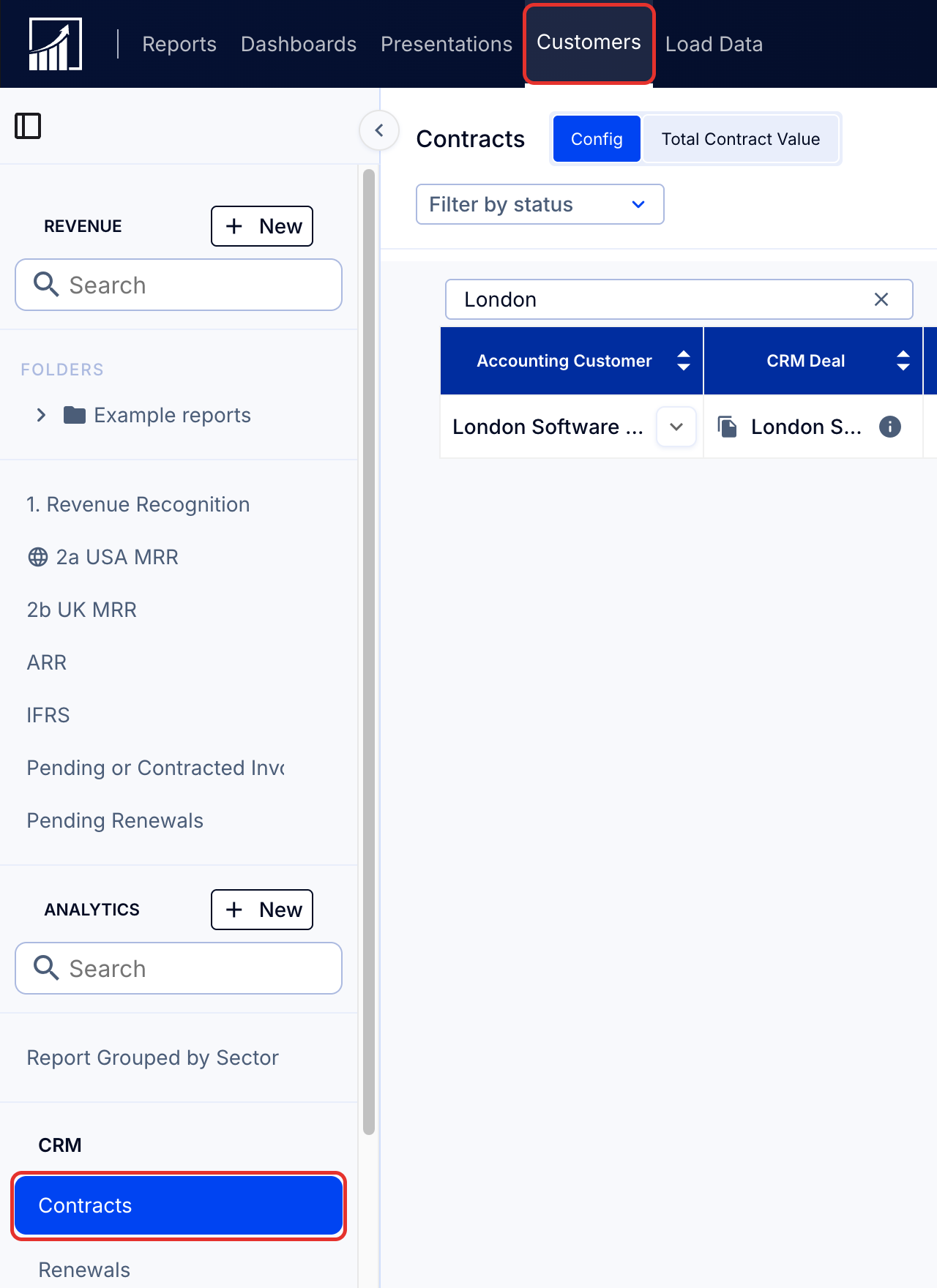
Make changes to contracts on the Contracts page: select Customers (in the top nav bar), then Contracts.
1. Add an invoice, repeating invoice or credit note to a contract
- On the Contracts page, edit the contract and add the invoice.
See details in How to add an invoice or repeating invoice to a contract if you are not using ScaleXP Invoicing.
The current contract value will update automatically to the new invoice total. The contract end date will change to the latest end date of the included invoices.
2. Modify an invoice associated with a contract
- Modify existing issued invoices in your accounting system.
- Modify future invoices on the Contracts page of ScaleXP.
3. Remove an invoice or credit note from a contract
This applies to both issued and future invoices.
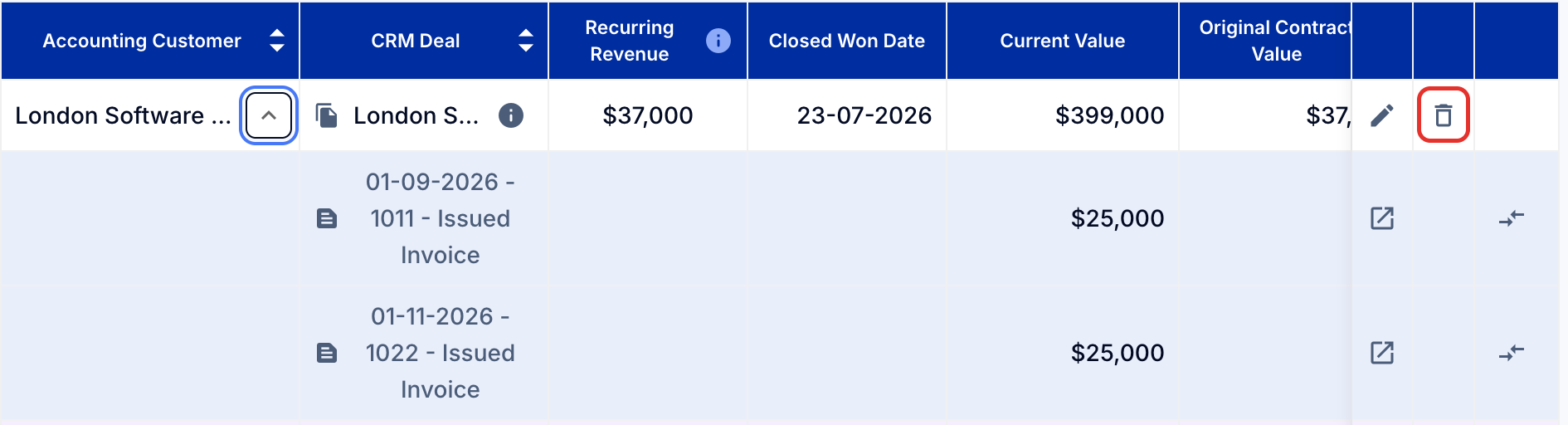
- On the Contracts page, click the trash can icon next to the invoice.
This will remove the invoice from the contract, but the ‘Issued Invoice’ will remain in ScaleXP. (It will still appear in the Revenue Recognition and MRR reports.)
The current contract value will update automatically to the new invoice total. The contract end date will change to the latest end date of the included invoices.
4. Move an invoice or credit note from one contract to another
This applies to both issued and future invoices.
- Change customer details in the accounting system first, if required.
- Remove the invoice from one contract and add it to another, as above.
The current contract value will update automatically to the new invoice total. The contract end date will change to the latest end date of the included invoices.
5. Merge contracts
To merge contracts, move invoices from one contract to the other. Each Contract can have only one accounting customer, so ensure this is possible first.
If your customers are duplicated in your accounting system, these should be merged first, in your accounting system.
If you have a consolidated entity, merging customers must be done at the subsidiary level. Customers cannot be merged across accounting entities.
- Open the relevant contract: expand it with the arrow next to the customer name.
- Click the Move invoice icon at the right of each invoice. Each invoice will need to be moved.
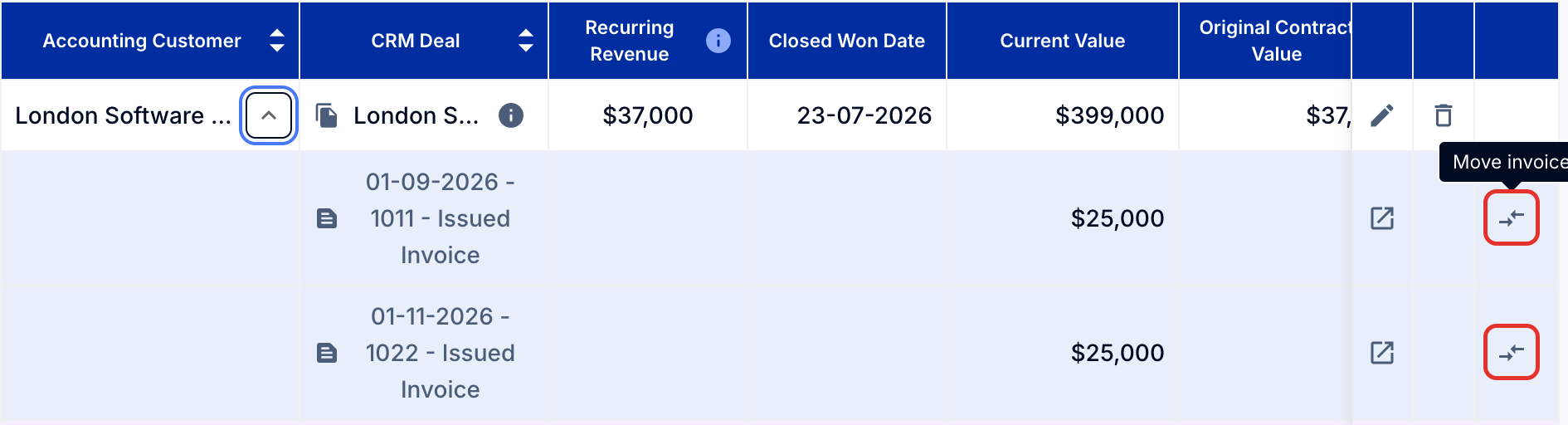
- Once the invoices are moved across, merge the contracts by deleting the empty contract.
6. Split a contract
- Create a new contract on the Contracts page.
- Move invoices: find the invoices to be moved to the new contract.
- Delete the invoices from the initial contract (issued and future).
- Add the invoices to the new contract (issued and future).
- Modify issued invoices in your accounting system, then sync.
7. Delete contracts
- Find the contract on the Contracts page.
- Click the trash can or bin next to the contract name.
Change contract values
Current contract value updates automatically based on the total value of all associated invoices.
Original contract value
Original Contract Value comes from your CRM deal if there is one.
If not, it is the value entered manually for Contract Value on creation of the contract.
Current contract value
Current Contract Value is the total of all invoices attached to the contract in Contracts. It updates automatically.
See above for how to add, delete, or modify associated invoices.
In a consolidated company, the current value is set in the currency of the subsidiary's accounting system, then translated to the parent company using the invoice rates table at the parent company. See FX rates: What foreign exchange rate is being used?
Change the contract start date
The start date comes from the CRM field you mapped when you connected your CRM, or from the deal close date if no field is mapped. It updates on each sync until you change it in ScaleXP. To change the mapping, see Subscription management and renewal tracking: Getting started with CRM integration (step 2, Map your CRM data in ScaleXP).
To change the start date of a deal, open New Sales In Progress on the Customers tab. You can't edit it on the Contracts page, because contract dates come from your CRM. The only exception is an organization with no CRM connected that adds its contracts by hand.
Once you change the start date in ScaleXP, CRM updates no longer overwrite it.
Change the contract end date
This automatically updates to reflect the latest end date of associated invoices.
View and create contracts
To find out how to view the contracts you have, see View your contracts: An overview of contracts in ScaleXP.
To learn how to create a new contract, see How to add a contract.