To change the historic foreign exchange rates ScaleXP uses across all accounts in the P&L or balance sheet, enter your own rates under Load Data > Actuals FX Rates.
1. Change historic FX rates for all accounts
- Go to the consolidated entity (if relevant).
- Go to Load Data (top bar) > Actuals FX Rates (left sidebar).
- Select Average (dropdown menu, top right) for the P&L, or Last day (dropdown menu, top right) for the Balance Sheet.
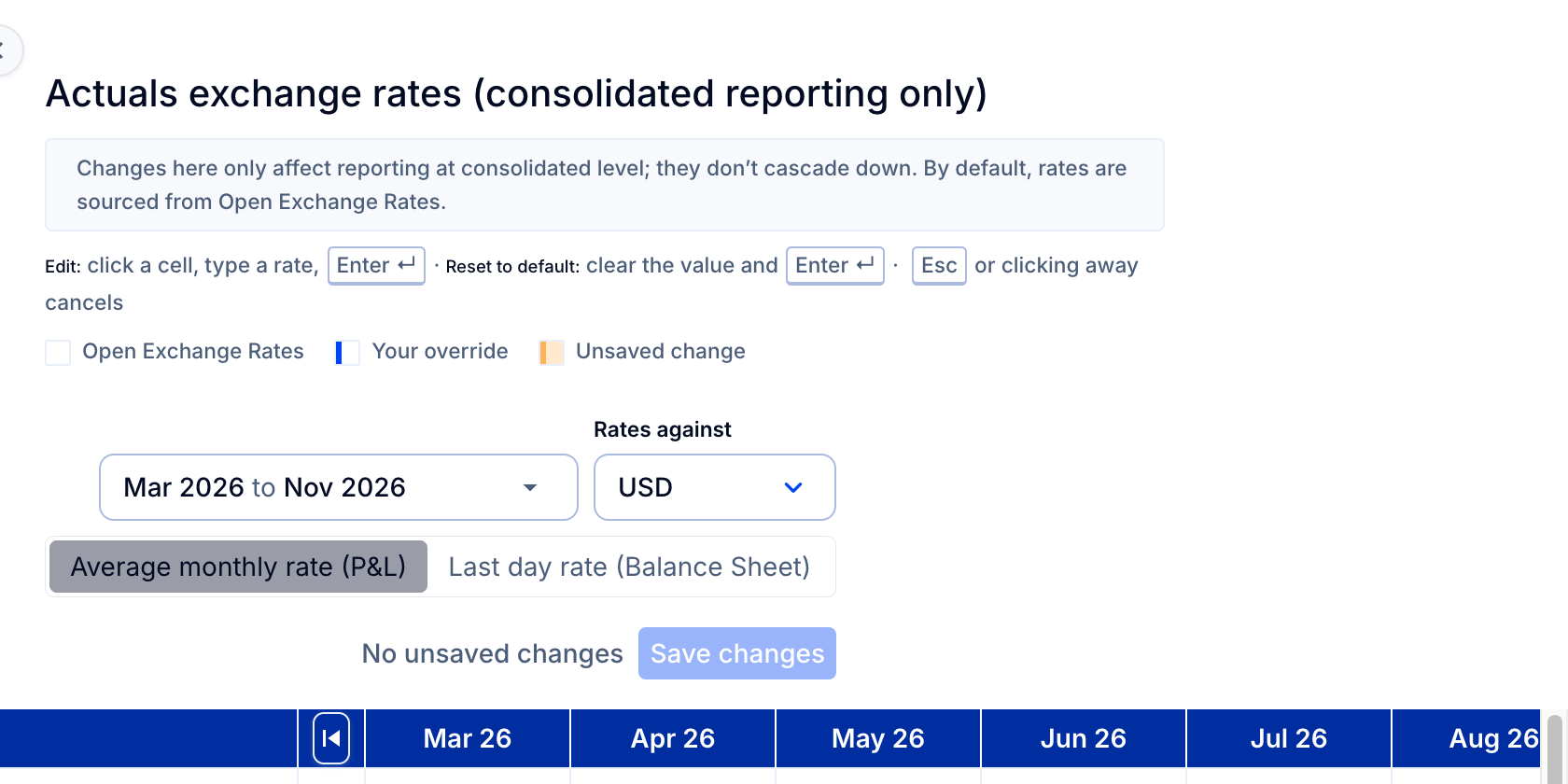
- Make changes to the currency rates and dates you wish to adjust and press Enter.
Once changed, these rates will replace the default rates used by ScaleXP, which are sourced from Open Exchange Rates and shown to four decimal places.
Note: Changes made at subsidiary level will not be picked up in consolidated reporting. To change FX rates used in consolidated reporting, enter the rates at the consolidated entity.
Tip: If your data is not saving, be sure to press the Enter key after each entry.
To change the exchange rates account by account (on the balance sheet only) see How to adjust foreign exchange rates: consolidated balance sheets.
For an overview of which exchange rates are used where, see FX Rates: What foreign exchange rate is being used?.
Consolidated customer page reports
FX rates for invoices and Customer page reporting at consolidated level are shown separately in the table Invoice FX Rates. This is only visible at the consolidated entity and only applies to FX rates between the subsidiary currency and the parent currency. By default, it is the same as the P&L rate (that is, average for the month).
Translations from the invoice currency to the subsidiary currency are taken from your accounting system and cannot be adjusted within ScaleXP. Similarly, invoice FX rates cannot be adjusted individually; all rates apply to any invoices issued in that month.