To use a different exchange rate for a balance sheet account at a consolidated company, set a spot rate for it in Load Data > Balance Sheet FX Adjustments.
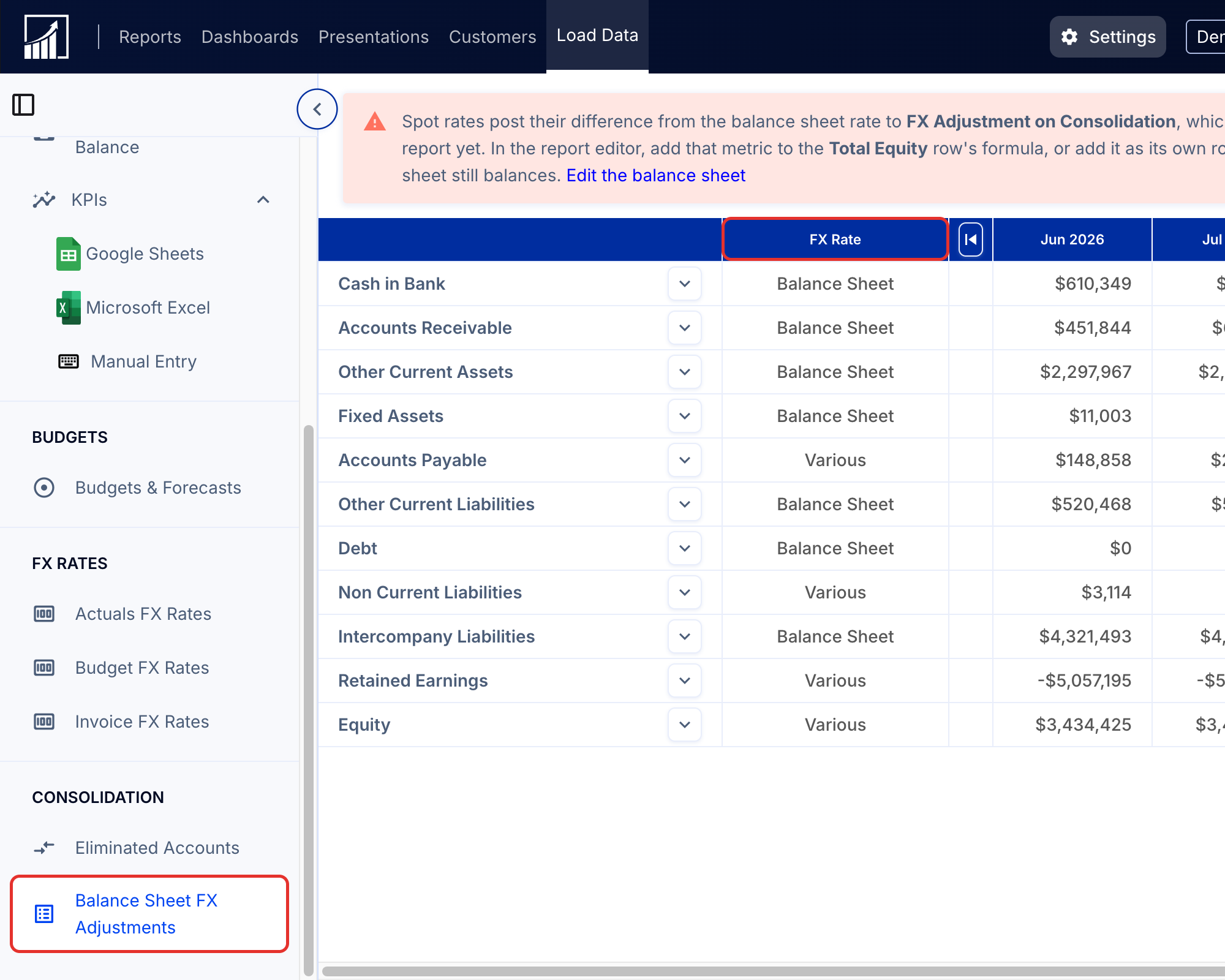
1. Open Balance Sheet FX Adjustments
- In a parent (consolidated) company, go to Load Data > Balance Sheet FX Adjustments. You will find it under Consolidation in the left-hand menu.
2. Set a spot rate
- Expand the balance sheet group and find the account to be adjusted.
- In the FX Rate column, change the account from Balance Sheet to Spot Rate. A row for the spot rates appears under the account. Spot Rate is only available for accounts whose company uses a different currency from the consolidated company.
- Click a month in the spot rate row, type the rate and press Enter. The rate is saved straight away and a Spot rate saved notification appears. Press Esc or click away to cancel without saving.

A few things to know when entering spot rates:
- Up to 6 decimal places. Rates are stored to 6 decimal places. If you type more, the cell shows Rates can have up to 6 decimal places and will not save until you shorten the rate.
- Rates must be greater than 0. A negative rate shows Rates must be greater than 0 and is not saved.
- Months without a rate of their own show the carried-forward rate.
- Clearing a spot rate. Hover over a month you entered a rate for and click the reset icon (Reset to default rate), or clear the cell and press Enter. The month goes back to the carried-forward rate.
If a save fails, a Couldn’t save the spot rate notification explains why. Try again once the issue is fixed.
3. Add FX Adjustment on Consolidation to your balance sheet
The rates will automatically be applied to the balance sheet and an "FX Adjustment on Consolidation" will be calculated automatically to adjust for the differences.
For the balance sheet to balance, that metric must be in your balance sheet report. It is included in some balance sheets already, but not in every company's, so check yours.
While any account is on Spot Rate and a balance sheet report does not include FX Adjustment on Consolidation, the Balance Sheet FX Adjustments page shows a warning above the table. It names the report and tells you to add the metric to the Total Equity row's formula, or add it as its own row under equity, so the balance sheet still balances.
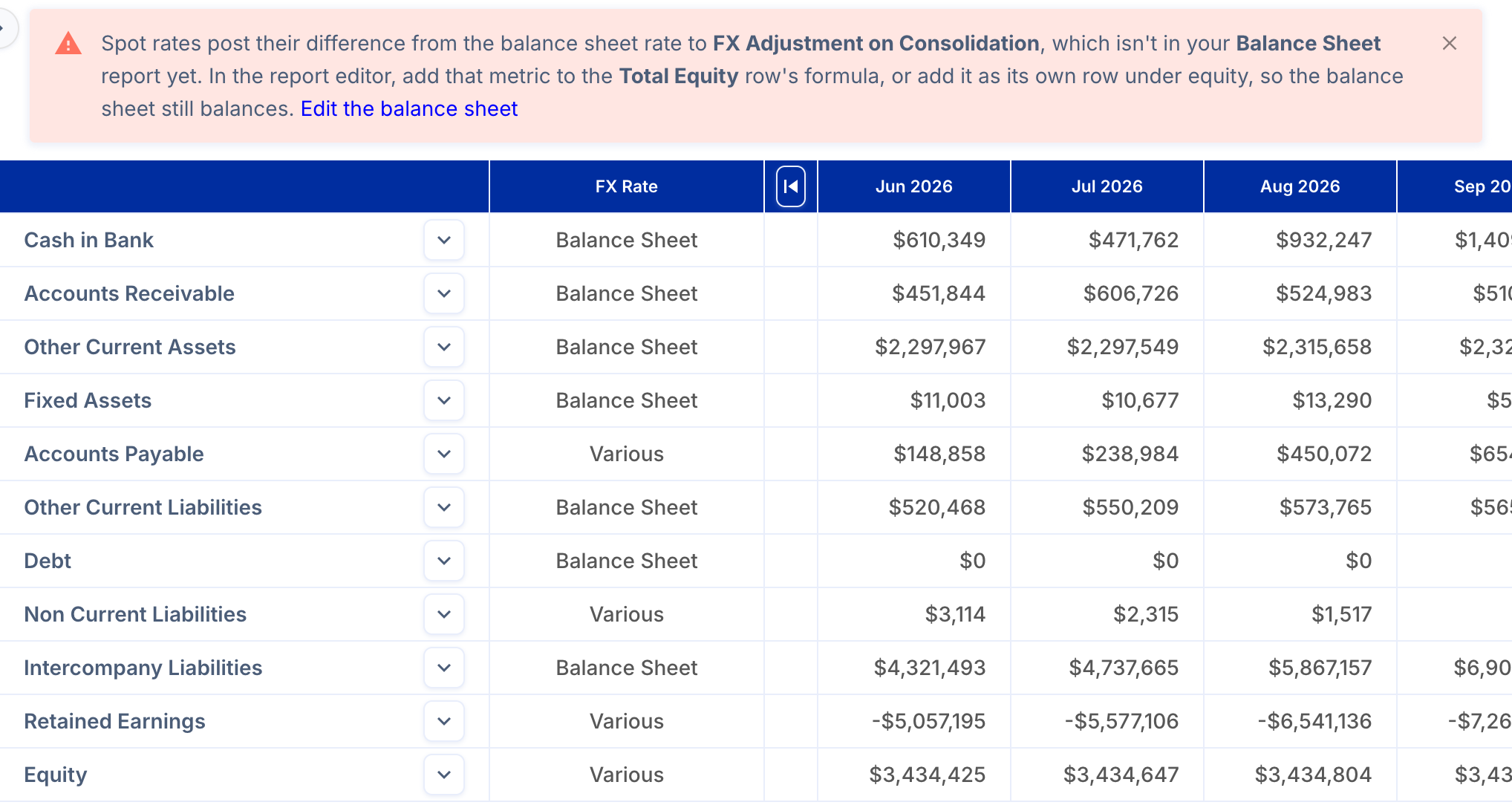
To fix it:
- Click Edit the balance sheet in the warning. The report editor opens in a new tab.
- Add FX Adjustment on Consolidation to the formula of your Total Equity row, or add it as its own row under equity, and save the report.
- Return to the Balance Sheet FX Adjustments tab. The warning disappears once every balance sheet report includes the metric.
Note: You can close the warning, but it comes back the next time you open the page until the metric is added.
How it works
By default, all balance sheet accounts at consolidated companies in ScaleXP are consolidated at the same exchange rate for a given month. This is based on actual month-end rates: the balance sheet uses the exchange rate on the last day of the month (the P&L uses the average of the daily rates across the month). Rates are shown to four decimal places and sourced from Open Exchange Rates, www.openexchangerates.org.
This method is very useful for management accounting and consistency across accounts. However, you may wish to adjust certain balance sheet accounts to reflect IFRS / GAAP rules as applied to your specific circumstances and applicable historic exchange rates for your entities.