The setup checklist walks you through getting ScaleXP ready for the goals you chose, one task at a time. It shows what's done, what's next and how much is left.
Note: The setup checklist is switched on for selected organizations. If you don't see Get set up in the top bar, ask your ScaleXP contact to turn it on.
1. Open the checklist
- In the top bar, to the left of Settings, click Get set up. The button shows how many tasks are done, for example 14 of 17.
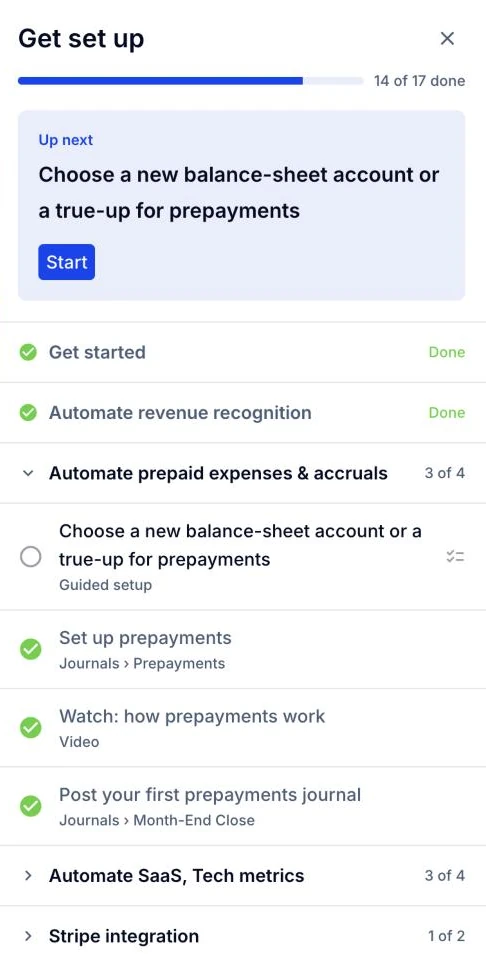
- The Get set up panel opens on the right, with a progress bar and the number of tasks done.
2. Work through your tasks
- Up next shows the next task to do. Click its button (for example Start) to go straight to it.
- Tasks are grouped by goal, such as Get started, Automate revenue recognition or Stripe integration. Each group shows how many of its tasks are done, or Done when it's finished. Click a group to open or close it.
- Under each task you see where it happens in ScaleXP (for example Journals › Prepayments), or whether it's a Video or a Guided setup.
A task ticks off by itself when you do it: visiting the page, saving the setting, opening the video or finishing the guided setup.
Note: Tasks on the Load Data pages only show to Admins.
3. Close and reopen the checklist
- To close the panel, click the X at its top right. Your progress is kept.
- To hide the checklist, click the X on the Get set up button. When an Admin hides it, it's hidden for the whole company.
- Once every task is done, or the checklist is hidden, the button becomes Checklist. Click it to open the panel again.